
You are here:
Manage Your Workspace in Marketing Cloud Intelligence
You can monitor row usage, upload images, and change your workspace settings.
| REQUIRED USER ROLE | |
|---|---|
| To manage your workspace | Admin |
-
On the left side of the navigation bar, click your workspace name.
 Note Some actions are available only for admins.
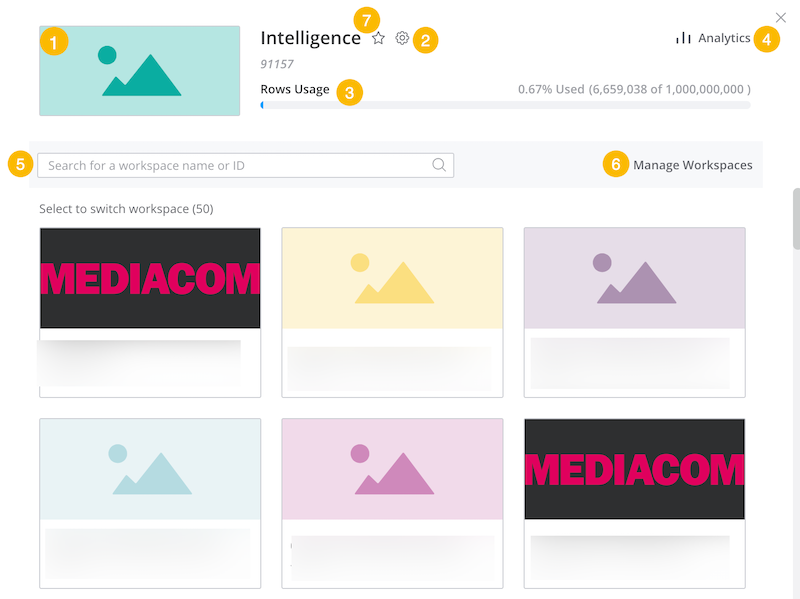
 - To upload an image, hover over your workspace image (1), click the pencil icon and then click Browse to replace. By default, the image appears as a thumbnail instead of the workspace name at the top left of the navigation bar and as a thumbnail when switching a workspace. You can change this setting when changing the workspace image.
- To edit your workspace settings, click the gear icon (2).
- You can see the number of rows your workspace uses in the Row Usage graph (3). Hover over the graph to see when the row usage was last refreshed. This value is refreshed every 60 minutes. To see more information click Row Usage.
- To see your workspace analytics, click Analytics (4).
- To switch to another workspace for which you have permissions for, search for a workspace by name or ID, or click a workspace tile (5).
- To view and manage all the workspaces in your account that you have permissions for, click Manage Workspaces (6)
-
To add a workspace to your favorites to easily find it, click the star icon (7) . Click
again to remove the workspace from your favorites
- Sharing Entities Between Workspaces in Marketing Cloud Intelligence
You can share common entities across workspaces and accounts. When the original entity is modified, you can opt to push the changes to all the workspaces that share the item. You can change only the original item, but you can de-link a shared item and then change it. You can also import new entities without updating existing shared items.
Did this article solve your issue?
Let us know so we can improve!
