
You are here:
Plan Your Budget Allocation
After you install the app, you can see the outline, or grid, of your budgeting plan. This grid contains all of the dimensions (in the hierarchy) alongside the timeframe, which was defined during the installation process.
Required Editions
| User Permissions Needed | |
|---|---|
| To run Marketplace apps: | Admins, Power Users, or Viewers |
The budget is entered or changed at the lowest level only. You don’t have to fill out the entire plan at once. You can fill it out at your own pace. Admins can upload a plan via the data stream’s log file and then import it back into the data stream, if necessary.
- In Marketing Cloud Intelligence, on the Marketplace tab, select Apps.
- Click Installed Solutions, and then select the Media Planning Center app.
-
To plan your budget, click the Plan tab.
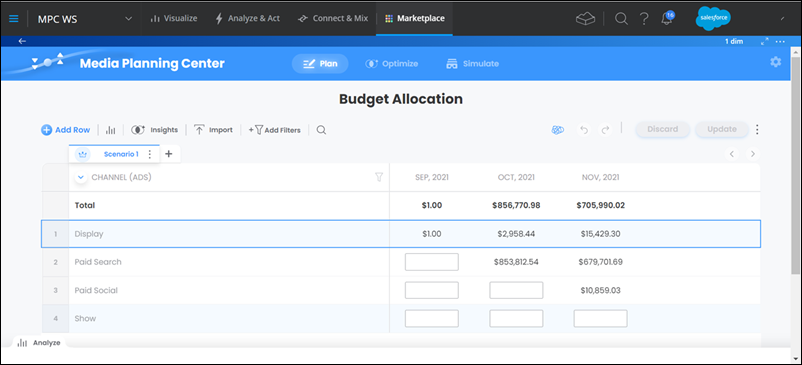
- To view more information and to analyze a specific dimension, click a dimension. The Analyze tab appears showing you a forecast of your future budget for this specific dimension. For more information, see Analyze Your Budget by Dimension.
-
To update the plan, make a change and then click Update.
 Note Every time the plan is updated a report is generated based on the data and the old data is replaced with the new data.
 -
To apply budget allocation to entire rows or columns, highlight the row or column in
question and then copy and paste to the row or column you require.
You can either apply a hard-coded value, or apply an arithmetic expression to every existing cell value. You can include expressions that multiply, divide, add, and subtract numbers.
- To import a cost measurement and use it as your budget, click Import and then select a cost measurement and define the year and increment the retrieval starts from.
-
To allocate the budget from the top level of your plan, right-click a row and select
Split Budget.
- Define how these top-level budgets trickle down to lower levels in the hierarchy. Use this option if you prefer to define budgets at the top for an entity, such as channel. Avoid meticulous calculations at the lower levels, for entities like campaign type, or strategy.
- You can edit the entire budget, and define the percentages by which it carries through to the lower levels.
-
Click Split when you’re done.
The budget is reallocated accordingly all the way down to the lowest level.
Did this article solve your issue?
Let us know so we can improve!
