
You are here:
Configure a Trigger Automation
Set up an automation that starts when a file is placed in an external location, such as Amazon S3, Google Cloud Storage, Microsoft Azure, or your own SFTP location.
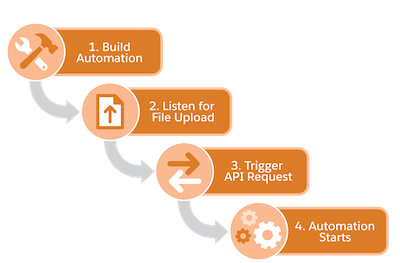
When you build a trigger automation, enter a file name pattern and choose a file location. Create a trigger API that monitors the external file location. Marketing Cloud Engagement listens for the trigger API and runs the automation when a file that matches the pattern is placed in that location.
- Click New Automation.
- Select Trigger.
- Click Configure.
-
Create a file name pattern.
- Select an operator, and provide text for the file name pattern.
- You can include the file extension, but it isn’t required unless you use the Equals operator or the Ends With operator.
-
Enter a sample file name, including its file extension, that you expect to trigger the
automation. Unlike a file name pattern, the sample file name requires the file extension.
If the file name pattern doesn’t match the sample file name, a warning appears when you try to save the automation.
- If you want Automation Studio to ignore new requests that occur when an automation is running, disable queuing.
- Click Done.
- Drag an activity onto the canvas.
-
To view all activities of the selected type, click Choose.
- Search by keyword, name, or external key.
- Sort by columns.
- To see a summary, click an activity.
- Select an activity or create one.
-
Add and configure more activities as needed.
Activities in the same step can’t share a destination or target data extension.
- Save and activate the automation.
- To receive notifications about automation success or failure, on the Activity tab, select Notification Settings and enter an email address.
-
At the external file location, configure an application to listen for file upload events
and fire a trigger API request with the file’s details.
When a trigger API request matches an automation’s criteria, the automation starts.
 Note Marketing Cloud can’t operate with folders containing more than 10,000 files. Set up a file retention policy to keep the number of files below this limit.
You can check the status of the trigger API request using the check trigger status API.
If you later edit the automation or the activities in it, any active runs are stopped. Future runs of the automation are paused until all activities are defined and saved.
