
You are here:
Create a Filter Activity
Apply a data filter to create a group or data extension containing records that meet a set of criteria. For example, use a Filter activity in Automation Studio to sort out subscribers from a larger subscriber list.

Note Before using a Filter activity, first create a data filter in Email
Studio. If you select to create a new data extension, it will be
created once you run the Filter activity.
- Click Create Activity.
- Select Filter.
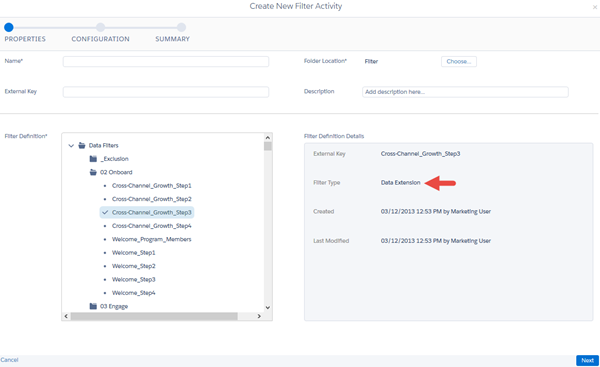
- Provide a name, folder location, external key, and description to identify and describe the activity.
-
Choose a filter definition to see its details. Check the Filter
Type to confirm that the filter definition applies to the
data source, list, or data extension you intend.
-
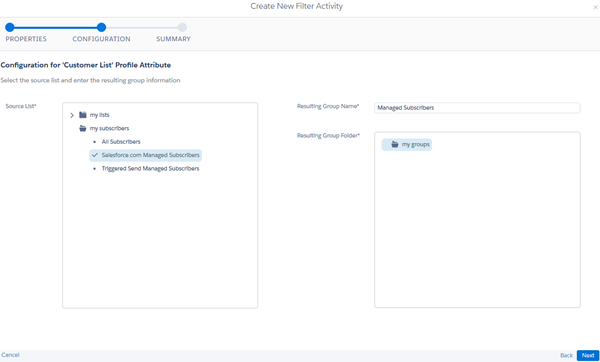
If your data filter is applied to profile attributes, select a
source list created in Email Studio.
Note If your data filter is applied to a data extension, selecting a source list is not necessary. The data extension selected when configuring the data filter is the source.
- If your data filter is applied to profile attributes, name the group that is created when this Filter activity runs and choose a group folder to store it.
- While creating your data filter in Email Studio, if you select to apply it to a data extension, a new data extension will be created as the destination for the filtered contact records. Provide a name, external key, and description for this data extension to easily identify it after the activity runs.
Did this article solve your issue?
Let us know so we can improve!
