
You are here:
Tracking Extract Configuration in Automation Studio
You can create a data extract activity in Automation Studio using the Extract Type dropdown. To specify the data you want to include, configure the tracking extract fields. See the example at the end of this section for a categorization of extraction objects. When you’ve configured it, start your activity to produce results.
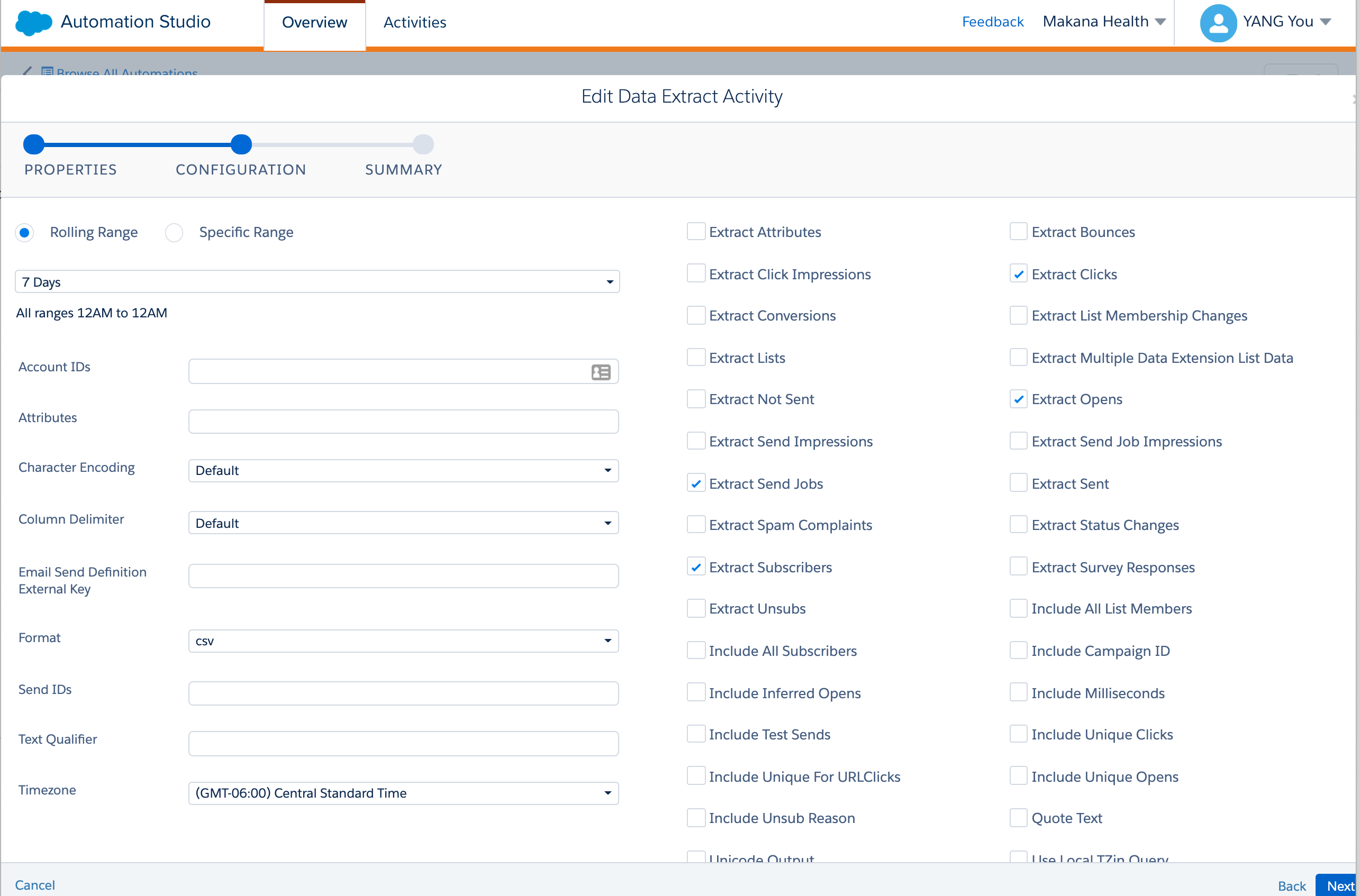

| Field | Description |
|---|---|
| Rolling Range or Specific Range | Range of time to include in the tracking extract. All ranges are from 12 AM to 12 AM.
|
| AccountIDs | Accounts used to extract tracking information.
|
| Attributes | Accounts for which you want to include the Attributes file. This section is only available if ExtractAttributes is enabled for your account.
|
| EmailSendDefinitionExternalKey | Email send definition external key to filter data from a specific send. |
| Output Checkboxes | View one or more tracking extract outputs.
|
| ExtractRange | Date range used to create the tracking extract.
|
| Format | The format in which you want the tracking extract to be created. Don’t use txt to indicate a tab-delimited file. Although .txt is the file extension for a tab-delimited file, entering txt as the format causes an error.
|
| IncludeAllListMembers | Includes all list members in the tracking extract. Leave this box unchecked to include only list members with activity during the specified time. |
| IncludeAllSubscribers | Includes all subscribers in the Subscribers file of the tracking extract. Leave this box unchecked to include only subscribers with activity corresponding to the events you select to include in the extract. |
| IncludeInferredOpens | Includes all inferred opens, or email clicks without a recorded open. Leave this box unchecked to include only specific opens where the email was clicked and rendered. |
| Include User Agent Information | Includes user agent data related to the open or click, such as operating system, email client, browser, or device. |
| QuoteText | Surrounds all text with double quotation marks. This process replaces existing double quotes in the tracking extract by two single quotation marks. To use a text qualifier, select this option and enter the text qualifier. |
| SendIDs or JobIDs | Enter a comma-delimited list of SendIDs to filter the tracking extract. Specify the external key of an email send definition in the extract as well to include information from all SendIDs and the email send definition. A blank field returns job details for the entire specified range. |
| TextQualifier | Select Quote Text to enable use of a text qualifier. Enter a character to use as a text qualifier. This value defaults to a double quotation mark. |
| UnicodeOutput | Saves the extract in UTF-16 format instead of ASCII. |
