
You are here:
Automation Studio Activities
Easily understand and use the Automation Studio Activities tab in the Marketing Cloud.
In Automation Studio, activities perform specific actions like transferring or extracting data, or sending an email. Activities are the building blocks of an automation.
Reusability
Activities are reusable. When you define an activity, you provide information that the activity uses each time it runs.
The Activities page shows all configured activities in one place, including activities used in multiple automations and activities that are not included in an automation.

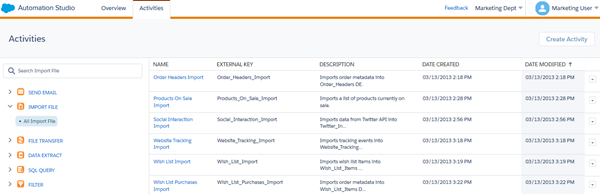
Options
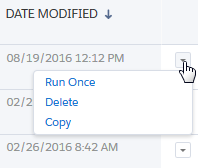
Each activity includes a set of options in its row. The options available depend on the activity type.
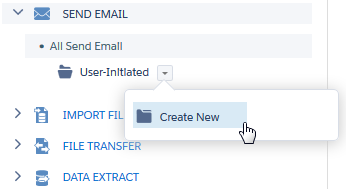
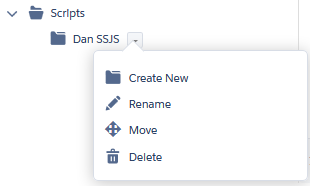
Create folders inline. Child folders include more options.
Clicking an activity name opens an expanded view that includes properties and other details about the activity. Use this option to edit the activity, too.
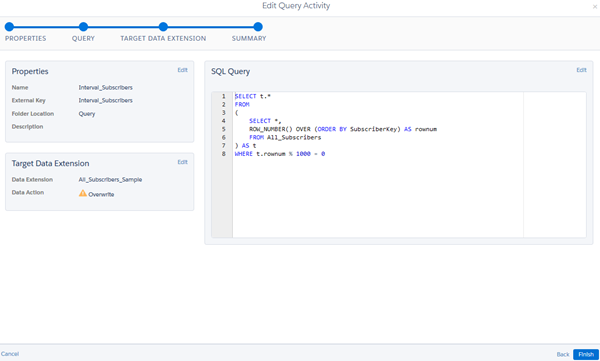
For example, clicking an SQL Query activity shows the query itself, the activity properties, and the target data extension.
- Start an Automation Studio Activity
Kick off an automation in Automation Studio using the Run Once option. - Send Email Activity
Choose and configure an email message to be sent on its own or as part of one or more automations. You can put it in sequence with other Automation Studio activities and schedule it for a particular date and time. - Use Transactional Reconciliation in Automation Studio
Automation Studio supports Transactional Reconciliation for email activities that send time-sensitive messages, such as confirmations, alerts, and notifications. When enabled, Marketing Cloud Engagement monitors messages and assigns a final disposition (Sent or Not Sent) based on delivery signals during the expiration window. - Retrieving and Segmenting Data with a SQL Query Activity
Retrieve and unify data across data extensions and system data views with SQL query activities. For example, you can prepare a subscriber list, view open and send history, or review automation and journey health. - Import or Copy Large Datasets
When transferring a large dataset from an external file or a data extension, use the Data Copy or Import activity to help prevent data loss, minimize downtime, and maintain business continuity. With the Data Copy or Import activity, you can also manage data transfers without using complex SQL queries. - How to Use the File Transfer Activity in Automation Studio
In Automation Studio, you can unzip or decrypt a file found in the Enhanced FTP directory for Marketing Cloud Engagement. With the File Transfer Activity, you can securely transfer files from the Safehouse, a secure file transfer location, to a selected FTP location. - Script Activity
A server-side JavaScript® (SSJS) activity contains SSJS code that is executed when started, either on its own or as part of an automation in Automation Studio. You provide the SSJS code, a name, external key, and description to identify the activity within the application interface and for API calls. - Filter Activity
Apply the logic of a data filter you select to create a group or data extension in Automation Studio. Filtering subscribers or contacts makes targeting specific subscribers or contacts based on their attributes and other conditions easier. - Data Extract Activity
The Automation Studio data extract activity creates one or more zipped files for your use outside of Marketing Cloud Engagement. It can also convert an XML file into a comma-delimited, tab-delimited, or pipe-delimited file for import into your account. - Verification Activity
Avoid unintended outcomes by verifying the data used in an Automation Studio automation. - Mapping Contacts to Business Unit
Map existing Contacts to selected Business Units to maintain brand and geographical boundaries when you activate segments in Data 360. - Automation Studio Activities Reference
Learn more about the activities that are available in Automation Studio. - Wait Activity
Wait activities in Automation Studio cause an automation to wait for a specific duration or until a specific time before performing the next step. You can include one or multiple wait activities in a single automation. - Einstein in Automation Studio
Reach contacts when they’re most likely to engage by using Einstein Send Time Optimization in a Send Email activity. Help your contacts avoid message fatigue by selecting the right message for each contact at the right time. Message recommendations are based on saturation levels using Einstein Engagement Frequency in a Send Email activity.
