
You are here:
Content Builder Editor Best Practices and Tips
Learn best practices and tips for the Content Builder editor in Marketing Cloud.
How-To Videos
Editor Basics

- A live, persistent preview on the right side of the page updates as changes are made, whether in Layout view or Code View.
- User-friendly features like auto-complete of HTML, tag matching, color coding, line numbers, and automatic formatting help you edit HTML source.
- In Layout view, drag content, content blocks, or content layouts onto the preview canvas where you want. When blocks are on the page, you can drag them to another location in the email or template.
- You can use the Tree View to duplicate, edit, or delete blocks.
- Drag multiple blocks to any content area unless the content area is restricted. There’s no longer a one-to-one relationship between content areas and blocks.
- Drag images directly from your computer to an email or template. The image automatically uploads to Content Builder.
- A content block or content layout created while editing an email or template can be saved to Content Builder for reuse.
- The HTML that is output by the editor is high quality. For example, the classic editor would sometimes wrap images with <p> tags, causing formatting issues. The Content Builder editor doesn’t add <p> tags.
- If you intend to use the Scale to Fit option on images in email, resize your image
to the maximum width and height desired. Using a larger width and height avoids image
distortion when viewing emails in Outlook.Note Scale to Fit isn’t supported in Outlook.
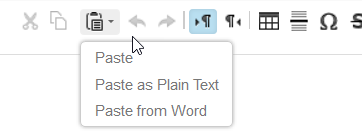
- Paste as Plain Text and Paste from
Word toolbar buttons aren’t supported by all browsers. To paste with
formatting, use Cmd+V on Mac, or Ctrl+V on Windows.
- HTML content blocks can add extra code wrappers to your message. To preserve your code, use code snippets instead.
Templates
- Whether creating a template via paste HTML or starting with an existing template, the editing experience is the same. You can start a template with paste HTML, then change to Layout mode for drag and drop editing.
- Content areas and content blocks don’t have a one-to-one relationship. By default, you can add as many blocks to a content area as you want. As a result, you can reduce the number of content areas in their templates.
- Content areas can have restrictions. You can limit the number and type of blocks that can be dropped in a content area. For example, you can limit a banner-type content area to only one block and limit it to image blocks only.
- After content has been placed in a content area, you can lock that content area so it can’t be changed in emails created using that template.
- To allow the template creator to include instructions in each content area, change the default “drop blocks or content here” message in each content area. Change the default either in the HTML or via the UI on the Content Area Properties tab.
- In HTML paste templates, add the header, footer, and open tracking tags if you want them added to emails.
- Content areas are identified with the
<div data-type="slot"
                  data-key="(unique key)">
syntax. The editor still recognizes @@contentarea and <custom> syntax from the classic editor. The div definition allows the max number of blocks, the blocks allowed, and the text message displayed in empty content to be defined in the HTML. Defining properties directly in the HTML is useful when creating Paste HTML templates.Example:
<div data-type="slot" data-key="Hero1" data-max-blocks="1" data-allowed-blocks="imageblock; textblock; freeformblock; abtestblock; dynamicblock" data-label="Place Hero Image Here"></div>In this example, the content area allows for a maximum of one block. The block must be an image, text, freeform, a/b test or dynamic content block. The message shown inside the empty content area is “Place Hero Image Here”.
- A few reserved keywords can’t be used as the data-key value on a content area. Using
them can render the template unusable after it’s saved.
- Content
- Subcontent
- Supercontent
- Design
- Tags
- Filename
- Createdbyname
- Modifiedbyname
- Ownername
- Name
- legacyID
- legacycategoryID
- Legacytype
- enterpriseID
- To take advantage of all the editor’s features, use the library of templates to create an email or as the starting point for a template. Existing Layouts are known simply as “Empty” templates. These templates conform to best practices for mobile responsiveness.
- The Global Styles component allows you to easily change styles in one location and cascade those styles throughout the template or email. Global styles are only present on emails and templates based on one of the provided templates.
- To make columns in Content Layouts stack when viewed on mobile devices, add the
following CSS to the mobile media query in your template:
body .responsive-td {width:100% !important; float:left !important; padding:0 !important; }
Emails
Wizards walk you through changing the template the email uses or to update the current template.
Code in the Code View editor of a template-based Content Builder email is locked, and you can’t copy the code. To copy code, select the code, right-click, then select Create Code Snippet. You can also select Save as Template from the Save button menu that allows you to copy the code or edit the code directly in the Code View editor.
AMPscript Functions and Other Scripting
- The following AMPscript functions reference content blocks and images in Content Builder:
- ContentBlockbyID, ContentBlockbyKey
- ContentImagebyID, ContentImagebyKey
- When AMPscript is used to pull in content blocks, the table the editor adds that wraps the blocks is pulled in as well. If you don’t want this wrapping table, use Code Snippets instead.
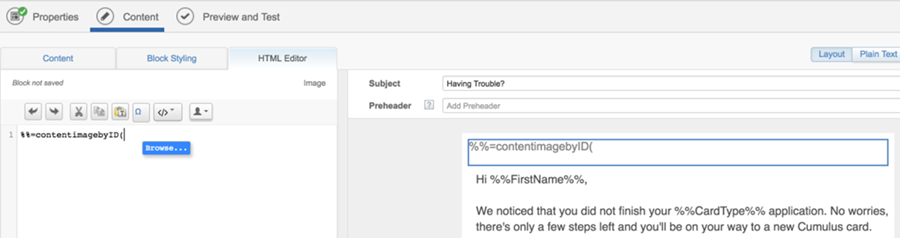
- When adding AMPscript Content Builder functions, search for and select images and
blocks to reference without leaving the editor. Activate the search in the editor by
clicking Browse... when you type the function.
- See AMPscript Syntax Guide for more information.
