
You are here:
Interactive Email Form Display FAQ
View frequently asked questions for the Email Form block in Marketing Cloud Engagement Content Builder.
Why doesn’t the form display in my email?
There are three main reasons why your form doesn’t display in specific email clients.
- The email client doesn’t support interactivity. The most common unsupported email client is Outlook. See Interactive Email Form Client Support for supported clients.
- If the form doesn’t appear in a supported email client, there’s likely a CSS conflict between your other email code and the code inserted by the Email Form content block. To diagnose this problem, remove all the other code, ensure that the form is working as expected, then add your code piece by piece to identify the conflict.
- If your issue is Gmail specific, ensure that your email doesn’t exceed Gmail’s size and character limits. Gmail clips the HTML of messages over 102 kb, which can cause the email form to not display. Gmail also limits the characters in your email’s CSS style tags to ~16k. CSS code that exceeds this limit doesn’t display in Gmail.
Which email clients support Interactive Email forms?
Support varies by email client but you can expect about 80% of opens to see interactive email forms. However, compatibility can vary depending on the subscriber base. For example, if most of your email opens are in Outlook, the percentage is much lower. The important distinction is that a subscriber’s email client, not the email address, dictates whether they can have an interactive experience. See Interactive Email Form Client Support for supported clients.
What happens when a recipient can't see the Interactive email form?
When setting up an Email Form block in Content Builder, the user can define a fallback state. If a customer opens the email in an unsupported email client, the interactive content reverts to the fallback type you select. The fallback can be another content block, such as a button that links to form on the web, or you choose to show nothing, ensuring that each customer gets the best experience. You can also use automatic fallback, which lets you add a call-to-action button that links directly to the email form on the Interactive Email CloudPage destination you set for the block.
Why do some of my form fields look different in Gmail?
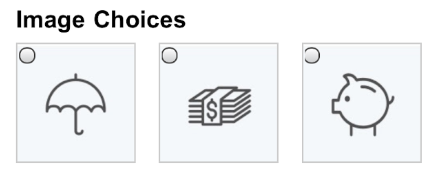
The Image Single Choice, Image Multiple Choice, Button Single Choice, Button Multiple Choice, and Rating input types show a radio button or checkbox depending on their type in the Gmail web client or Gmail apps. Gmail doesn’t support some CSS attributes that we use to build the interactive elements while hiding the radio button or checkbox. While the styling is different, we’re not aware of any impact on usability or performance. If the addition of the radio button or checkbox isn’t acceptable for your use case, consider using these input types:
- Select dropdown or radio button for single option selection inputs
- Checkbox for multiple option selection inputs
These are examples of how the inputs display with default styling.
Ratings in Apple Mail

Ratings in Gmail
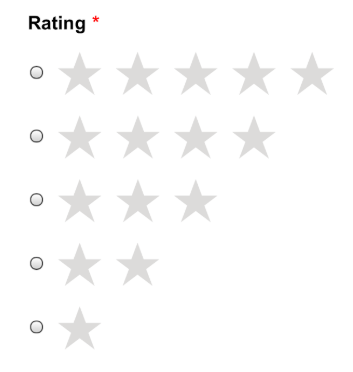
Image or Button Choices in Apple Mail
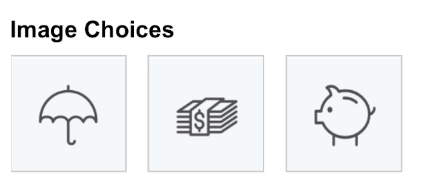
Image or Button Choices in Gmail

Is the Interactive email form mobile optimized?
Yes, the Interactive email form is built to display properly across all screen sizes of supported email clients. The email template used can impact proper display. For example, a template that isn’t responsive or mobile optimized can impact proper email form display.
Can I change or limit the number of characters in the Short Answer or Paragraph section?
No. Only the font size can be changed in the Design tab to accommodate more characters.
