
You are here:
Create an Interactive Email Page
When you want to increase engagement on form submissions, such as surveys or profile updates, an interactive email can help. After you build an email using an interactive email form block in Content Builder, you can customize a landing page for the submission confirmation.
You must publish a page to use it with an email. To refresh a page’s content, open the page for editing, review the content, and publish.
- In Content Builder, create an interactive email block.
- Open or create a CloudPages folder, and create an interactive email page.
- Enter a name and an optional description.
- If private domains are enabled, define the URL settings.
-
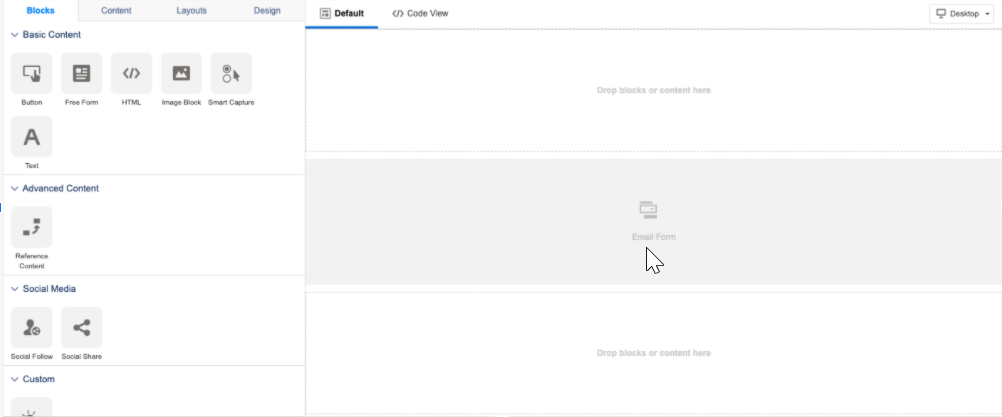
Click the Email Form block.
Don’t delete or replace the original Email Form block.
-
Choose what to display after the user submits the form.
- To show a confirmation page that uses existing content, select Block from Content Builder, and then select the block.
- To send people to a different URL after form submission, select Redirect to a URL.
- Enter a page URL, and define which details to append to the URL, if any.
- To design your page, add other tabs and blocks.
- To save your work but not publish, click Save. Or, schedule or publish your page.
Did this article solve your issue?
Let us know so we can improve!
