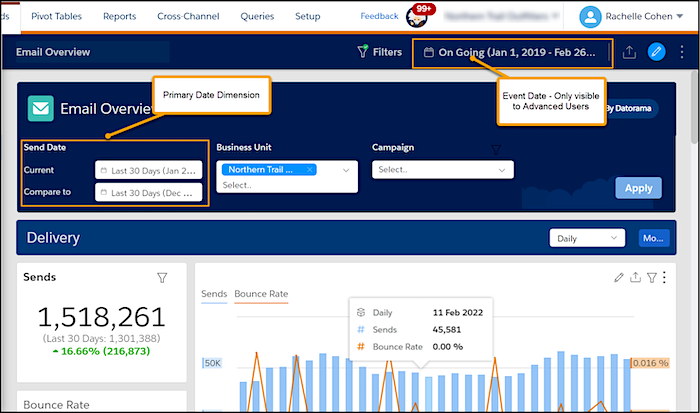
Send Date Versus Event Date
All engagement events in Intelligence Reports have two date dimensions: Event, and send.
Required Editions
| Available in: Intelligence Reports and Intelligence Reports Advanced |
- Event date - The date the event occurred (for example, email opened).
- Send date - The date the message for this event was sent.
The two date dimensions are especially important when looking at opens and clicks. For example, when reporting on clicks or opens, setting the Event Date filter to the last 30 days without setting a Send Date filter returns data for all emails that were clicked during the last 30 days, regardless of when they were sent. The results could include emails that were sent 31 or more days earlier.
Both date dimensions are used in Intelligence Reports but appear differently in pivot tables, reports, and dashboards.
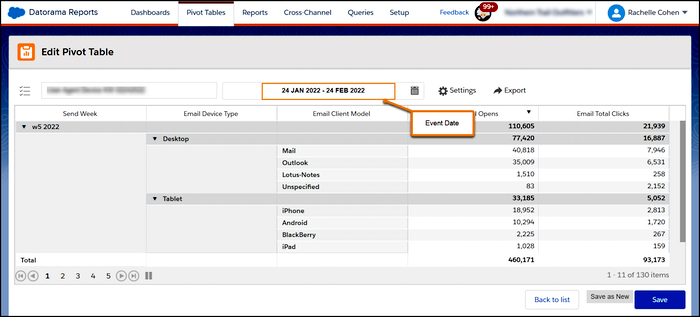
Pivot Tables — All pivot tables have an Event Date filter. When selecting the date range, all events from the specified time are included, regardless of the send date.
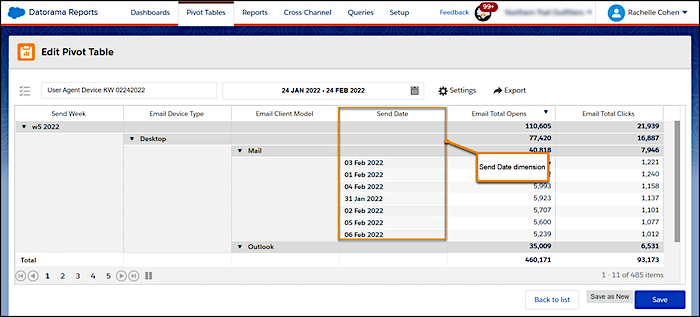
To see the number of events that occurred since the send date, add the Send Date dimension to your pivot table.
You can also filter your pivot table to include only send dates. Create a filter using the Send Date dimension. For more information, see Applying Filters to Pivot Tables and Reports.
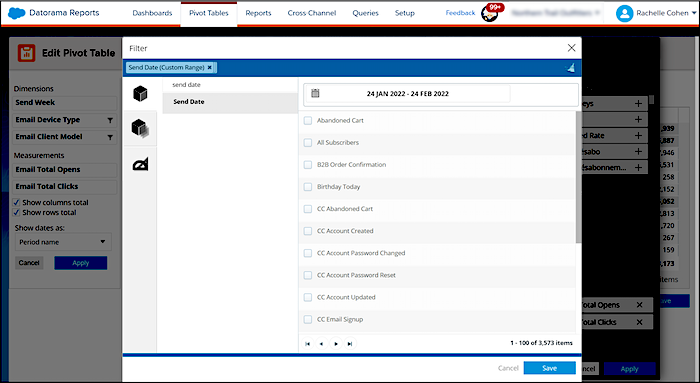
Reports — All reports have an Event Date filter. When selecting the date range, all events from the specified time are included.
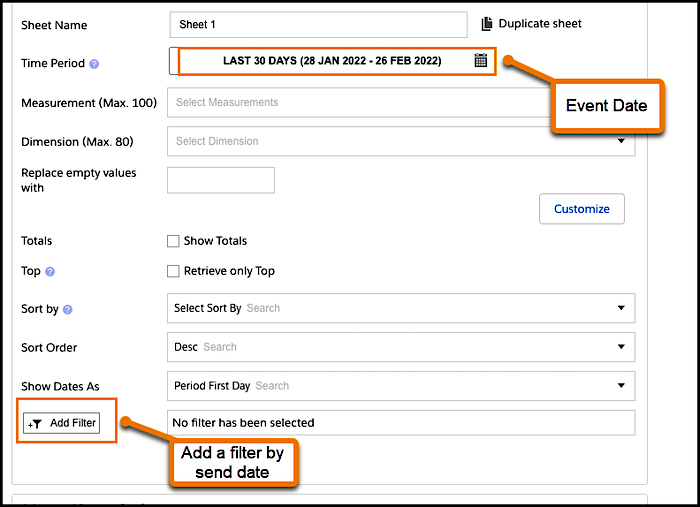
To filter your report to include only certain send dates, create a filter using the Send Date dimension. For more information, see Applying Filters to Pivot Tables and Reports.
Dashboards — For out-of-the-box dashboards, you can control only the send date. The event date filter is preset to include all dates.
If you’re a Intelligence Reports Advanced user, you can control the event date at the top of the page and build the dashboard according to your needs. For more information, see Customize Dashboard Pages.