
Apply Filters to a Report
Add filters to a report to narrow down the data that you see in reports and focus on what’s relevant to your use case. You can filter by a standard or custom dimension, such as a campaign, email domain, or country, or by a custom measurement, such as an email bounce rate over 60%.
Required Editions
| Available in: Intelligence Reports and Intelligence Reports Advanced |
| User Permissions Needed | |
|---|---|
| To apply filters to reports: | Create & Edit |
There are three different types of filters:
- Dimensions — Filters by a dimension. For example, campaign, email domain, or country.
- Custom dimensions — Filters by a customized dimension. For example, filter by an email name that contains the characters “NTO.”
- Custom measurements — Filters by a customized measurement. For example, filter by email bounce rate that is over 60%.
- In Analytics Builder, select Intelligence Reports.
- On the Reports tab, select a report.
- Under Configuration, click Add Filter.
-
To add a dimension, for example, if you want to filter by the campaign name
“Birthday”:
- Select Custom Dimensions.
- Search for the required dimension, and enter Campaign.
- Select the value. In this case, Birthday.
- To apply the filter, save your work.
-
To add a custom dimension, for example, if you want to filter by an email name that
contains the characters “NTO”:
- Select Custom Dimensions.
- Select the dimension from the dropdown list, and select Email Content Name.
- Select the operator from the dropdown list, and select Contains.
- Enter the value in the field. In this case, enter “NTO.”
- To apply the filter, save your work.
-
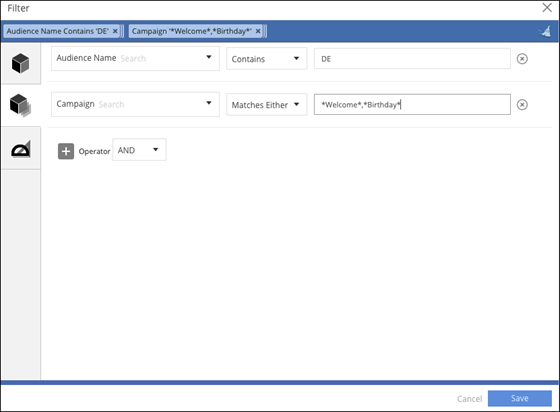
You can add multiple operators when filtering to retrieve dimensions that contain specific
information according to defined rules. For example, get all the campaigns that contain the
names, ‘“welcome” or “birthday” and that come from audiences that contain the letters DE.
-
Define the first rule. For example, Audience Name contains DE.
- Select the dimension from the dropdown list, and select Audience Name.
- Select the operator from the dropdown list, and select Contains.
- Enter the value in the field, in this case, enter DE.
-
Define the match either rule. For example, Campaign matches either ‘Welcome’ or
‘Birthday’
- Select the dimension from dropdown list, and select Campaign.
- Select the operator from the dropdown list, and select Matches Either.
- Enter the value in the field. In this case, use an asterisk (*) at the beginning and at the end of the value with a comma separating the values. For example, *Welcome*, *Birthday*.
- To apply the filter, save your work.
-
Define the first rule. For example, Audience Name contains DE.
-
To add a custom measurement, for example, if you want to filter by email bounce rate that
equals 80%:
- Select Custom Measurements.
- Select the measurement from the dropdown list, and select Email Bounce Rate.
- Select the operator from the dropdown list, and select Greater Than.
- Enter the value in the field. In this case, enter 80%.
- To apply the filter, save your work.

Tip To add a filter to exclude test emails, search for the Test Email Indicator
dimension, and then set it to False. After you do, test emails don’t appear in your pivot tables
or reports.
Did this article solve your issue?
Let us know so we can improve!
