
You are here:
Enterprise Reply Mail Management
To automate management of incoming messages received by your reply-to email address, turn on Reply Mail Management in Marketing Cloud Engagement. These message types include out-of-office replies, auto-replies, auto-forwards, unsubscribes, and individual customer responses.

Enterprise Reply Mail Management efficiently handles a large percentage of replies immediately and automatically. Depending on your configuration, some email types do not have to be opened or read. Enterprise Reply Mail Management automatically processes all necessary actions for the reply.
Configure your account to use a special Reply-To address in your emails. When a subscriber manually replies to the address or when the subscriber's account automatically replies, the email message goes to the Reply-To address you created. When the Reply-To address receives an email, Enterprise Reply Mail Management applies a series of rules grouped in collections associated with a sender profile. These collections determine whether the email is an out-of-office reply, auto-reply, such as a allowlist request, or unsubscribe request. Enterprise Reply Mail Management acts on the message according to how you configured the feature.
Enterprise Reply Mail Management also allows you to perform these tasks:
- Forward an email to different users depending on different circumstances
- Conditionally auto-reply and control the content of that auto-reply message
Configure Enterprise Reply Mail Management on the Enterprise Reply Mail Management screen, accessed from the Admin tab of Email Studio. If that feature is enabled, the configuration process includes adding terms to the terms already listed in this document.
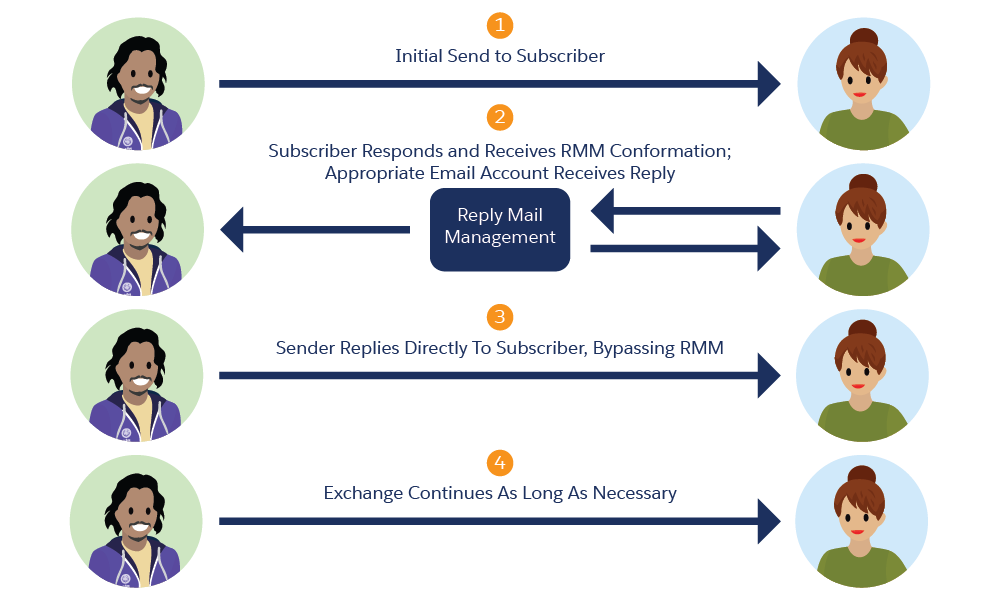
Enterprise Reply Mail Management feature addresses most automated replies from email software used today. However, it cannot address non-standard protocols from a select few email clients.
Enterprise Reply Mail Management can support the forwarding of attachments in certain instances.
Reply Address Definition
When you configure Enterprise Reply Mail Management, you specify the Reply-To information used by Enterprise Reply Mail Management:
- Email Display Name: The reply name appears in the From field of your subscriber's email client, such as Microsoft Outlook, when the subscriber replies to your email. Do not use an email address as the Email Reply Name. To encourage interaction with your subscribers, use an individual's name from your organization, such as a member of your customer service group.
- Reply Subdomain: The subdomain includes the portion of your URL that points to Engagement email reply rules. For example, a company with an email address structure of name@example.com creates a subdomain of reply. The company adds it to the box provided onscreen to create reply.example.com.
- Email Reply Address: The reply address appears in the From name of your subscriber's email client when the subscriber replies to your email. While this information appears in the format of an email message, it does not act as a valid email address on its own. The address directs the reply to Enterprise Reply Mail Management for processing. Define this address in the Enterprise Reply Mail Management feature or via a sender profile. If you use a sender profile to define the email reply address, you can enable the email message to use a multitude of email reply addresses.
- DNS Record Redirect Complete: Complete a domain name system (DNS) record redirect to Engagement before activating this feature. Your ISP helps you with this process.
Enterprise Reply Mail Management includes several components used to process and act on incoming email replies: keyword lists, out-of-office terms, rules, and collections.
Keyword Lists
Keyword lists include terms used to determine how Enterprise Reply Mail Management acts on the replies. If one of the terms on the keyword list matches any of the terms, the rule to which the keyword list belongs takes the appropriate action. Enterprise Reply Mail Management reviews the message header, email Subject line, email From address, or the first 200 characters of the email body for keywords. These lists can contain terms in different languages or common misspellings of terms used to remove subscribers from a list.
Out of Office Terms
- Undeliverable:
- auto-response
- autoresponse
- automated reply
- auto-submitted
- auto-generated
- auto-replied
- inter-application
- auto-reply
- auto reply
- autoreply
- auto response
- out of office
- out-of-office
- out of office on vacation
- out on vacation
- automated response
- autosvar
- automatisk svar
- Loma
- Lomalla
- Automaattinen vastaus
- automatic reply
- delivery status notification
- email is being transferred
- email will not be read
- for immediate help
- I will respond
- no longer able to receive e-mail
- Notification-only
- Please do not reply
- abwesenheitsnotiz
- absence notice
- out of the office
- automatica
- out on vacation
- out of the office on vacation
- automatique
- automatisk
- automatiskt
- autoresponder
- auto-reposta
- reposta
- automatica
- automaticka
- away from the office
- away from my office
- Vapaalla
- Poissaoloviesti
- automatiresponse
- do not reply to this
- out on holiday
- out for holidays
- I am no longer with
- inactive email account
- inter-application message
- could not be delivered
- new email address
- no longer able to receive email
- We will respond
- will reply to your email
Rules
Each rule includes a keyword list and a set of actions to take if the keyword list terms match. Each rule can take one or more of these actions:
- Add email address to Global Unsubscribe List
- Add email address to Master Unsubscribe List
- Unsubscribe email address from publication list, including both publication lists and list unsubscribe processing
- Add email address to suppression list
- Add email address to any specified auto-suppression lists
- Forward reply to a specified email address and select whether to use a triggered send to forward the reply
- Stop processing the reply after the specified actions are taken, or delete the reply if deletion is the only action specified
Rules function in the order you arrange them within your instance. When you configure Enterprise Reply Mail Management in your account, specify whether a reply to your message generates an acknowledgment. For example, you can choose to make the system send an automated response to each email not identified by one of the reply rules. If you choose to send an automated response, select the default response or create a custom response. For example, the default response contains this text:

Thank you for your email. We have received your comments/questions and we will reply as soon as possible.
**************************************************
This is an automated response. Please do not directly reply to this email.
You can also choose to use a triggered send for the reply. If you automatically forward an email message to an email address, that email address becomes the From address for the automatic reply. For example, the sales@example.com email address receives an email and that message is automatically forwarded to acruz@example.com. The automatic reply to the email sent to sales@example.com appears to send from acruz@example.com.
When you configure Enterprise Reply Mail Management in your account, you enter an email address to receive all the messages not identified by one of the reply rules. These messages forward to that routing address even if you send an automated response.
Reply mail can automatically forward to these addresses:
- A user from the multi-from connect From list
- A user-defined name and email address
Ensure that an email system outside your company network can reach the email address. We recommend using an email address mapped to a distribution list controlled by your email servers. Using that address permits you to update which employees receive notification without the need to change any settings.
This process updates the To information in the email header but retains the From email header information of the original message. The Enterprise Reply Mail Management system delivers the message as if it originated directly from the author of the email.
You can include the following items, but use special caution with these values:
- One of these supported personalization strings:
- _RMM_Headers
- _RMM_ReplyBodyText
- _RMM_ReplyBodyHTML
- _RMM_ReplySubject
- _RMM_JobID
- _RMM_ListID
- _RMM_BatchID
- _RMM_SubscriberID
- _RMM_RecipientEmailAddress
- _RMM_RecipientSubscriberKey
- AMPscript
- A static name
The content of the forwarded message includes these components:
- The body of the reply email.
- A started or paused triggered send email. A send-time attribute called _replycontent contains the first 10,000 characters (including markup) of the body of the reply email.
- An HTML email.
You can configure auto-forward information in the sender profile.
Collections
Once you have created your rules, you can bundle them together in a collection to assign to a specific send classification. All rules in the collection then apply to the send classification and any associated replies.
International Character Support
Enterprise Reply Mail Management can recognize and process double-byte Unicode characters as part of your reply rules. While Enterprise Reply Mail Management does not handle translation, you can create rules using these characters and act accordingly on any matches.
Enterprise Reply Mail Management Steps
- Enter your subdomain.
- Enable your DNS redirection.
- Create a keyword list.
- Create a rule.
- Create a collection.
- Associate the collection with a sender profile.
- Create a sender profile if none exists.
- Create another collection as necessary.
- Specify a Reply Subdomain
Specify the reply subdomain to which the reply email is directed. Configure this reply subdomain on your own domain to use it with Marketing Cloud Engagement and Email Studio. - Perform the Initial Configuration
You can configure Enterprise Reply Mail Management in the top-level app settings for Marketing Cloud Engagement. Use sender profiles to make configured keywords, rules, and collections available for child business units. - Create a Keyword List
Follow these steps to create an Enterprise Reply Mail Management keyword list. - Create an Enterprise Reply Mail Management Rule
Follow these steps to create an Enterprise Reply Mail Management rule. - Edit a Rule
Follow these steps to edit an Enterprise Reply Mail Management rule in Marketing Cloud Engagement Setup. - Copy a Rule
Follow these steps to copy an Enterprise Reply Mail Management rule in Marketing Cloud Engagement Setup. - Create a Collection
Follow these steps to create a collection in Enterprise Reply Mail Management using Marketing Cloud Engagement Setup. - Edit a Collection
Follow these steps to edit an Enterprise Reply Mail Management collection using Marketing Cloud Engagement Setup. - Copy a Collection
Follow these steps to copy an Enterprise Reply Mail Management collection in Marketing Cloud Setup. - Dynamically Populated Reply Names and Addresses
To dynamically populate the Reply-To header, first request the Dynamic Reply-To feature. When this is enabled, the header Reply-To value is populated with the Reply Email from the Populate Reply-to Address Dynamically section rather than a unique address at the Reply sub domain. - Enable Forward Reply Header Rewrite
Use Forward Reply Header Rewrite with Enterprise Reply Mail Management in Marketing Cloud Setup to specify a reply-to header value that complies with DMARC requirements. These requirements mandate that email messages originate from the expected destination for a domain. This feature uses those values to ensure that while Reply Mail Management processes all replies, those messages use the correct domain. This process facilitates communication between you and your subscribers. - Create a Sender Profile to Use with Enterprise Reply Mail Management
In Marketing Cloud Engagement Setup, create a sender profile to use with Enterprise Reply Mail Management. You can use On-Your-Behalf sends or enhanced sender profiles to build dynamic from names as part of your email sends. Enterprise Reply Mail Management can direct these valid replies to the dynamic from names instead of the default email address. - Test Your Enterprise Reply Mail Management Configuration
To confirm that Enterprise Reply Mail Management is configured correctly in Marketing Cloud Engagement, send a test email to a test list and test replies also. - Enterprise Reply Mail Management Scenario
In this scenario, Northern Trail Outfitters uses Enterprise Reply Mail Management rules to manage their incoming email in Email Studio. The application automatically detects out-of-office replies, bounces, and automatic replies and deletes them. Enterprise Reply Mail Management also deletes unsubscribe requests after it unsubscribes each subscriber automatically. This setting helps Northern Trail Outfitters honor unsubscribe requests within a certain amount of time. Northern Trail Outfitters configures Enterprise Reply Mail Management in Marketing Cloud Engagement so replies that are not filtered out are responded to by auto-reply customized messages.
