
You are here:
How to Optimize Journey Builder Performance
The Journey Builder processing rate varies based on your data model, filters, configuration, activities, and content complexity. Journeys share processing resources, so stagger the start time for each journey to reduce the demand and increase the processing speed of individual journeys. Use the System Optimization Dashboard to identify and prioritize optimizations that could increase your overall throughput.
As a general baseline, you can process up to two million email sends per hour per tenant in Journey Builder. However, you could achieve higher throughput—by two times or more—using the High-Throughput Sending (HTS) for Email option in journey settings.
Single-tenant deployments on dedicated databases produce a faster and more predictable processing speed than multitenant deployment on shared databases. To improve processing speeds after implementing these recommendations in a multitenant account, contact your account executive about single-tenancy and dedicated database deployment.
Mitigate Impact of Concurrent Journeys
Journeys share processing resources, and it’s important to consider how concurrently running journeys can impact performance.
Enable HTS
Use HTS across all of your journeys. Journeys are more likely to run faster and more efficiently when all your journeys with email activities use HTS. In addition to higher throughput and lower latency, the HTS sending framework offers better support for concurrent processing.
Use System Optimization Dashboard and System Priority
Stagger the start time for each journey to reduce the demand and increase the processing speed of individual journeys. Use the System Optimization Dashboard to identify and prioritize optimizations that could increase your overall throughput.
Consider a Dedicated Database
Single-tenant deployments on dedicated databases produce a faster and more predictable processing speed than multitenant deployment on shared databases. To improve processing speeds after implementing these recommendations in a multitenant account, contact your account executive about single-tenancy and dedicated database deployment.
Groom Data Before Creating a Journey
How you store and prepare data affects how quickly Journey Builder processes records. Here are some ways to maximize processing.
- Create a pre-filtered, sendable copy of the data extension for each journey instead of using the same data extension for multiple journeys. This step also prevents journeys from competing with other database activities such as imports, send-logging, reports, or extracts.
- Use an ETL tool such as Automation Studio for large-scale segmentation before admitting contacts into Journey Builder instead of filtering contacts within the entry source.
- Don’t use a filter in the entry source to filter more than 50% of your contacts when there are more than 500,000 total contacts. Doing this wastes critical computing resources and can lead to the system stopping your journey due to excessive resource usage. Instead, use an ETL tool such as Automation Studio to segment your data before using the data in Journey Builder.
- Use one-to-one data extension relationships wherever possible. If you must use one-to-many or many-to-many relationships, make sure the data is carefully groomed to reduce the number of matching rows for each contact. This practice is especially important when many contacts are flowing through decision splits, filters, or other activities that rely on querying these data extensions. When data extensions are linked through a one-to-many or many-to-many relationship, a matching attribute value can appear in the journey entry source filters, wait activities, or decision splits multiple times.
- Include all data that you plan to use for decision splits in your entry source data extension. Use journey data for decision splits rather than contact data whenever possible.
Use Efficient Filtering Logic
Journeys share resources for processing. When a journey includes an entry filter, the speed at which contacts are admitted to the journey is lower. To maximize hourly processing, follow these guidelines.
- If your filters use contact data, use the data model to determine the AttributeSets required to link the contact attribute to the contact. When any of these AttributeSets in the path contain a one-to-many relationship, processing speed slows proportionally to the amount of data associated with the contact. For example, if a decision split is based on LastOrderDate, the number of orders associated with the contact affects performance. Performance is slower for a contact with thousands of orders than for a contact with one order.
- If you use an entry filter, avoid ends with and contains operators for best filter performance. In data processing, these operators are more expensive than using the equals operator.
- Complicated entry source or decision split filters require more table joins to filter contacts, which slows performance.
Use Journey Activities Wisely
Journey Builder processes contacts in journey segments. A segment is the chain of activities from the journey’s start to the first wait, between two waits, or from a wait to the exit. The minimum processing speed of each activity in that segment determines the processing speed of contacts through a segment. Each activity type processes contacts at a different rate. Journey Builder processes contacts from multiple journeys and segments concurrently. The specific configuration of your journey and selected activities can impact the performance of each segment and the overall journey.
Limit the Number of Activities
Though there’s no limit to how many journey activities you can add, limit the number of activities to 150–200 in a journey to prevent slow load times.
Messaging Activities
Most journey activities process faster than message activities and usually don’t impede messaging activities in the segment. Enabling HTS for email improves throughput for email activities generally improves throughput for the overall segment.

Consider a single journey running in a single-tenant, dedicated database deployment. Within this journey, there’s one segment from the entry to the random split, the decision split, the update contact activity, email activity, and a 1-day wait.
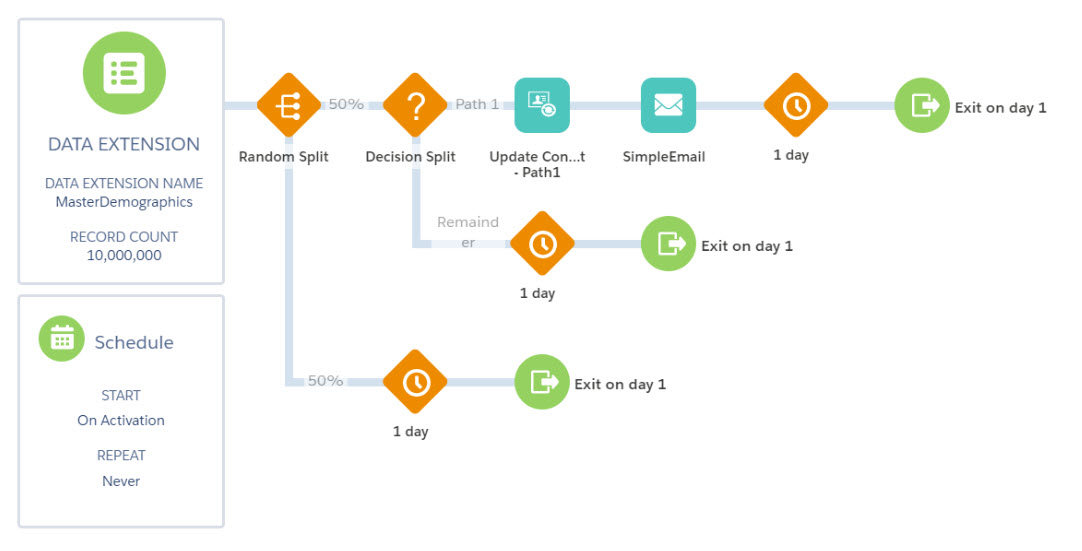
With processing speeds of 10 million for the random split, 9 million for the decision split and update contact activity, and 2 million for the email activity, the maximum processing speed for this segment is 2 million contacts per hour. Most journey activities process faster than message activities and usually don’t impede messaging activities in the segment.
Wait Activities
- Use wait activities sparingly. Don’t add a wait activity as a journey’s first step, and avoid using wait activities that are less than 15 minutes unless it’s the last wait activity.
- By default, Wait by Duration activities are configured to a duration of 1 day. To reduce unnecessary system load and improve journey performance when you use a wait immediately before the exit of a journey, lower the duration to the minimal time required for your use case.
- If a wait activity in the middle of a journey is 3 minutes or less, it’s ignored unless the journey contains exit criteria or a Goal activity with exit criteria.
Decision Splits
- Avoid starting a journey with a Decision Split. If filtering criteria is the first step of the journey, consider filtering or segmenting for that before the journey.
- If your use case requires a Decision Split at the start of the journey, then avoid using more than 3 Decision Split activities at the start of the journey
- Journey Builder processes contacts in batches, so using a series of Decision Split activities reduces the batch size. Build the decision split path that you expect the highest number of contacts to follow first.
- Avoid back-to-back decision splits.
Consider the Impact of Content Personalization
With Journey Builder, you can personalize your messages by using the power of AMPscript. Marketing Cloud Engagement handles all AMPscript calls at the end of the message-send, which affects the number of messages sent per hour.
Enabling HTS can mitigate the performance impacts associated with significant content personalization.
For legacy content, we observed these effects on our internal benchmarking, which was performed in a controlled environment on a dedicated database.
| Complexity | Content Includes | Email Messages Per Hour |
|---|---|---|
| Static |
|
100% (baseline) |
| Simple |
|
~100% (minimal impact) |
| Moderate |
|
~95% |
| Advanced |
|
~75% |
Highly personalized message content that has advanced complexity can reduce send throughput by up to 25%. Personalization is a powerful tool to achieve targeted communication with your audience, but make sure to note how it affects your journey’s send throughput.

- Journey Builder System Optimization Dashboard
The System Optimization dashboard shows the journeys and configurations that can affect overall system processing speed and identifies changes to improve system performance. The dashboard monitors running journey versions when contacts are actively flowing and identifies inefficiencies and recommendations to improve performance. You can activate a journey without correcting warnings, but we recommend reviewing issues that can impact Journey Builder performance. - Journey Builder Configuration Recommendations
As part of journey validation functionality, Journey Builder makes recommendations about configurations that can impact system performance. These recommendations don’t prevent you from activating your journey.
