
You are here:
Get Started with WhatsApp Messaging in Marketing Cloud Engagement
Start chatting with your customers by setting up WhatsApp in Marketing Cloud Engagement.
For help with using WhatsApp with Service Cloud, see Create a WhatsApp Channel in Service Cloud.

Important After you purchase the WhatsApp-First Business Messaging SKU, all outbound
messages and existing journeys and templates on the Sinch app stop working. To use WhatsApp-First
Business Messaging, you must create a WhatsApp business account, register a new phone number, and
create templates, journeys, and audiences.
- Get Started with WhatsApp-First Business Messaging (Meta)
Set up WhatsApp-First Business Messaging. - Get Started with WhatsApp Chat Messaging (Sinch)
Set up WhatsApp Chat Messaging.
Get Started with WhatsApp-First Business Messaging (Meta)
Set up WhatsApp-First Business Messaging.
From the app switcher, in the Mobile Studio dropdown list, select
WhatsApp.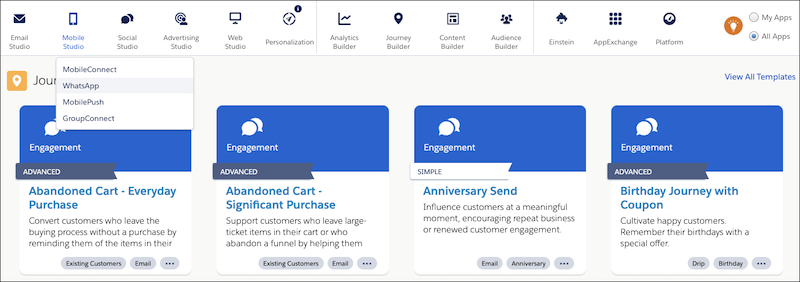
If you don’t see WhatsApp in the dropdown list, contact your Marketing Cloud Engagement
Account Executive to ensure that you’ve purchased the WhatsApp First Conversation SKU.
Get Started with WhatsApp Chat Messaging (Sinch)
Set up WhatsApp Chat Messaging.
In Journey Builder, check for a WhatsApp Message activity in the list. If you don’t see this activity, contact your Marketing Cloud Engagement Account Executive.
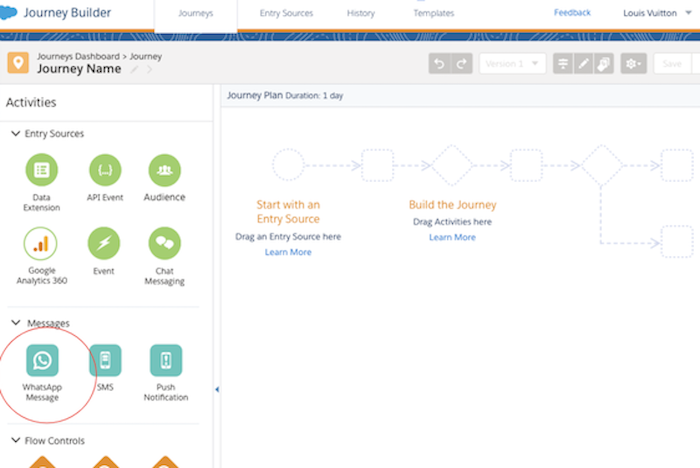
- Drag the WhatsApp Message activity onto the canvas.
- To purchase the SKUs, click the WhatsApp Message activity.
- Download the package from Salesforce AppExchange.
-
Log in to the Marketing Cloud Engagement account where you want to install this package.
If you’re already logged in to your Engagement account, log out, and then log back in to see the updates.
-
After you authenticate your account, your screen looks like this.
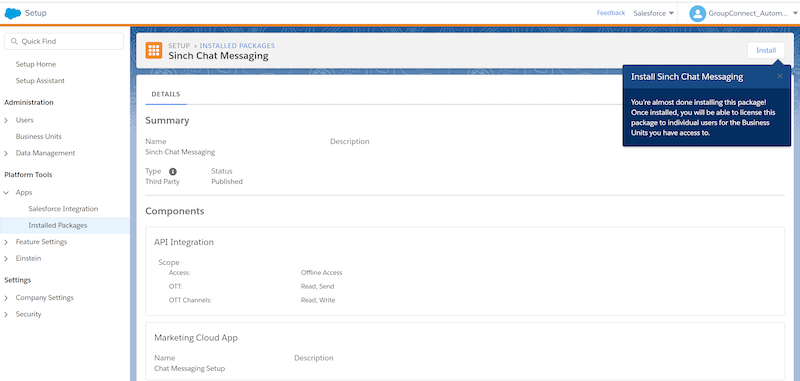
- Click Install.
- Agree to the Salesforce Terms & Conditions.
- In the Access tab, select the user for this package.
- Log out of your Engagement account, and then log back in.
-
Ensure that you see Chat Messaging Setup in the AppExchange dropdown.
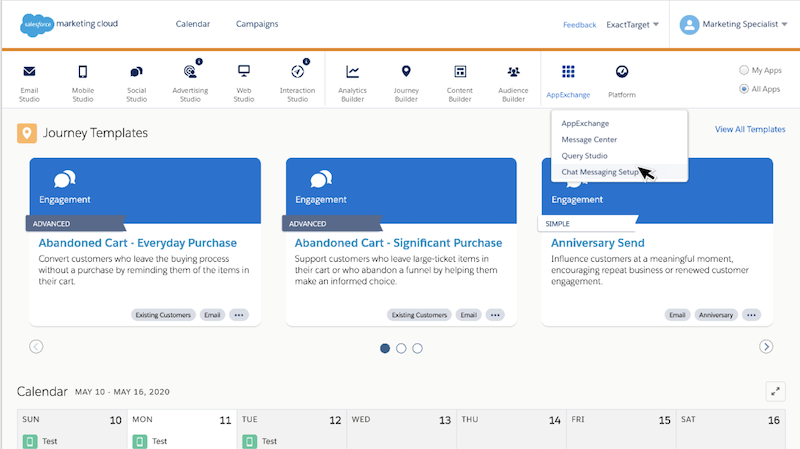
Did this article solve your issue?
Let us know so we can improve!
