
You are here:
Create an Email Opt-In Message in MobileConnect
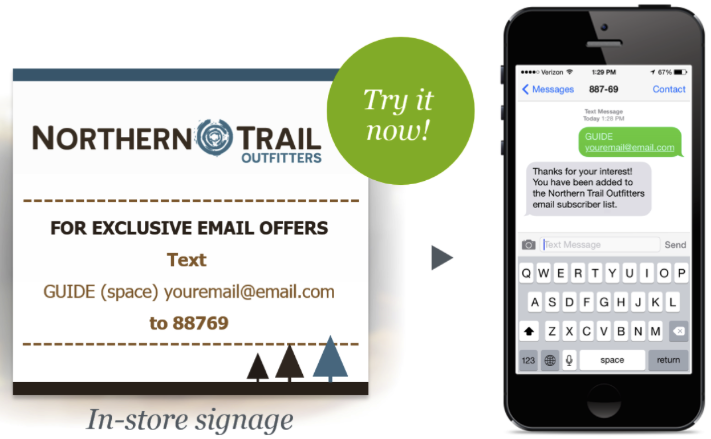
Use the Email Opt-in template in Marketing Cloud Engagement to invite people to subscribe to your email messages. In-store signs can prompt people to opt in. The Email Opt-in template defines the code and keyword combination, the message that responders receive back, and so on.
- On the MobileConnect Overview screen, click Create Message.
- Select the Email Opt-in template.
- Enter a name for the message.
- Select a short or long code.
- Select or create the keyword.
- Select the call to action that prompts people to text in.
- Move to the next page, and then select the audience or create a list.
- Exclude audiences, as necessary.
- Move to the next page and enter the outbound, response, and error messages.
-
If you selected the Outbound or SMS Send and External Source option:
- Select the audience or create a list.
- Exclude audiences, as necessary.
- Move to the next page.
- Review the message information.
- Set the dates that the message is active.
- Set the keyword response window, which is the time period that the message interacts with incoming messages.
- Schedule or send the message.
Did this article solve your issue?
Let us know so we can improve!
