
You are here:
Calendar in Marketing Cloud Engagement
The Calendar provides a weekly or monthly view of all scheduled and past interactions. You can filter Calendar views by campaign or interaction type.
Search the Calendar to find events and messages you already performed or scheduled in the future.
Included in the Calendar
This list displays searchable items stored in your Calendar.
- All completed email sends
- User-initiated
- Programs
- Automation Studio
- API
- Pending sends scheduled via the Email Studio Send Wizard
- Pending sends scheduled via Send Flow in Content Builder
Not Included in the Calendar
This list displays non-searchable items that aren’t displayed in the Calendar.
- Triggered sends
- Test sends
- Single sends
- Pending user-initiated sends that are part of a scheduled or running program
- Sends suppressed from tracking
If a recurring message doesn’t result in the delivery of any email message, the Calendar does not display an entry for that instance.
Day Panel
The Day Panel view displays all activities scheduled for a specific day. This view displays this information, depending on the message type.
- Message name and description
- Campaigns, if any
- Last time a message send occurred
- Tracking information for the event or message
You can click within each message to view tracking information. Each activity contains a link to the source application. Automated messages appear at the top of the day panel list until the message sends. Then, the Calendar uses email icons to identify the messages. The Day Panel view automatically suppresses any automated messages with zero assigned subscribers.
Enterprise 2.0 Users
Enterprise 2.0 users can view all events in your current Enterprise 2.0 business unit and select more business units to view as well. The Calendar defaults to events in the current business unit, and you can add more business units. Any days with events from an additional business unit display a small blue indicator for that day on the Calendar. If you select more business units, your Calendar displays applicable campaigns, broken out by business unit at the top of the screen. Hover over these events and click the business unit or that event in the detailed Calendar view. This action takes you to that business unit to view more information. Any changes you make in the filter persist through future logins, movements to other apps, or other activity. Clear these filters to change the Calendar view.
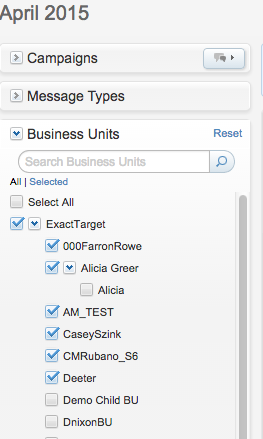
Calendar in Account with More than 500 Business Units
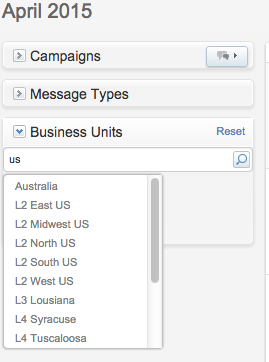
Calendar in Account with Less than 500 Business Units
- Add a Campaign to Calendar
Use the calendar to create a visual representation of your campaign schedule. - Add an Event to the Calendar
Create events on your calendar to mark milestones and other important dates. You can create single-day and multi-day events. - Filter Events and Messages
Use filters to view only the automated or scheduled messages to review in Marketing Cloud Engagement. - Information on a Calendar Event or Message
View information on a Calendar.
