
Loading
Marketing Cloud Personalization
Table of Contents
Select Filters

          No results
          No results
          Here are some search tips

          Check the spelling of your keywords.
          Use more general search terms.
          Select fewer filters to broaden your search.

          Search all of Salesforce Help
          Create a Mobile In-App Message Campaign

          Create a Mobile In-App Message Campaign

          You can use a Mobile In-App Message campaign to build and deploy messages within mobile apps. Mobile In-App Message campaigns are similar to the infobar messages you can add to your website. You build, manage, and deploy Mobile In-App Message campaigns from within Personalization so you get the same real-time data and personalization you rely on with your other campaigns. You don't need an engineer's help or App Store approval to deploy new or changed messages.

          Required Editions

          Available in: Premium Edition
          Permissions Needed
          To create or edit Mobile In-App Message campaigns: A role with Campaign Create/Edit permissions
          To publish or delete Mobile In-App Message campaigns: A role with Campaign Publish/Delete permissions
          1. In the Channels & Campaigns section of the main navigation, select Mobile | In-App Message Campaigns.
          2. Click New Campaign.
          3. In the Preview area, select the following settings.
            Setting Description
            Platform Select iOS or Android.
            Devices Select from iPhones, iPads, and various Android devices.
            Layout Select Portrait or Landscape.
          4. Set the Zoom: 20–100% or Fit to Screen.
          5. In the Message Interaction area:
            1. Choose message location: Top or Bottom
            2. Set the number of Tappable Areas, which can the set to Whole Message (if the user taps anywhere on the message, redirect to a target URL), 1 Button (tapping a single button will redirect to the target url), and 2 Buttons, (by the user can be redirected with each button having a targeted URL).
          6. Enter the message Title to display at the top of the message.
          7. To generate dynamic fields, such as username or total price, click Dynamic+.
          8. Enter the message Body.
          9. Configure the look of the message with Border Width (px), Border Color (hex), Corner Radius (px), and Background (hex).
          10. Enter the Links To URL parameters, as necessary.
          11. For 1 Button or 2 Button messages only:
            1. Enter the Button Text.
            2. Configure Button Styles with Text Color (hex), Border Width (px), Corner Radius (px), Border Color (hex), and Background (hex).
          12. Click Save.
          13. Implement targeting rules. For more information, see Add Mobile Campaign Targeting Rules and Add Mobile Message Targeting Rules.
          Example
          Example

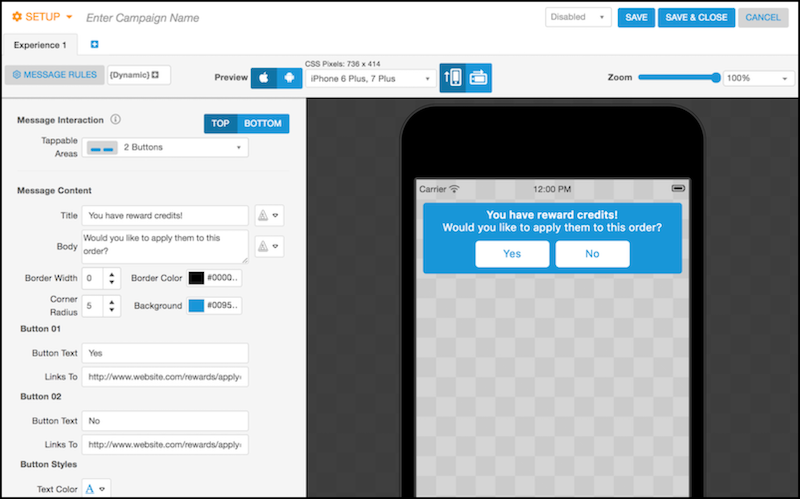
          Sample in-app message

          This example contains static message title and a message body text. Alternatively, you can add dynamic fields to customize the text. For example, you can generate the number of reward credits using a dynamic field that pulls data from Salesforce.

           
          Loading
          Salesforce Help | Article