Before you publish a Mobile Push campaign, you must generate and upload a certificate
for Apple Push Notification service (APNs) or Firebase Cloud Messaging (FCM). If you enter
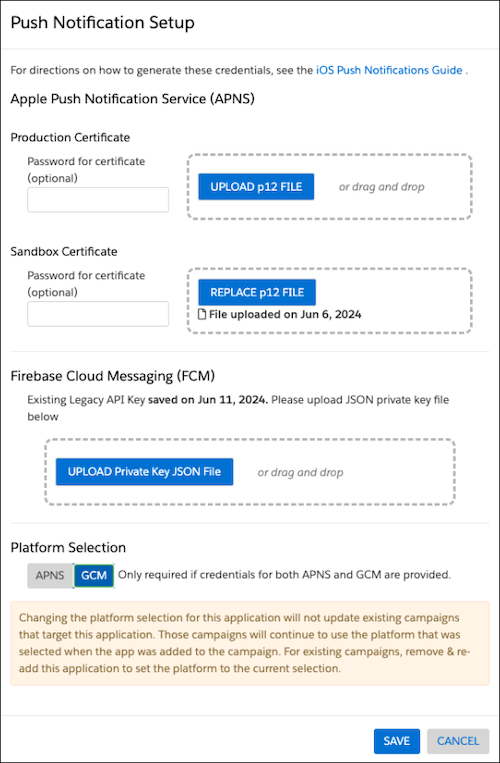
credentials for both APNs and FCM, you must pick one when you add the app to a Mobile Push
campaign. To prevent duplicate notifications, Personalization only sends to one
platform.
Required Editions
Available in: Premium Edition
Permissions
Needed
To create and upload APNs and Firebase credentials for a mobile
app:
A role with Administrator permissions
Complete APNs and Firebase configuration before uploading APNs and Firebase credentials
in the push notification setup.
In the Channels & Campaigns section of the main
navigation, select Mobile.
In the Mobile App Setup section, select your existing
Personalization-enabled mobile app.
Click Mobile Push Setup.
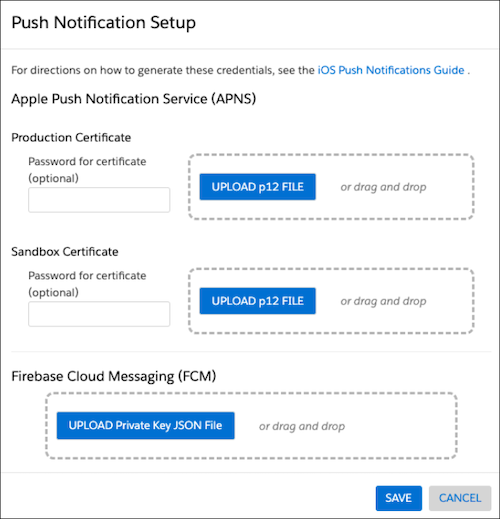
Enter or upload the credentials.
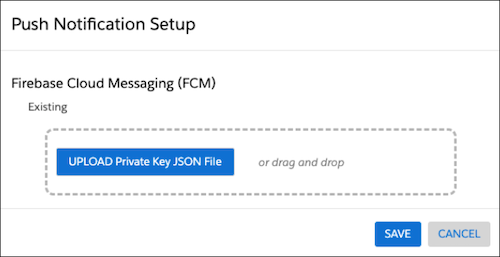
For Android/iOS apps using FCM, upload your private key JSON file to the FCM
field. For more information, see Push Notifications (Android).
For
information on generating a private key file in Firebase, see Provide credentials manually in the
developer documentation for Firebase Cloud Messaging.
Note The default
service account is assigned a role that provides more access than necessary. To
limit access and enhance security, we recommend creating a service account with
only the Firebase Cloud Messaging API Admin
role.
For iOS apps using APNs, upload the .p12 file for each sandbox or production
certificate. For more information, see Push Notifications (iOS).
For iOS apps, if you've entered credentials for both APNs and GCM, choose the
platform under Platform Selection to which notifications will
be exclusively sent.
Click Save.
Did this article solve your issue?
Let us know so we can improve!
Loading
Salesforce Help | Article
Cookie Consent Manager
General Information
Required Cookies
Functional Cookies
Advertising Cookies
General Information
We use three kinds of cookies on our websites: required, functional, and advertising. You can choose whether functional and advertising cookies apply. Click on the different cookie categories to find out more about each category and to change the default settings.
Privacy Statement
Required Cookies
Always Active
Required cookies are necessary for basic website functionality. Some examples include: session cookies needed to transmit the website, authentication cookies, and security cookies.
Functional Cookies
Functional cookies enhance functions, performance, and services on the website. Some examples include: cookies used to analyze site traffic, cookies used for market research, and cookies used to display advertising that is not directed to a particular individual.
Advertising Cookies
Advertising cookies track activity across websites in order to understand a viewer’s interests, and direct them specific marketing. Some examples include: cookies used for remarketing, or interest-based advertising.