
You are here:
VLOOKUP
Use the VLOOKUP function to retrieve specific data from a table. You can use it when you’re mapping fields from your source file to Marketing Cloud Intelligence Data Pipelines.
VLOOKUP isn’t limited to the data stream where it’s applied, and it uses all dimensions to match data columns.

VLOOKUP takes three parameters:
- ValueToSearch (the CSV field)—The value used to match the two data columns. It can be
csv[''],dat[''], or string. - searchDimension (correlating dat field)—The name of the dimension where the value is
being searched. If the dat[''] field is used as a value to search, it can’t contain VLOOKUP.
For example, you can insert
csv ['Field_1']+ csv
      ['Field_2']
in the ValueToSearch parameter, and the formula searches for strings like 'AAA111' and 'CCC333'. However, the returnDimension must contain only one field. - returnDimension—The value that is returned. Both the searchDimension and the returnDimension must be related to the same entity. The search and return values must be dimensions.
You can also use these optional parameters:
- workspaceLevel (true/false)—If true, VLOOKUP searches for the value in the entire workspace. When set to false, the function applies to the current data stream only. This option is useful when looking for a link between two dimensions by using an attribute or name field rather than a key as the common denominator.
- concatvalue (true/false)—If true, VLOOKUP concatenates multiple returned dimension values alphanumerically or chronologically. a comma-separated list. Because VLOOKUP can return only one value for each searchDimension, this option treats multiple dimension values as one value. You can then extract the values using a mapping formula or calculated dimension. If concatvalue is false, VLOOKUP presents the first value found.
- {'streamfilter1', 'streamfilter2',...}—You can limit the search to specific data streams. This parameter overrides the workspaceLevel parameter. You can also use the sign ‘%%’ as a placeholder for 1 or more characters, before, after or in the middle of the string. For example, type {‘%%Facebook%%’} in order to apply the formula on any data stream that includes the string “Facebook”
- searchByConstantId (true/false)—if true, VLOOKUP searches the data stream by the ID only. When false or empty, VLOOKUP searches by data stream name. If set to true and a data stream name was entered by mistake, the function searches by name. To search by ID, insert your ID in the {'streamfilter1', 'streamfilter2',..} parameter. The new data stream constant ID dimension remains constant and is not updated when recreating the data stream. To see the constant ID value, either add the dimension to the data stream list or query it in your tables.
You can use VLOOKUP to pull attributes from a classification data stream into another data stream in your workspace. A classification data stream often holds attributes that aren’t retrieved as part of the usual data upload. VLOOKUP makes it easy to link these attributes to their entity, harmonizing the attributes with the rest of your data.
To return multiple dimension values and insert the values into separate rows, use VLOOKUP_UNNEST. VLOOKUP_UNSET must be mapped to a dimension that holds a many-to-many relationship with the searched value, because the resulting returnDimension value holds a many-to-many relationship with the searched value. If the returned dimension is mapped to the entity’s key, a many-to-many relationship isn’t required. You can apply only one VLOOKUP_UNNEST formula per data stream.
VLOOKUP Example
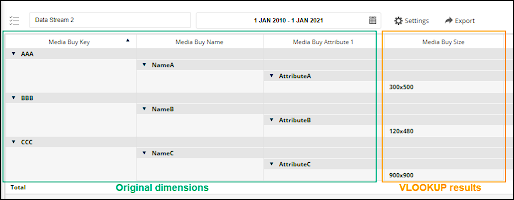
You have two data streams—Data Stream 1 (Ads) and Data Stream 2 (Ads)—and each data stream has a file. The first file has two fields, Media Buy Key and Media Buy Size (1), and the other file has the same values for Media Buy Key, but includes two different dimensions: Media Buy Name and Media Buy Attribute (2). Both files have matching Media Buy Key values, allowing you to use VLOOKUP to display values for Media Buy Size with the dimensions from the other data stream.
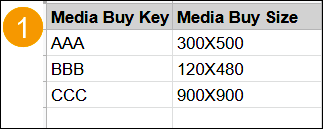
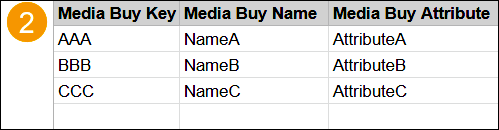
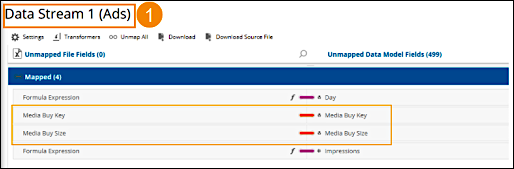
In Data Stream 1 (Ads), your Media Buy Key is mapped to Media Buy Key, and Media Buy Size is mapped to Media Buy Size. (1)
In Data Stream 2 (Ads), all three dimensions are mapped to Media Buy Size, where you can add the VLOOKUP function (2).
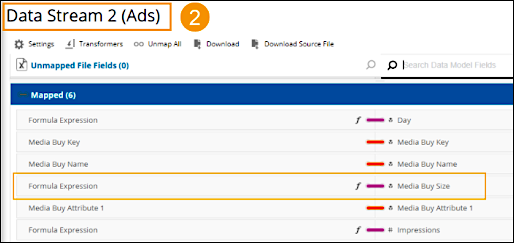
In the Media Buy Size dimension, add the following formula: VLOOKUP(csv['Media Buy Key'],[Media_Buy_Key],[Media_Buy_Size], true,true)
csv['Media Buy Key'] (1) contains the Media Buy Key
values from the raw data in the second file. [Media_Buy_Key] (2) contains the Media Buy Key
values from the first file. VLOOKUP looks for matching values between these two parameters and
returns [Media_Buy_Size] (3)—the corresponding Media Buy Size values from the first file.

After the formula returns the values you can see these values along with the rest of the dimensions.
VLOOKUP Usage
- Make sure that the values have no extra spaces. Apply the TRIM function to the source file
fields in the VLOOKUP formula. For example:
VLOOKUP(TRIM(csv['ad_name']),[Main_Facebook_Lookup_2_Entity_Key],[Main_Facebook_Lookup_2_Entity_Attribute_01],true,true)) - Nested VLOOKUP or VLOOKUPs conditioned on other VLOOKUPs in a mapping formula isn’t
supported. Run each VLOOKUP formula in a separate data stream for best results. For example,
this formula always returns VLOOKUP 3, and VLOOKUP 1 always stays empty.
IF(VLOOKUP 1 == ‘X’, VLOOKUP 2, VLOOKUP 3)As long as the VLOOKUPs aren’t conditioned to one another, you can use more than one VLOOKUP in the mapping. For example,(VLOOKUP 1 + VLOOKUP 2 + VLOOKUP 3)returns the expected results. - VLOOKUP doesn’t support calculated fields. VLOOKUP always returns String type values, even
if a date field is being returned. Therefore, the demo value that MDP returns is a string with
a ‘simulation mode’ value. Sometimes when trying to VLOOKUP a date and then parsing it, you
get an ‘Unparseable date: “Simulation Mode”’ error after saving the mapping. You can resolve
this by applying a variation of this formula:
var VLOOKUP= VLOOKUP(valueToSearch,searchDimension,returnDimension,workspaceLevel,concatValues); IF(VLOOKUP == 'Simulation mode',null,VLOOKUP) - When saving a data stream mapping, MDP runs mapping validation. During this process, the platform validates the mapping formulas with their values to make sure that all formulas run successfully.
