
You are here:
Create a Workflow
Create a workflow to set the order of when to execute data streams, reports, and actions. You can also chain workflows together so that the end of the workflow initiates the next workflow.
- On the Manage tab, select Workflows.
- Click Add New.
- Name the workflow, and select Enable.
- To run the data streams only after the workflow is triggered, select Convert all Data Streams to run only in Workflows. For example, if a data stream receives a file via delivery information, the file processes after the workflow triggers.
- To schedule the workflow, set the frequency and time.
- In the Flow area, double-click an empty space.
- Select the type of entity to include in the workflow: data stream, action, report, system event, or another workflow.
- Select which entities to include in the workflow. An entity can be in multiple workflows.
- Click Add.
- To create more workflows, repeat the same process.
-
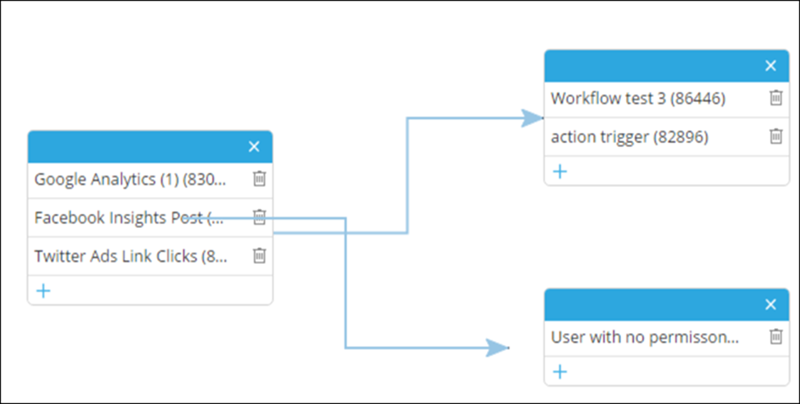
To connect between workflows, drag the cursor from the first workflow to the one you’re
connecting it to.
By default, if an entity in a workflow fails, the entire workflow doesn’t run. To enable the workflow to continue even if an entity fails, hover over the entity, click Settings, and select Continue workflow on failure.
- Click Save & Execute.
Did this article solve your issue?
Let us know so we can improve!
