
You are here:
Set Up Marketing Performance
Marketing Performance uses Data 360 and Tableau Next to present detailed metrics about your campaigns and content. Get embedded reporting in your campaign records, and access a comprehensive dashboard with insights and trends about your overall marketing efforts.
Required Editions
| Available in: Salesforce Enterprise and Unlimited Editions with Foundations and with Marketing Cloud Next Growth or Advanced Edition |
| User Permissions Needed | |
|---|---|
| To turn on Marketing Performance: | Data Cloud Architect and Marketing Cloud Admin permission sets |
| To view Marketing Performance dashboards: | Tableau Next Included App Business User permission set |

Note Using the Marketing Performance feature consumes Data 360 credits, which can increase your bill. Learn more about the billing impact of Data 360-powered
features.
Install Marketing Performance
Set up Marketing Performance for the first time with Data 360 integration, data kits, and analytics workspace.
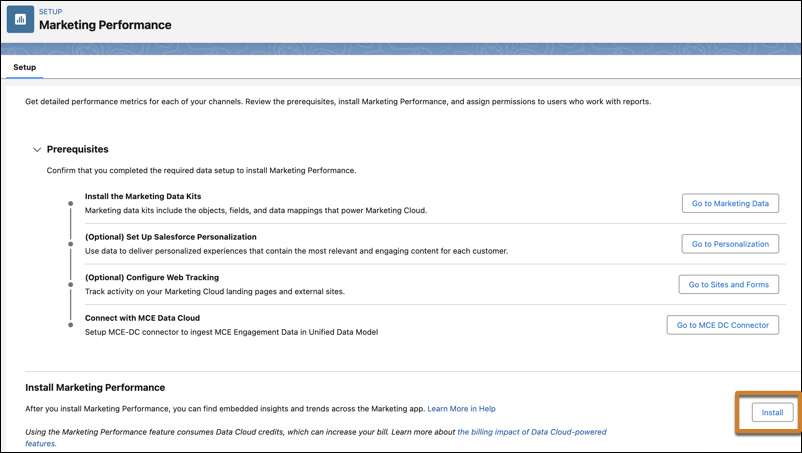
- From Setup, in the Quick Find box, enter Marketing Performance and click Marketing Performance.
-
Confirm that you have these prerequisites:
- Make sure that you've installed the required Marketing data kits.
- To personalize marketing content with data, set up Personalization.
- To include web tracking data in reports, such as custom tracked link activity, configure web tracking.
- To view embedded analytics for Flow elements, install Flow Performance.
-
In the Install Marketing Performance section, click
Install.
To start the installation, you must have both the Data Cloud Architect and Marketing Cloud Admin permission sets. Monitor the progress of the installation on the new Marketing Performance tab. To view the success or failure messages associated with your install, under Monitoring, click the event name.
- Assign the Tableau Next Included App Business User permission set to any users who require access to Marketing Performance data. See Assign Marketing Permission Sets.
-
In the Marketing app, go to the Marketing Performance tab to view the main dashboard
and confirm that your install is complete.
To learn more about Marketing Performance dashboards, see Measure Success.
Get the Latest Marketing Performance Dashboard
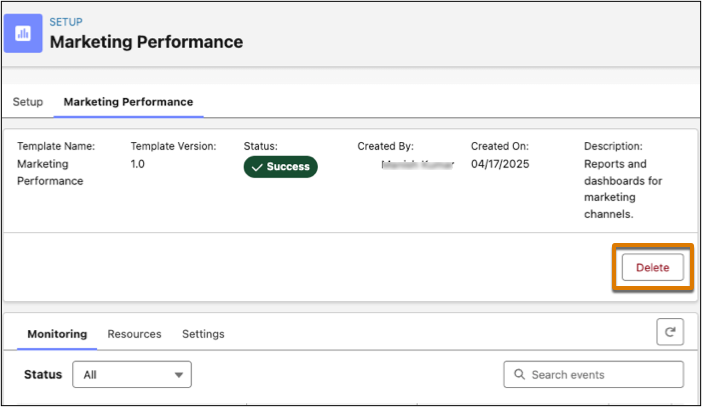
To access the latest features and dashboards, update your Marketing Performance app by first removing and then reinstalling the current version. Salesforce regularly updates Marketing Performance reports and dashboards with new features, fields, and enhancements. You can find these updates in the release notes.
- From Setup, in the Quick Find box, enter Marketing Performance, and then click Marketing Performance.
- Go to the Marketing Performance tab.
-
Delete the existing app.
- Make sure that you’ve updated the required Marketing data kits.
-
After the data kits update and show a Deployed status, reinstall the Marketing
Performance app from the Setup tab.
- To view the updated dashboard, open the Marketing Performance tab in the Marketing app.
Did this article solve your issue?
Let us know so we can improve!
