
You are here:
Create and Manage a Campaign Flow in Marketing Cloud Next
You can create a campaign flow from any campaign Quick Start or from a blank template, and then add flow elements that listen for activities and trigger actions.
Required Editions
| Available in: Salesforce Enterprise and Unlimited Editions with Marketing Cloud Next Growth or Advanced Edition |
| User Permissions Needed | |
|---|---|
| To create and manage a campaign: | Marketing Cloud Manager permission set OR View Flows and Create and Edit Flows user permissions AND Permissions to all elements in the flow |
| To create and edit flows: | Marketing Cloud Manager permission set OR View Flows and Create and Edit Flows user permissions AND Permissions to all elements in the flow |
| To share flows and view shared flows: | See other permissions. |
In this topic:

Although it's possible to create a flow before the campaign, we typically don't recommend it. If you must create a flow first, verify that the flow type is compatible with Marketing Cloud Next, and add a related campaign the Associated Record field. Skipping these steps can break relationships, personalization, and reporting.
Quick Start a Campaign Flow
The fastest way to create a campaign flow is to use a Quick Start option to send a message, build a form, or trigger an action from an event.
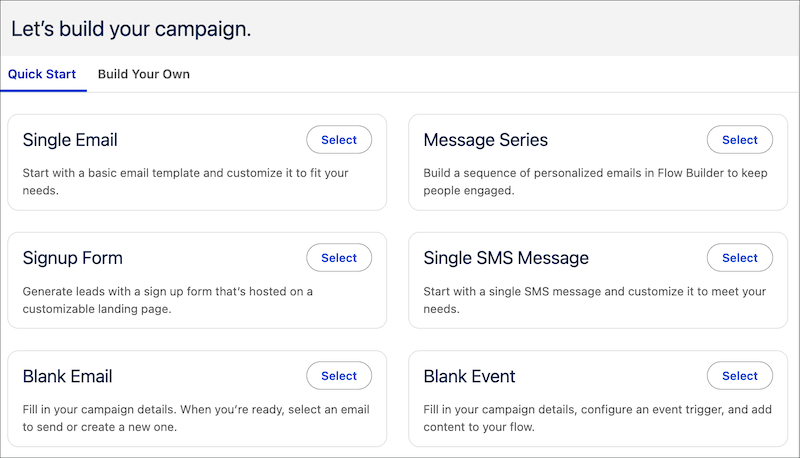
Edit a Campaign
You can only directly edit a flow before it has been activated. When you make changes to an active flow, the flow opens in draft status on the Flow Builder canvas, and must be saved as a new version. To customize a campaign flow, open it from the campaign record or the Flows tab.
-
Open a flow for editing.
- From any campaign, click Open Flow.
- From the Flows tab, click a row's action menu, and then select Open Flow.
- Add structure and logic to your campaign flow.
-
Save your work.
- Click Save.
- Click Save As New Version, and confirm the name, data space, and data graph.
