
You are here:
Create an Email in Marketing Cloud Next
The content editing experience in Marketing Cloud Next provides tools to build an email, preview and test it, and publish it for use with a campaign. To make major changes to a published email or to prevent it from sending in a campaign, you can unpublish it.
Required Editions
| Available in: Salesforce Enterprise and Unlimited Editions with Marketing Cloud Next Growth or Advanced Edition, and in Starter and Pro Suite Editions. Your edition determines the options that you have. |
| User Permissions Needed | |
|---|---|
| To create or edit content: | Marketing Cloud Manager permission set AND any CMS workspace contributor role |
| To publish or unpublish content: | Marketing Cloud Manager permission set AND a CMS workspace contributor role of content admin or content manager |
- Add Required Consent Details to Promotional Emails
To comply with privacy and consent laws and regulations, including the U.S. CAN-SPAM Act, add an opt-out link and a physical mailing address to emails. Use the corresponding merge fields in text-based components in the email body. - Create an Email Template in Marketing Cloud Next
To keep your marketing campaigns consistent with brand guidelines and save time, create reusable standard and custom email templates.
See Also
Create or Edit an Email
There are multiple ways that you can create or modify an email such as in a campaign, in a flow, or from the Content tab.
The email functionality in Marketing Cloud Next is also available in Salesforce Starter and Pro Suite. For more information, see Salesforce Starter and Pro Suite Help.
Not sure where to start? Check out these basics for creating content in Marketing Cloud Next.

If you can’t modify settings or text in an email created from a template, specific parts of the template might be locked. A marketing admin can lock email settings such as global styles, layouts, or personalization data sources in templates. They can also add and lock property settings, such as the subject line or preheader, and specific content blocks, such as a footer or header, to ensure brand consistency. To make changes, contact your admin for help.
-
Create or open an email for editing.
- From the Campaigns tab, open a campaign or create one. Then, on the campaign record, next to the email that you want to work with, click Edit.
- From the Content tab, open a marketing workspace, and open an email for editing.
- From the Content tab, to create an email, click Add | Content | Email. Then, select the creation method.
- From the Content tab, to make a copy of an existing email, open your marketing
workspace, open the email, and click Clone.Note If you clone an email that includes personalization, some elements aren't copied to the new email. Default variations of dynamic content components are copied, but other variations and personalization rules aren’t. If the email has a Personalization recommender data source, the recommender isn't copied, but the related merge fields and repeaters are. You need to remove or replace them, or add the recommender to a new email.
- From a flow, open a Send Email Message element, and then edit the related email.
- In the editor, select an optional brand.
- Add or move components to create the layout that you want.
- Use the rich text editor to customize font, font size, font colors, and line height. You can insert emoji, block quotes, and horizontal lines.
- Give your email a title for internal use and write a subject line.
- Set the Message Purpose to Promotional or Transactional depending on your needs.
- To attach a document to the email, in the property panel under File Attachment, click Add Document, and select a PDF file (up to 5 MB) from Salesforce CMS.
-
To add a placeholder for personalized data, click Add Merge
Field.
Depending on the data sources added to the email, you can insert data graph attributes, recipient unified profile values, offer data, event data, and more. For more information, see Personalizing Content with Merge Fields in Marketing Cloud Next
- To comply with consent and privacy regulations for a promotional email, or if you enabled consent validation for a transactional email, include your organization’s address and an opt-out link.
- Save your work.
To make an email available to send in a campaign, publish it. You can’t activate a campaign flow that contains an email that’s unpublished.
Edit Content with Agentforce
-
Use Agentforce to generate and refine content.
- Click the sparkle button
 next to the subject or preheader.
 - Or, click the Agentforce icon to open a chat window to interact with the agent.
The agent drafts or refines the text for you. The content that the agent generates is grounded in your campaign brief, the assigned brand, and existing content on the canvas. - Click the sparkle button
- To refine the text, click Try Again, or directly ask the agent to add and refine text and components.
- You can ask the agent to create an entire section for your email and also specify the number of columns to create for the section. You can specify which components to add to each column and ask the agent to create content for the components.
Create a Plain Text Version of an Email
Add a plain text version of your email to make sure that it is deliverable to recipients whose email clients don't render HTML. Plain text emails don't support formatting, font styles, colors, or inline images. When you manually edit the plain text version, it's no longer in sync with the original version of the email. Also, future changes to the original version aren't included in the plain text version.
- In the email editor, click the Plain Text View icon in the main toolbar.
- Click Edit.
- To add a placeholder for personalized data, click Add Merge Field.
- To discard your edits and restore the content to the original version, click Restore.
- Save your work.
Preview and Test an Email
To make sure that your customers get the best experience from your content, preview and test your email. Before you can preview and test, publish at least one segment. You can preview and test an email in any status. Test sends count toward message credits.
-
Open the preview window.
- When editing your email, in the main toolbar, click Preview.
- From the email content detail page, click Preview.
-
Select a segment and a sample recipient.
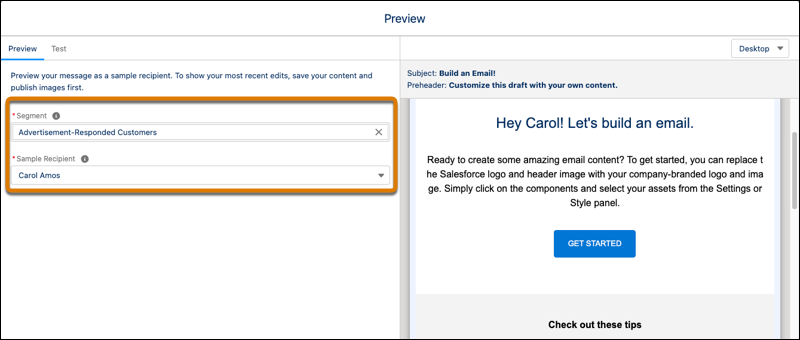
- To configure a test send, open the Test tab.
- In the Test Send Email Address field, enter up to five email addresses that you can access, separated by a comma.
- To change the email address that sends the test, update the From Name and Address field with a From name from an authenticated domain.
- To send a test email, click Send Test.
-
Check the inbox and verify that the test email appears as expected.
- Make sure that merge fields appear properly.
- Test any links and buttons, especially the opt-out links.
- When you’re ready to use an email with a campaign, publish it.
A complete physical address, including an alphanumeric value in the State field, must be included in every marketing email that you send. If your business address doesn't use a state, region, or province name, insert a placeholder. For orgs that use a region picklist, add a placeholder to the picklist first, and then select the placeholder from the dropdown menu.
Unpublish an Email
To change your email back to draft status and prevent it from sending in an email campaign, unpublish your email.
-
From your marketing workspace, open the email that you want to unpublish.
- From the content detail page, click Unpublish.
- When you’re editing your email, from the main toolbar, click Unpublish.
- Review the list of related flows and content to determine whether other changes are required.
- To unpublish the email immediately, click Unpublish Now.
- To unpublish the email at a later date, click Schedule Unpublish, and then schedule a date and time to unpublish it.
