Enhance data collection without compromising user experience with short forms that are
easy to complete. Use hidden fields to gather contextual data behind the scenes, or add default
values in visible fields to speed up form completion. Hidden fields and default values are
available on the Checkbox, Dropdown, Number, Plain Text, and Text Area input
components.
Required Editions
Available in: Salesforce
Enterprise and Unlimited Editions with
Marketing Cloud Next Growth or Advanced
Edition, and in Starter and Pro
Suite Editions. Your edition determines the options that you have. Also available in these editions when Salesforce Foundations is enabled.
User Permissions Needed
To create a form:
Marketing Cloud Manager permission set
AND
Any CMS workspace contributor
role
To publish a form:
Marketing Cloud Manager permission set
AND
A CMS workspace contributor role
of content admin or content manager
A default value is useful in a visible field when you expect most users to enter the
same value. A default value is useful in a hidden field when you want to capture information
without requiring users to enter it.
A URL parameter fills its related form field with a
value from the URL parameters of its host page, whether that’s a marketing landing page or an
external site. You can use UTM parameters or any other URL parameter. For example, a URL
parameter in a hidden Source field can collect details about where a particular lead came from.
The UTM parameter utm_source can pull in the value
source=newsletter. The URL parameter product_team can record
the product page where the lead originated.
If you mark a hidden field as required, you must enter a fallback value. With a
fallback value, you can gain context even if the form delivers an invalid URL parameter or no
value at all. When you enter a fallback value, it appears in the component on the canvas and,
for a visible field, in preview mode and the live form.
For example:
In a hidden Status field, a default value can automatically record a new lead as Open.
In a visible Country field, a default value is helpful if you expect most leads to enter the
same country name.
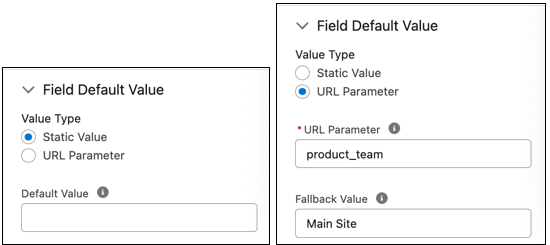
To learn which product page a contact form submission came from, you enter the URL parameter
product_team for a hidden Lead Source field. For the fallback value, you
enter Main Site. If the URL for the form’s page doesn’t include the
product_team parameter, you still learn that the lead came from your main
site and not from, say, a Google search or email.
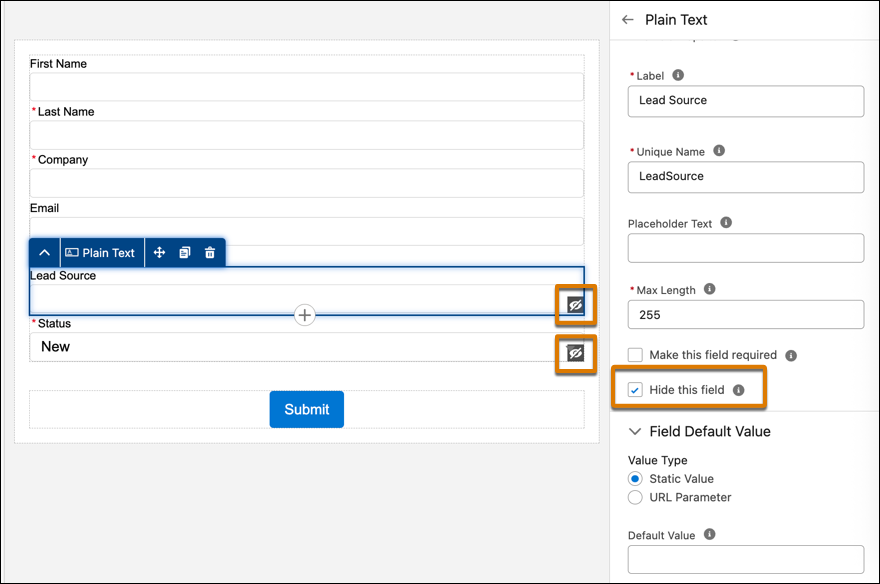
To hide a field, select Hide this field in the input component’s
property panel.
Hidden fields are visible on the canvas while you create or update a form, and an
icon identifies these fields as hidden. Hidden fields aren’t visible in preview mode or on a
live form. This way, you can get a clear idea of what your end users can see on the
form.
To enter a default field value, select Static Value or
URL Parameter.
For Static Value, enter a default value.
For URL Parameter, enter a parameter from your page URL and include a fallback value.
Make sure that the parameter entered in the form matches the parameter used in the URL.
We use three kinds of cookies on our websites: required, functional, and advertising. You can choose whether functional and advertising cookies apply. Click on the different cookie categories to find out more about each category and to change the default settings.
Privacy Statement
Required Cookies
Always Active
Required cookies are necessary for basic website functionality. Some examples include: session cookies needed to transmit the website, authentication cookies, and security cookies.
Functional Cookies
Functional cookies enhance functions, performance, and services on the website. Some examples include: cookies used to analyze site traffic, cookies used for market research, and cookies used to display advertising that is not directed to a particular individual.
Advertising Cookies
Advertising cookies track activity across websites in order to understand a viewer’s interests, and direct them specific marketing. Some examples include: cookies used for remarketing, or interest-based advertising.