
You are here:
Create and Manage an SMS Message in Marketing Cloud Next
Create an SMS message for your marketing campaigns and reach your customers directly on their mobile devices. For example, use SMS messaging to promote something new or follow up on an ongoing transaction.
Required Editions
| Available in: Salesforce Enterprise and Unlimited Editions with Marketing Cloud Next Growth or Advanced Edition and the Salesforce Message Credits - SMS add-on |
| User Permissions Needed | |
|---|---|
| To create or edit content: | Marketing Cloud Manager permission set AND any CMS workspace contributor role |
| To publish or unpublish content: | Marketing Cloud Manager permission set AND a CMS workspace contributor role of content admin or content manager |
Before you begin, review information about message length and required opt-out keywords. See SMS Message Length and Opt-Out Keywords.
Create an SMS Message
The SMS preview updates on the canvas while you're working. If you exceed the maximum length for a single message, the number of messages increases. Many carriers support concatentation, which combines multiple messages into a single message. Other carriers send the messages separately.
- From your marketing workspace, create or open an SMS message.
- Give your message a title for internal use.
-
Set the Message Purpose to Promotional for marketing
content.
The transactional message purpose is intended for one-to-one messages, such as password resets and order confirmations.
- In the Message field, enter your message content.
-
To personalize your message, click Add Merge Field.
-
To insert a value from the recipient’s unified profile, select Unified Individual.
-
To select event data, such as a subscription confirmation or a product from a confirmed order, click Select Event.
-
To select from a curated list of values, such as products purchased, select Data Graph Attribute.
-
If saved expressions are available, select a saved expression, which includes pre-saved criteria for selecting a data graph attribute.
-
-
To build a URL with UTM and custom tracking parameters, click Add UTM
Link.
- Enter a destination URL that begins with http:// or https://.
- Turn on UTM Parameters, and then select the UTM parameters that you want to add to the URL.
- Enter the values for the selected parameters or select merge fields.
- To append custom parameters to your URL, click Add Row, and then enter the custom parameter details.
- Preview the final URL and click Add.
- In the message body, add clear opt-out instructions and an opt-out keyword.
- Save your work.
Now you can preview and test your SMS message.
Preview and Test an SMS Message
Before you can preview or test, you must publish at least one segment and make sure you that have a sender code available in Salesforce Setup. You can preview and test an SMS message in any status. Test sends count toward message credits.
To test personalization fields, send a test message. When you receive the message, test links and make sure that merge fields and shortened links display properly.
-
Open the preview window.
- When editing your message, in the main toolbar, click Preview.
- From the content detail page, click Preview.
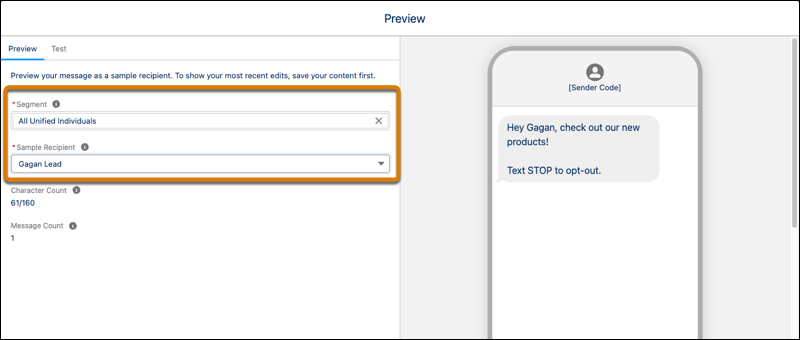
- Select a segment and a sample recipient.
- To configure a test send, open the Test tab.
- Select a sender code to send the message from.
- In the Test Send Mobile Number fields, enter up to five numbers for devices that you can easily access.
- Send the test message.
Unpublish an SMS Message
To prevent a message from sending in a campaign, unpublish the SMS message.
-
From your marketing workspace, open the SMS message that you want to unpublish.
- When you’re editing your message, from the main toolbar, click Unpublish.
- From the content detail page, click Unpublish.
- Review the list of related flows and content and determine if any other changes are needed.
-
Unpublish the message.
- To unpublish the message immediately, click Unpublish Now.
- To unpublish the message at a later date, click Schedule Unpublish, and schedule a date and time to unpublish it.
After you unpublish, the SMS message is no longer available to campaign flows and can't be sent. You can make any necessary edits and republish it, or delete it.
