
You are here:
Organize and Share Content in a Marketing Workspace
When you create content in Marketing Cloud Next, it’s stored in a marketing workspace. You can use the default Content Workspace for Marketing Cloud, or create additional workspaces to focus campaign assets, manage collaboration across teams, or organize content by initiatives. Delete unused workspaces that you no longer need. To keep your workspace tidy, add folders. All your workspaces are listed on the Content tab.
Required Editions
| Available in: Salesforce Enterprise and Unlimited Editions with Marketing Cloud Next Growth Edition or Advanced Edition |
| User Permissions Needed | |
|---|---|
| To create a marketing workspace: | Modify All Data OR Marketing Cloud Admin permission set |
| To delete a marketing workspace: | A CMS workspace contributor role of content admin |
| To share or unshare a workspace: | Marketing Cloud Manager permission set AND A CMS workspace contributor role of content admin or content manager |
All marketing workspaces are connected to two default channels. The Marketing Messages channel sends emails and SMS messages, and the Marketing Landing Pages site channel hosts your landing pages. When you publish content, it’s available for use in the channels connected to the workspace.
To encourage consistency and reduce duplication of content, you can use a workspace as a source and let other workspaces in your org access the content. Only content contributors in the source workspace can change the source content. You can share a marketing workspace with another marketing workspace or with a general workspace that’s used by other Salesforce CMS users in your org. Sharing workspaces is a great solution for customers using Marketing Cloud Next together with Salesforce CMS in other Salesforce products. For example, create and manage your company logo image in a marketing workspace. Then share that content with a general workspace so that your colleagues in other departments can easily find and use the image.
All content, including drafts and the latest published versions, is available in a Shared with Workspaces folder in each target workspace. The target workspace can use the shared content with its configured channels.
-
Create a workspace.
- Open the Content tab, and click Add Workspace.
- Choose the Marketing workspace type.
- Give the workspace a clear name and description.
- Select the default language.
- Add at least one content admin to the workspace. See Add Workspace Contributors to Marketing Cloud.
-
Add a folder.
- Open the workspace.
- Click Add and select Folder.
- Enter a name, and save.
- To add a child folder, open the folder and repeat these steps.
-
Configure sharing settings.
- Open the workspace.
-
Click
 and select Workspace Sharing.
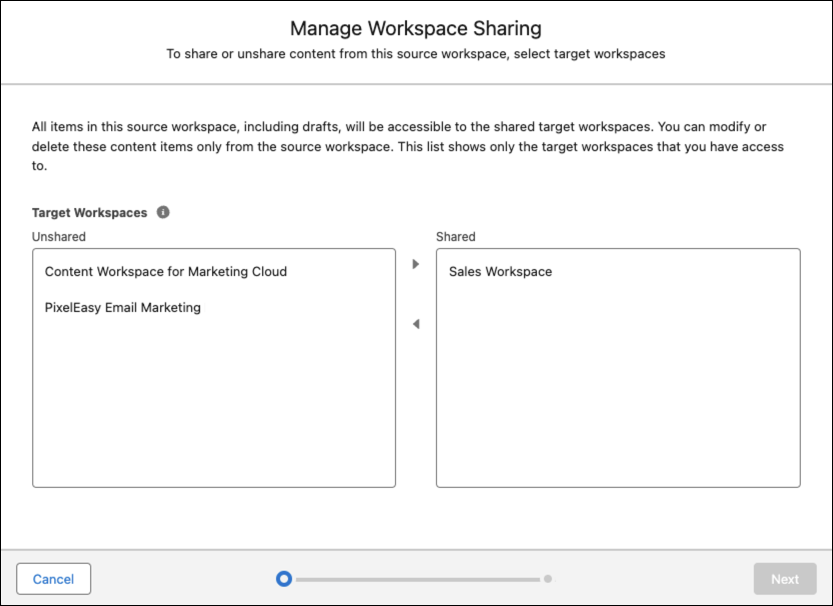
- Select an unshared target workspace, and move it to the Shared field.
-
Add as many workspaces to the Shared field as needed, and then save your
work.
Source content is available in a target workspace until you unshare the workspace. To unshare the workspace, move it back to the Unshared field.
- To view shared content in a target workspace, open the Shared with Workspaces folder.
- To identify where a piece of source content is used across all workspaces, open the source content detail record and click the Usage Info tab.

To make sure that your shared content will be published, consider this scenario. You have three enhanced CMS workspaces: Space A, Space B, and Space C.
You share Space A (source) to Space B (target). You add an image stored in Space A to a landing page in Space B. When you publish the landing page, the image is published, and the landing page and image are both available to Space B’s channels.
However, if you share Space B (source) to Space C (target), publishing the landing page to Space C’s channels doesn’t publish the image because the image belongs to Space A. To publish the image, you must share Space A to Space C.
Source content is available in a target workspace until you unshare the workspace. If the target workspace’s channels use content from the source workspace, that content is unpublished in the target’s channels and is unavailable wherever it’s referenced.
You can’t delete your org’s default marketing workspace, but you can delete other unused workspaces from the workspace settings menu. Before you delete a marketing workspace, unpublish all the content in it and remove it from all source and target workspace sharing relationships. To delete a workspace, go to the workspace settings, and click Delete Workspace.
