
You are here:
Configure Scoring Models in Marketing Cloud
To begin scoring leads, contacts, prospects, and accounts, select the Unified Individual or Account object to score on. Then, create scoring models and use default scoring rules or customize them. You can also add or delete rules, and create complex rules with multiple conditions.
Required Editions
| Scoring on people objects is available in: Salesforce Enterprise and Unlimited Editions with Marketing Cloud Next Growth or Advanced Edition |
| Scoring on the Account object is available in: Salesforce Enterprise and Unlimited Editions with Marketing Cloud Next Advanced Edition |
| User Permissions Needed | |
|---|---|
| To manage and publish scoring models: | Configure Marketing Cloud Scoring Models AND One of these permission sets:
|
To see a walkthrough of scoring model setup, check out this video:
Create Identity Resolution Rulesets
Before setting up Scoring Models, first create Identity Resolution Rulesets for Individuals and Accounts.
Turn On Scoring Models
- From Setup, in the Quick Find box, enter Marketing Cloud, and select Reporting and Optimization | Customer Engagement.
- Next to Customize Scoring Rules, click Enable Scoring, and then turn on all scoring features.
- After Scoring is enabled, click Go to Scoring Setup, and create a Scoring Model.
Create a Scoring Model
To segment scores based on different needs, products, regions, or communication channels, and to manage scoring frequency, set up a scoring model. Leads, contacts, and prospects receive scores based on their unified profiles.
- From Setup, in the Quick Find box, enter Scoring, select Scoring Models, and then click New.
-
Enter your Scoring Model details.
- Add a Model Name, and then select a business unit.
- Select People, Account, or both, and then click Next.
- Select the People or Account tab.
-
In the Overall Score section, decide how to weigh engagement and fit.
- To edit the ratio, click Edit Score Ratio, make your adjustments, and then click Save.
- (Optional) For account scoring models, enable intent scoring, change the score ratio to equal 100%, and click Save.
If you enable account intent scoring, republish the scoring model. - Review or edit the default Engagement Score Rules and Fit Score Rules, or create your own custom scoring rules for unified individuals.
- To start scoring your leads, contacts, prospects, and accounts, click Publish.
-
Select the frequency schedule from the dropdown, and then click
Publish.
You can adjust the schedule frequency after publishing.Scores are immediately applied to records related to the unified individual and unified account objects selected and can be used to build segments.
To show scores on lead and contact pages, add the Data Cloud Profile Insights component to your page layouts. Account scores can't be added to account pages.
Create a Custom Scoring Rule
You can create custom scoring rules to fit your needs. When you create a rule, each attribute represents a record field and the value is the data you're interested in. For example, Engagement Channel Action is an attribute, and CLICK is a value.
-
From the Scoring Models page, select a scoring model.
To add custom scoring rules, a scoring model must be in an Inactive or Draft status.
- Under the Engagement Score Rules section or Fit Score Rules section, click New, and then add a Description.
- On the Match dropdown menu, select All conditions are met (AND) or Any conditions are met (ANY) logic for your rule.
-
To complete the first condition, use the dropdowns for Attribute, Operator, and
Value.
Enter the exact attribute value including capitalization. To make sure attribute values are exact, we recommend enabling value suggestion for Text data type fields that you reference most often. See Edit Data Model Object Properties.
-
Add more conditions as needed.
- To add a top-level condition, click Add Condition.
- To create a condition group, click Add to Group.
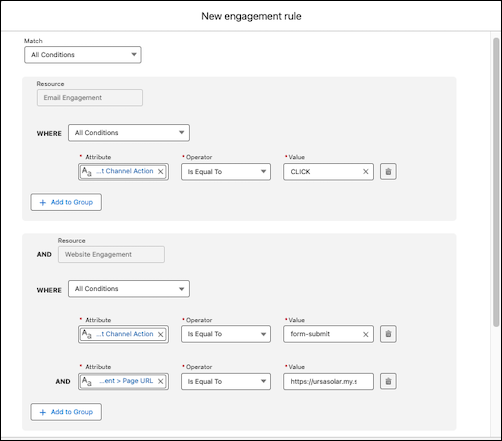
- Enter the number of points to add or subtract when someone meets the rule conditions.
- When you're ready, click Done.
- To add more rules, click New Rule.
Edit a Scoring Schedule
To manage consumption costs and scoring usage, you can choose how often a scoring model runs by editing its scoring schedule. You can choose from one of four different run frequencies, from every 1 hour to every 24 hours. The more often a scoring model runs, the more actionable it is, but the more credits it consumes.
- From the Scoring Models page, click on a scoring model.
- Click Edit under Schedule.
- In the Schedule dropdown, select a run frequency for the scoring model, and then click Save.
-
Publish the updates.
- Click Republish.
- Confirm your schedule frequency selection.
- Click Publish.
Delete a Scoring Model
-
Before you delete the scoring model, remove any Calculated Insights scoring
references.
- From Data 360, go to the Calculated Insights tab.
-
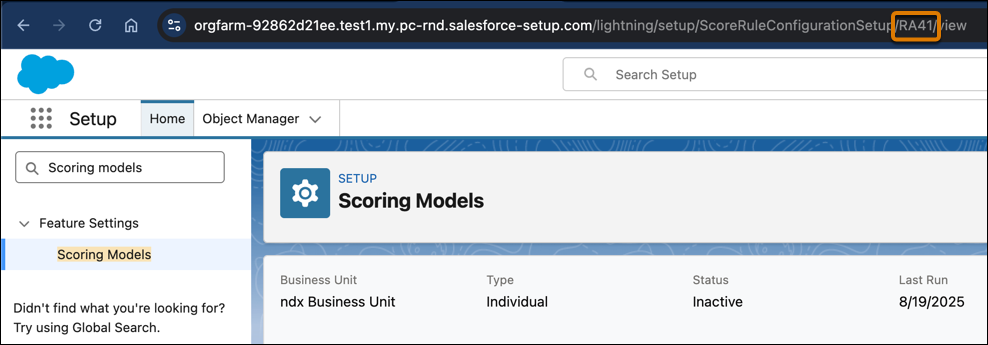
The four-digit ID in parenthesis next to each Calculated Insight relates to the
scoring model ID. Find the matching ID in the URL of the scoring model you want to
delete.
-
Due to dependencies, you must delete any Calculated Insights related to a scoring
model in this order.
a. Overall Marketing Score
b. Account Score
c. Marketing Engagement Score
d. Account Engagement Score
e. Lead Engagement Score
f. Contact Engagement Score
g. Marketing Fit Score
h. Account Fit Score
i. Account Intent Score
j. Individual Engagement Score
-
From the Scoring Models page, make sure the scoring model you want to delete has a
status of Draft or Inactive.
- If the scoring model has a status of Active, click the dropdown to the right of the scoring model, and select Deactivate.
- After you delete every Calculated Insight that's related to the scoring model, click the dropdown to the right of the scoring model, and then select Delete.
