
You are here:
Agentforce in Marketing Cloud Next
Use Agentforce to draft, refine, and generate multichannel and conversational marketing campaigns. Start by drafting a campaign brief and describing your campaign objective when prompted. View and refine campaign previews directly in the brief record for faster, more effective campaign creation. Use AI to refine saved campaign content directly in Content Builder, and use AI to analyze and optimize campaign performance.
Required Editions
| Available in: Salesforce Enterprise and Unlimited Editions with Marketing Cloud Next Growth or Advanced Edition and Foundations |
For information about currently supported languages, see the agent Considerations documentation.
Generate Campaigns with Agentforce
Draft a campaign brief, refine campaign messages and flow, and generate a campaign with Agentforce.
- On your Marketing App home page, click New Campaign | Draft with Agentforce. Or, click the Agentforce icon to open the Agentforce chat window and generate a brief.
-
Describe your campaign objective when prompted. Provide as much detail as possible to
ensure that the Campaign Creation agent generates an accurate draft brief and campaign
preview. For example, use a prompt like "
Create a campaign based on the New Fall Clothing Line brief that targets customers who have purchased hiking gear in the past."You can also reference an existing brief or a strategic document you’ve uploaded to Salesforce Files. For example, in the Agentforce panel, enter: “
Create a brief based on the May Customer
                Re-engagement brief.
” or “Create a brief based on the June Promotion file I just uploaded.” - You can ground your campaign brief in the tone and voice of your brand or by defining fields that provide more context. On the brief Details tab, add your CMS brand or define strategic grounding fields such as goals, KPIs, priority, or guardrails in the brief.
- If prompted, specify whether the campaign should be conversational for two-way engagement with your audience.
- Review the draft brief details and save your brief.
-
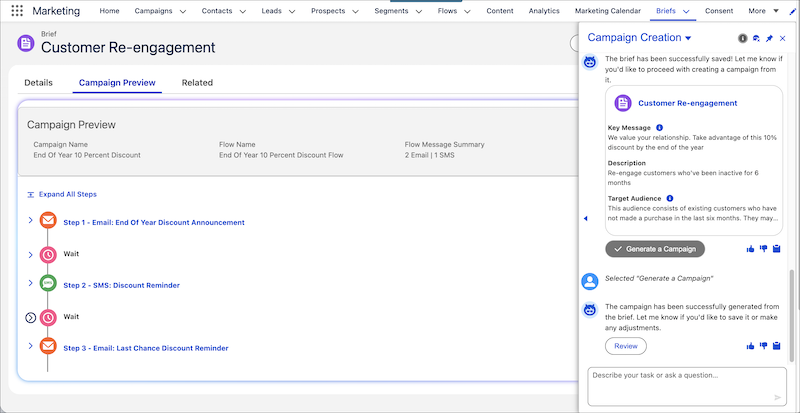
Generate and preview your new campaign. Based on the brief details, the agent
generates a campaign preview, which is also saved as part of the brief. The campaign
preview includes a proposed name, campaign flow, and message content for multiple
channels, or campaign steps, such as email and SMS.
-
Review and refine the campaign preview as needed.
-
To refine campaign structure such as changing the flow to one email, on the
brief’s Campaign Preview tab, click Refine Flow. Or, in the
chat panel, give the agent instructions, such as “
Revise the brief to
                  include an additional SMS reminder about the promotion.
” - To modify messages, the message channel, or the tone, click Refine Message.
- You can also adjust wait times between messages.
If your campaign is conversational, you’ll see a final step in the campaign preview called “Forward to Agent,” which is added to the underlying campaign flow. This final step specifies how to handle the email response from your customer. -
To refine campaign structure such as changing the flow to one email, on the
brief’s Campaign Preview tab, click Refine Flow. Or, in the
chat panel, give the agent instructions, such as “
-
Save the campaign. When you’re satisfied with the campaign preview, you can save it
as a final campaign. This final campaign record includes all messages, adjusted wait
times, and links to the associated brief.
After you save a campaign, you can no longer refine preview steps. You would need to unlink the campaign from the brief to start a new campaign preview.
If you remove a brief from a campaign, the related segments and content remain, but the agent can no longer help you with that campaign.
Summarize Campaign Results and Optimize Campaign Performance
Agentforce empowers marketers to improve campaign effectiveness with metrics and insights.
- In the Agentforce chat panel, simply ask the agent to provide a summary of your campaign. The agent tells you the number of opens, the clickthrough rate, and message delivery stats.
-
You can also ask for insights about a campaign’s performance. For example, ask the
agent "
Show me insights for the Summer ‘25 promotion campaign."The agent action, Generate Campaign Insights, analyzes the first flow in the campaign to provide insights, such as which channels demonstrated better engagement over time, and recommendations for improving future campaigns.
Agent Actions and Flows
The agent actions Create a Campaign from a Brief, Draft a Campaign Brief, Save Campaign Brief, and Save Campaign are powered by Salesforce Flow. Your admin can modify the flows that power these actions in Flow Builder, tailoring them to your specific business needs. For example, integrate with other systems, assign a campaign owner, send notifications to other teams, or add business logic like approval steps.

Refine Campaign Content with AI in Content Builder
Another way to use AI to refine content in your campaign process is directly in Content
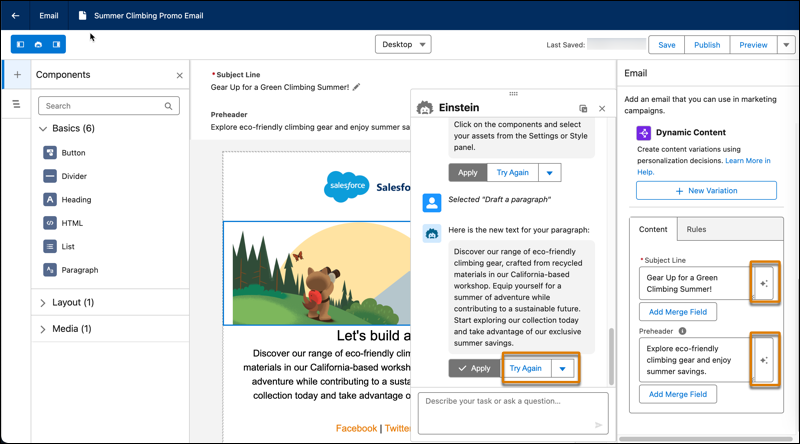
Builder. When you click a sparkle button  , the agent drafts or revises text for your email, landing page, or SMS message.
The content that the agent generates is grounded in your campaign brief, the assigned
brand, and the existing content on the canvas. To revise the text, click Try
Again, select a follow-up action to change the length or tone, or refine the
text by key message or target audience.
, the agent drafts or revises text for your email, landing page, or SMS message.
The content that the agent generates is grounded in your campaign brief, the assigned
brand, and the existing content on the canvas. To revise the text, click Try
Again, select a follow-up action to change the length or tone, or refine the
text by key message or target audience.
You can also ask the AI agent to create an entire section for your email or landing page. Specify the number of columns in the section and the components in each column. And, you can ask the agent to create content for the components in the section.
