
You are here:
Track Activity on Landing Pages
Track visitor activities on your Marketing Cloud Next landing pages. To protect the privacy of your landing page visitors, use the default consent banner to collect consent to track. You’re responsible for complying with privacy laws and regulations applicable to your business.
Track Activity with Consent Banner
To add tracking and a consent banner to your landing pages, first review your consent
banner settings, then add the banner integration to your Marketing Landing Pages site. To
track activity on a landing page that uses a custom domain, add a custom URL for that domain
in Setup and define the path as /lp.
- From Setup, in the Quick Find box, enter Web Tracking, and then select Consent Banner.
- Choose whether to require consent to track on all of your Salesforce-hosted landing pages. To help protect the privacy of your site visitors, this setting is on by default.
- Follow the steps to customize the consent banner.
-
Add the banner integration to your landing pages.
- From Setup, in the Quick Find box, enter All Sites, and select All Sites under Digital Experiences.
-
Next to Marketing Landing Pages, select Builder.
Marketing landing pages use the Experience Cloud Sites framework. This site operates behind the scenes. Don’t add content to it.
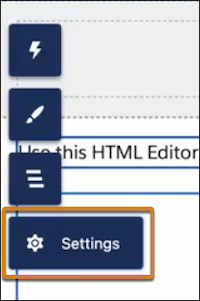
- Click Settings and select Integrations.
- On the Data Cloud integration, click Add to Site, and enable it.
- On the Data Cloud Web Tracking Consent Banner integration, click Add to Site, and enable it.
- To apply the banner and styles to your landing pages, click Publish.
After publishing, if you change the banner text or style settings, publish the banner again in Experience Cloud. To test the banner on a real page, create and view a landing page in a web browser.
Enable Tracking Without Consent Banner
To track activity without collecting consent, you can publish a code snippet to your landing pages.
- From Setup, in the Quick Find box, enter All Sites, and then select All Sites under Digital Experiences.
- Next to Marketing Landing Pages, select Builder from the Action column.
-
Set the Experience Builder security level to Relaxed CSP.
- Click Settings, and then select Security & Privacy.
- Click the Security Level dropdown menu and select Relaxed CSP: Permit Access to Inline Scripts and Allowed Hosts.
- Click Settings, and then select Integrations.
-
Find the Data Cloud integration, click Add to Site, and enable
it.
Don’t install the Web Tracking Consent Banner for Data Cloud integration.
- Click Settings, and then click Advanced.
- Click Edit Head Markup. Copy this code and paste it into the Head Markup code block:
- Save your work.
- To begin tracking activity, click Publish.
