
You are here:
The Refer a Friend Widget
Every referral promotion comes with a widget that allows advocates to sign up for the promotion and send referral emails to their friends. The widget also allows people visiting the brand’s site to sign up with the brand and then join the referral promotion. After you customize the widget based on the brand’s guideline, admins can embed the widget’s flexcard on Experience Cloud sites or external sites. On the Referral Promotion guided flow, the widget is placed in the Promotion Launched stage.
Required Editions
| Available in: Lightning Experience |
| Available in: Enterprise, Performance, Unlimited, and Developer Editions with Referral Marketing |
Widget States
The Refer A Friend widget consists of these states:
| State | What Viewers Can Do |
|---|---|
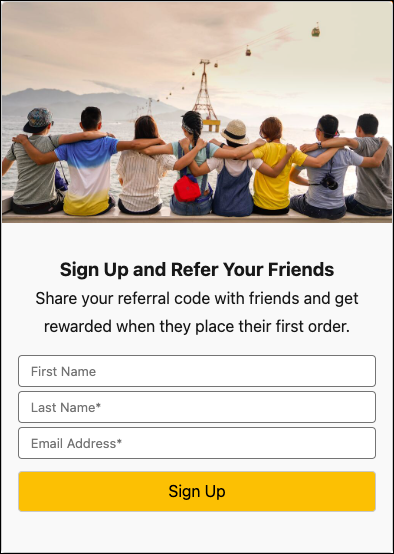
| New Advocate | Sign up as a new customer and then join the promotion. |
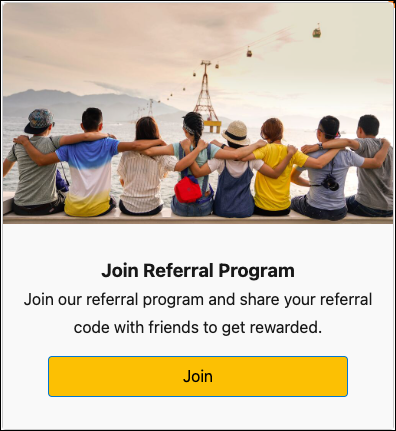
| Advocate Not Registered | Join the referral promotion. |
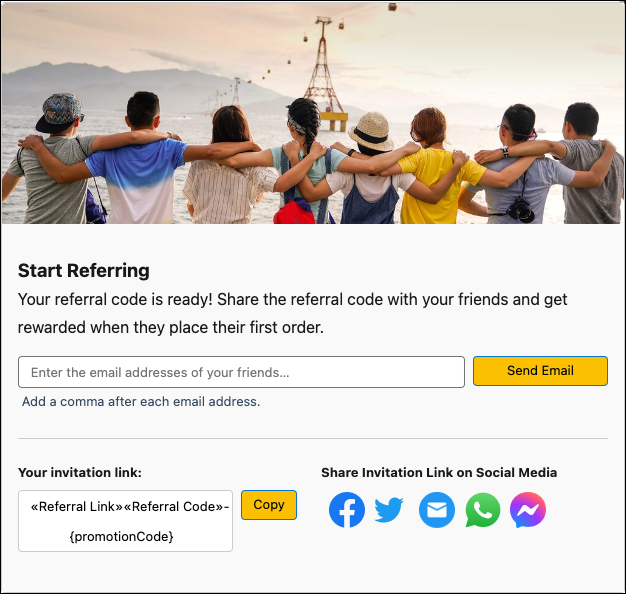
| Registered Advocate | Share their referral code with friends via email or Social media. |
| Display Error | If this error occurs multiple times, admins can verify the configurations used to embed the widget on the site. |

Widget State Support
The capabilities supported by the widget depend on where you host the widget.
- Experience Cloud sites: Only authenticated users can access the widget. The widget state
shown to the logged user depends on whether they signed up for the promotion.Important Guest user access to the widget from Experience Cloud sites isn’t supported.
- External sites: The state of the widget depends on the authentication and authorization information passed by using OmniOut. Use proxy servers or any other mechanisms to manage this information.
Here’s a table that describes who can view each widget state.
| State | Experience Cloud Sites | External Sites |
|---|---|---|
| New Advocate | Not supported | Users who don’t have a contact record in Salesforce. |
| Advocate Not Registered | Authenticated users who haven’t signed up for the promotion. | Authenticated and authorized users who haven’t signed up for the promotion. |
| Registered Advocate | Authenticated users who signed up for the promotion. | Authenticated and authorized users who signed up for the promotion. |
| Display Error | Authenticated users if the widget can’t get the details of the referral program, promotion, or the user viewing the widget. | All users if the widget can’t get the details of the referral program, promotion, or the user viewing the widget. |
New Advocate State
In this state, you can:
- Add a background color or image
- Change the padding and height
- Change the header image or remove the header section
- Change the content of the widget, including the content formatting
- Change the button text, including the button formatting
Advocate Not Registered State
In this state, you can:
- Add a background color or image
- Change the padding and height
- Change the header image or remove the header section
- Change the content of the widget, including the content formatting
- Change the button text, including the button formatting
Registered Advocate State
In this state, you can:
- Add a background color or image
- Change the padding and height
- Change the header image or remove the header section
- Change the content of the widget, including the content formatting
- Change the button text, including the button formatting
- Add redirect links to the social media platforms where advocates can share their referral code or remove social media icons
- Rebrand the subject that’s automatically added to the advocate’s social media post then they share their referral code on a social media platform
- Add icons and redirect links of the three additional social media platforms where advocates can share their referral code

Display Error State
In this state, you can:
- Add a background color or image
- Change the padding and height
- Change the error message header
Widget Preview
After you customize and save the widget, you’re redirected to preview your widget. In the preview, you can review the look and feel of your customized widget.
To preview the widget states, provide values for these preview parameters:
| State | Preview Parameters |
|---|---|
| New Advocate |
|
| Advocate Not Registered |
|
| Display Error | Enter an incorrect value for any of the parameters or a combination of parameters to view the various errors that appear when the widget can’t get the display context. |
Widget Activation
After you preview the widget, activate it. Admins can only embed activated widgets on Experience Cloud sites and external sites. There’s also an option to download the widget. Admins need the widget's .zip file to embed the widget on external sites using OmniOut.
Watch and Learn
To learn how to customize a widget to suit your company’s branding, watch  Design Widgets As Per Your Company’s Branding
- Create a Custom Refer A Friend Widget
On the Referral Promotion guided flow, marketing managers can change the style and text of the Refer A Friend widget, but they can’t add a customer input or a custom widget state. To customize the business logic or add components—such as mobile number field, consent checkbox, or terms and conditions—create and customize the widget's Apex class. Then, update the widget’s data source so that Referral Marketing uses the class when users access the widget.
