You are here:
List Item Actions in the Salesforce Mobile App
List item actions give you access to your actions in list views, task lists, and related record lists. You can use list item actions to update records directly from lists.
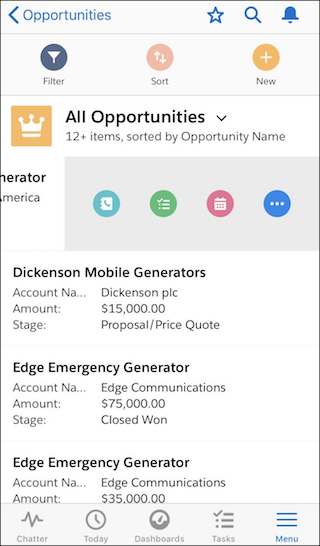
To access list item actions, navigate to a list view or task list or open a related list from an object’s related information page. Then swipe left on the desired record.
Hide list item actions by swiping the list item back to the right or by tapping another item in the list.
List Views
List item actions in list views don’t have the same actions that are available in the action bar when viewing an object’s record. For example, when a user visits an opportunity record in the Salesforce mobile app, the actions in its action bar reflect the actions in the Salesforce Mobile and Lightning Experience Actions section of the Opportunity page layout.
However, when the user swipes left on an opportunity from a list view, as you can see below, the actions that display come from the list of predefined actions for opportunities. See How Predefined Actions Are Ordered in the Salesforce Mobile App Action Bar and List Item Actions for the breakdown of predefined actions for each object.
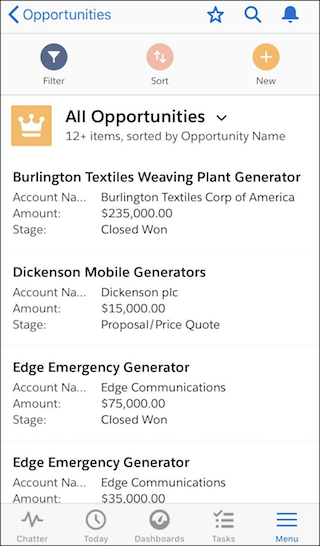
Here’s the All Opportunities list view. |
Swipe a list item to the left to reveal list item actions. |
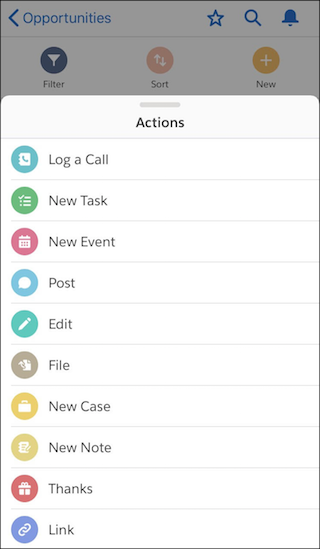
Tap |
 |
 |
 |

Related Lists
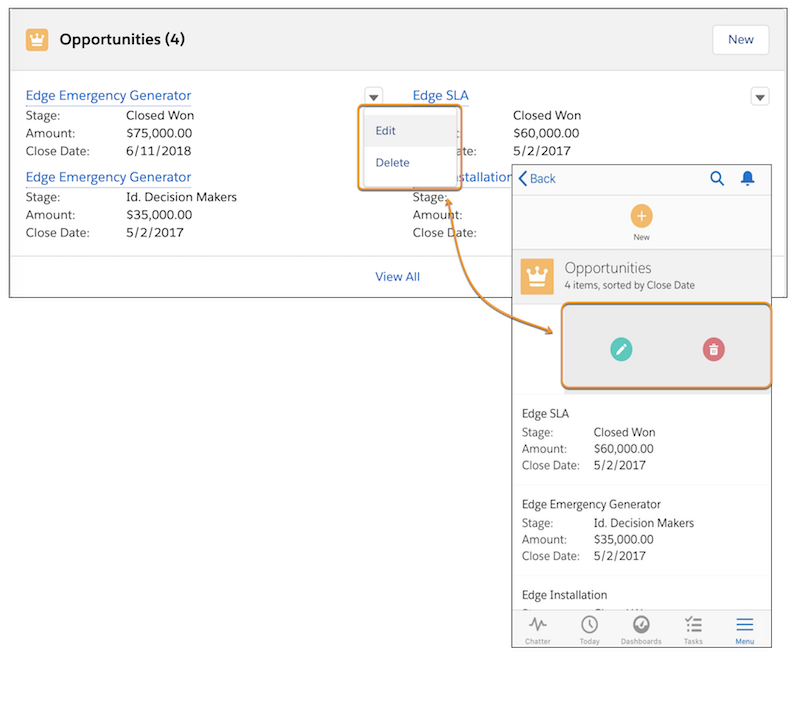
List item actions on related lists in the app reflect the same actions as the related list in Lightning Experience. Usually, these are the standard actions Edit and Delete, but can vary by object. For example, in Lightning Experience, the actions available in the dropdown menu on an Opportunity related list item are the same set of actions that Salesforce mobile app users see when swiping left on the same record in the related list.