
You are here:
Salesforce Mobile App Action Bar
The productivity actions, standard and custom record buttons, and quick actions appear in the action bar and the action menu.
The action bar and action menu show all the available actions for a given page.
Salesforce Mobile App Actions in the Action Bar and Action Menu
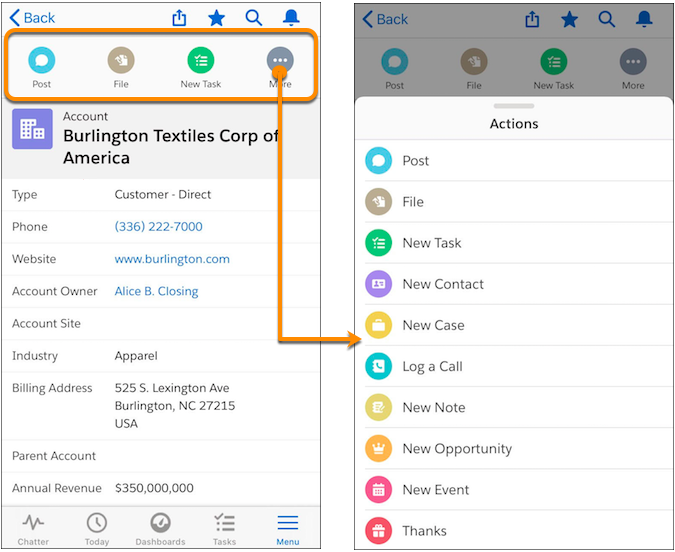
The action bar appears in most places in the mobile app, including the feed, groups, user profiles, dashboards and reports, standard and custom object record views, related lists, and search results. The actions that are available depend on where a user is in the app and on how you’ve configured page layouts and publisher layouts for your organization.
Users see some or all of these kinds of actions in the action bar, including the action menu.
- Productivity actions—The Send Email, Call, Map, View Website, and Read News actions are available on accounts, contacts, leads, and person accounts. The Quick Message, Join Conference Call, and Map actions are available on mobile calendar events in Salesforce Today.
- Custom and standard buttons—Buttons (such as Edit, Delete, or Clone) that are included
in the Buttons section on an object’s page layout are available in the mobile app as actions in
the action bar on record pages. If you haven’t customized the action order, the button order in
the button section of the page layout is used. However, the Edit button is in a fixed
position.
 Note Custom links, custom buttons that are added to list views, and custom buttons that define the content source as OnClick JavaScript aren’t supported and don’t appear in the Salesforce mobile app.
 - Quick actions—If you add, remove, or reorder actions in the action bar in the global publisher layout or an object’s page layout, the changes are reflected in the Salesforce mobile app.
- Standard Chatter actions—Actions unique to Chatter, such as Post, File, Link, or Poll.

What are the exceptions?
- On accounts, the Call action appears even when there isn’t a phone number on the record.
- On record feeds, the Follow/Unfollow button remain in the highlights area on the page.
- On public and private group feeds, the Join Group and Ask to Join buttons remain in the highlights area, but the Leave Group button is in the action bar.
What does this mean for custom branding?
There can be only one version of a custom icon. Custom action icons that you created before Winter ’15 are still supported, but they’re truncated in the action bar. To optimize your custom action icons for display in the action bar, use these guidelines.
- The icon should be 72 x 72 pixels. Use the full pixel area for the image—don’t leave spacing around the image like before.
- Make the image a PNG with a transparent background, with a file size that is less than 10k.
- Have a resolution of 72 dpi.
- Make the icon graphic white or lighter than the background color.
- Avoid heavy inner or outer shadows.
- Use simple and flat styling resembling the Salesforce mobile app icon family.
- How Actions Are Ordered in the Salesforce Mobile App Action Bar
The Salesforce Mobile and Lightning Experience Actions section of a page layout and global publisher layout drives which actions appear in the Salesforce mobile app action bar. You can also customize the order of quick actions, productivity actions, and standard and custom buttons that are available as actions. - List Item Actions in the Salesforce Mobile App
List item actions give you access to your actions in list views, task lists, and related record lists. You can use list item actions to update records directly from lists. - How Predefined Actions Are Ordered in the Salesforce Mobile App Action Bar and List Item Actions
Your org’s page layouts and publisher layouts control the order in which actions appear in the Salesforce mobile app action bar and list item actions. If you don’t customize the actions in the action bar on a page layout or global publisher layout, Salesforce predefines the location of key actions. - Considerations for Actions in the Salesforce Mobile App
Keep these considerations in mind when you configure actions for use in the Salesforce mobile app.
