
You are here:
Troubleshoot Field Access Issues
Your users can experience access issues or insufficient privileges errors if field permissions or other features that control fields aren’t configured correctly.
Required Editions
| Available in: both Salesforce Classic and Lightning Experience |
| The available user and data management options vary according to which Salesforce edition you have. |
| User Permissions Needed | |
|---|---|
| To access features or complete tasks mentioned in this topic: | See the related Help documentation. |
- Troubleshoot Why a User Doesn’t Have Correct Access to a Field
If your user can’t access a field, work through these steps to identify and fix the problem. - Troubleshoot Why a User Has Unexpected Access to a Field
If your user can view or edit a field, but this access isn’t intended, work through these steps to remediate the issue.
Troubleshoot Why a User Doesn’t Have Correct Access to a Field
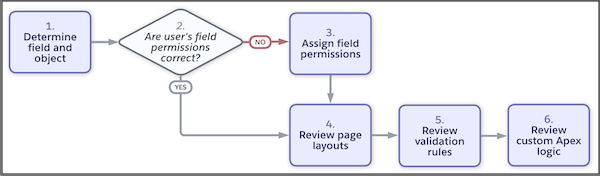
If your user can’t access a field, work through these steps to identify and fix the problem.
-
Determine which field on which object is the issue, and where the user is running into the
issue.
 Note If the user is having trouble accessing a lookup or system field, check if the Require permission to view record names in lookup fields setting is enabled, If yes, users must have Read access to these records or the View All Lookup Record Names permission to view this data.
 -
Check if the user’s field permissions are correct. Go to the user’s detail page in Setup,
and click View Summary. In the Field Permissions tab, you can see all of
the user’s assigned field permissions. If the user doesn’t have the required field permissions,
move to the next step. If the user does have the correct field permissions, move to step
4.
Note View All Data, Modify All Data, and View All Records or Modify All Records permissions for a given object don’t override field-level security. Users must still have field permissions to read or edit each field on an object.
- Assign the appropriate field permissions. We recommend that you use permission sets and permission set groups to assign permissions. When possible, reuse existing permission sets and permission set groups, rather than creating new ones tailored to a specific user. However, make sure that you don’t assign more permissions than the user needs. After you assign the field permissions, check the user’s access. If the user still doesn’t have the correct access to the field, move to the next step.
- Check the user’s profile, then see what page layouts the user is assigned via their profile. Check these page layouts in Object Manager or via the Field Accessibility view to make sure that the field is added to them. If this fix doesn’t solve the issue, move to the next step.
- Check your validation rules in Object Manager. It’s possible to create rules that prevent a user from viewing or editing a field. If this fix doesn’t solve the issue, move to the next step.
- Check for any custom Apex logic that’s being used to restrict users’ access to fields.
Troubleshoot Why a User Has Unexpected Access to a Field
If your user can view or edit a field, but this access isn’t intended, work through these steps to remediate the issue.
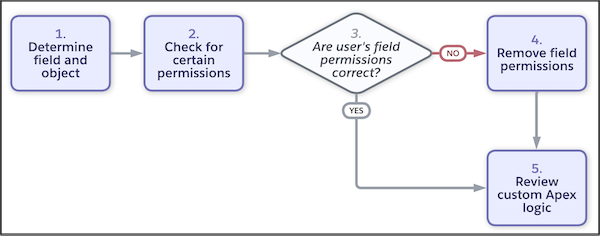
- Determine which field on which object the user can access, and where the user is able to get access.
-
Determine if one of these scenarios applies.
- Additional permissions: Some user permissions override page layouts and field-level security settings. For example, users with the Edit Read Only Fields permission can always edit read-only fields regardless of any other settings. Users with the View Concealed Field Data permission can view field data, such as sensitive or personally identifiable information, that’s concealed from other users. And users with the View All Lookup Record Names permission can view record names in lookup fields regardless of sharing settings.
- Universally required fields: You can override field-level security or any less restrictive settings on page layouts by making a custom field universally required.
- Check if the user’s field permissions are correct. Go to the user’s detail page in Setup, and click View Summary. In the Field Permissions tab, you can see all of the user’s assigned field permissions. If the user has more field permissions than intended, move to the next step. If the user does have the correct field permissions, move to step 5.
- If the user has more field permissions than they need, click the permission's row-level action, and then click Access Granted By to see which profile, permissions sets, or permission set groups are granting this access. You can change the user’s profile or remove their permission set or permission set group assignments. You can also modify the included permissions, but doing so affects all users assigned the same profile, permission set, or permission set group.
- Check for any custom Apex logic that’s being used to give users access to fields.
Did this article solve your issue?
Let us know so we can improve!
