
You are here:
Troubleshooting User Access Issues and Insufficient Privileges Errors
Review this guidance if you or one of your users is experiencing insufficient or unexpected access for an object, record, field, or feature in Salesforce.
Required Editions
| Available in: both Salesforce Classic and Lightning Experience |
| The available user and data management options vary according to which Salesforce edition you have. |
Depending on whether you’re a Salesforce admin for your company or an employee, use these steps to determine where to begin the troubleshooting process.
Steps for Salesforce Admins
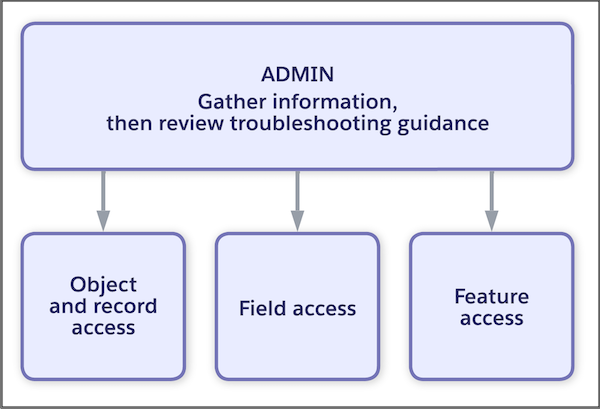
If you’re a Salesforce admin, gather information on the issue, then review our further troubleshooting guidance.
- Gather information.
- What objects, records, fields, and features are involved in the issue?
- For the user with the access issue, what are the user’s profile, permission sets, and role?
- If it’s a record access issue, what is the record owner’s role?
- Use these walkthroughs depending on the user’s issue.
- Object and record access issues: For example, the user is unable to access specific records or all records for an object. Or, the user gained access to records or objects, but this access wasn’t intended.
- Field access issues: For example, the user can’t view or edit specific fields in a record. Or, you can’t determine why a user has access to a field that they don’t need.
- Feature access issues: For example, a user is unable to complete all tasks related to a feature, such as creating reports, managing release updates, or managing content.
- External user access issues: For example, a customer or partner user can't access the correct records in your Experience Cloud site.
Steps for Employees or End Users
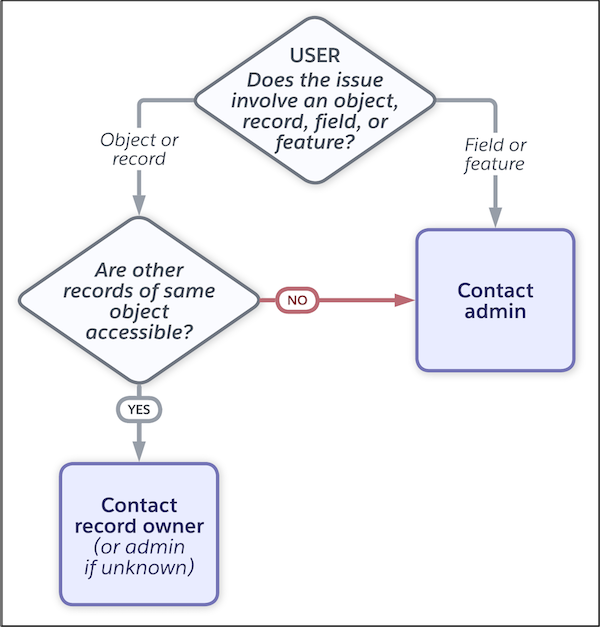
If you’re an employee or end user, determine whether you’re having issues accessing an object, record, field, or whole feature.
- If it’s a record or object access issue, check if you have access to other records of
the same object. For example, you can’t access a case record, so you verify whether you
can access other cases.
- If you can access other records of the same object, contact the record owner to request access. If you can’t identify the owner, contact your Salesforce admin.
- If you’re unable to access any records of the same object, contact your Salesforce admin.
- If it’s a field or feature access issue, contact your Salesforce admin.

Important How you contact your admin depends on your company’s internal business
policies and practices.
- Troubleshoot Object and Record Access Issues
Your users can experience access issues or insufficient privileges errors if object permissions or record-access features aren’t configured correctly. - Troubleshoot Field Access Issues
Your users can experience access issues or insufficient privileges errors if field permissions or other features that control fields aren’t configured correctly. - Troubleshoot Feature Access Issues
If your users have issues completing a task or accessing a feature, review their assigned permissions. - Troubleshoot Access Issues for External Users
Review this guidance if your external Experience Cloud site users are experiencing insufficient or unexpected access. The data access management features available depend on the type of external user. - Additional Considerations for Troubleshooting Access Issues
Review these object-specific considerations and additional features that can affect what your users can see or access. - Example Queries for Troubleshooting Access Issues
Review these sample queries on returning information about users’ permissions or access. - Who Has Access to Account Records?
Different sharing mechanisms can grant a user access to an account. - Viewing Which Users Have Access to Your Records in Lightning Experience
When viewing a record, you can view a list of users who have been granted access to the record through sharing. The list includes their access level and an explanation and shows every user who has access that’s greater than the org-wide default settings. - View Which Users Have Access to Your Records in Salesforce Classic
Identify users who have been granted access through sharing. The list includes their access level and an explanation and shows every user who has access that’s greater than the org-wide default settings.
Did this article solve your issue?
Let us know so we can improve!
