
You are here:
Troubleshoot Feature Access Issues
If your users have issues completing a task or accessing a feature, review their assigned permissions.
Required Editions
| Available in: both Salesforce Classic and Lightning Experience |
| The available user and data management options vary according to which Salesforce edition you have. |
| User Permissions Needed | |
|---|---|
| To access features or complete tasks mentioned in this topic: | See the related Help documentation. |
- Troubleshoot Why a User Doesn’t Have Correct Access to a Feature
If your user is unable to access a feature or complete tasks as expected, work through these steps to identify and fix the problem. - Troubleshoot Why a User Has Unexpected Access to a Feature
If your user is able to access a feature or complete actions that they don’t need, work through these steps to identify and fix the problem.
Troubleshoot Why a User Doesn’t Have Correct Access to a Feature
If your user is unable to access a feature or complete tasks as expected, work through these steps to identify and fix the problem.
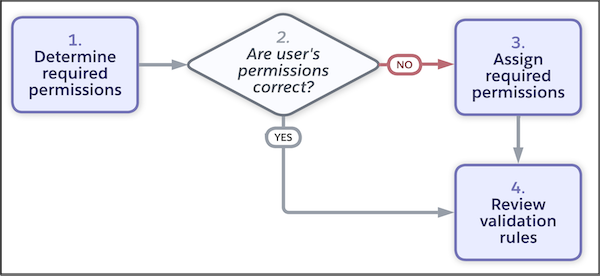
- Review documentation to see which permissions are required for the user to access a feature or complete a task. Keep in mind that a combination of object, user (app and system), and field permissions can be required.
- Check if the user has the necessary permissions. Go to the user’s detail page in Setup, and click View Summary. You can see all of the user’s assigned object, user, and field permissions. If the user is already assigned the necessary permissions, move to step 4. If the user is missing permissions, move to the next step.
-
Review your permission sets and permission set groups to see if any exist that have the
required permissions. On the detail page for each permission set and permission set group,
click View Summary to see all the included permissions.
When possible, reuse existing permission sets and permission set groups, rather than creating new ones tailored to a specific user. However, make sure that you don’t assign more permissions than the user needs.If the user still doesn’t have correct access after assigning permissions, move to the next step.
- Check your validation rules in Object Manager. It’s possible to create rules that prevent a user from completing a certain task, such as transferring a case record after it’s closed.
Troubleshoot Why a User Has Unexpected Access to a Feature
If your user is able to access a feature or complete actions that they don’t need, work through these steps to identify and fix the problem.
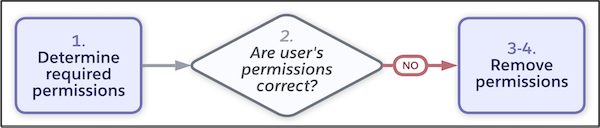
- Review documentation to see which permissions are required for the user to access a feature or complete a task. Keep in mind that a combination of object, user (app and system), and field permissions can be required.
-
Check if the user’s permissions are correct. Go to the user’s detail page in Setup, and
click View Summary. You can see all of the user’s assigned object, user,
and field permissions. If you confirm the user has permissions that they don’t need, click the
permission's row-level action, and then click Access Granted By to see
which profile, permissions sets, or permission set groups are granting this access.
If a profile contains the permissions, go to step 3. If a permission set or permission set group contains the permissions, go to step 4.
- If the user is assigned the permissions through their profile, you can either change their profile or edit the included permissions if no one assigned the profile needs them.
- If the user is assigned the permissions through a permission set or permission set group, depending on your data access configuration, you can remove the user’s assignment. Or, update the included permissions if no one assigned the permission set or permission set group needs them.
Did this article solve your issue?
Let us know so we can improve!
