
You are here:
Troubleshoot Missing Object or Record Access for Customer or Partner Users
If your customer or partner user can’t access a record, work through these steps to identify and fix the problem.
Required Editions
| Available in: both Salesforce Classic and Lightning Experience |
| The available user and data management options vary according to which Salesforce edition you have. |
| User Permissions Needed | |
|---|---|
| To access features or complete tasks mentioned in this topic: | See the related Help documentation. |

Note Before you begin, check if your user has a Customer Community Plus or Partner Community
user license. If you’re troubleshooting access for a high-volume user, see this topic. For guest
users, see this
topic.
If you’re looking for guidance on troubleshooting access issues for fields, see this topic. For troubleshooting access issues for features, see this topic.
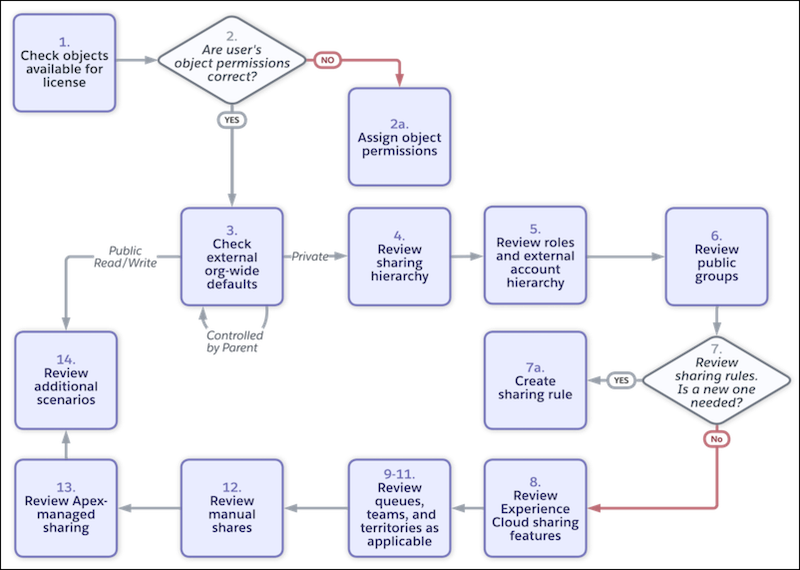
- Review the objects available for the user’s Experience Cloud license to make sure that this access is possible.
-
Check if the user has the relevant object permissions. Go to the user’s detail page in
Setup, and click View Summary. In the Object Permissions tab, you can
see all of the user’s assigned object permissions.
- Missing permissions: Give the user the required object permissions. We recommend that you use permission sets and permission set groups to assign permissions. When possible, reuse existing permission sets and permission set groups, rather than creating new ones tailored to a specific user. However, make sure that you don’t assign more permissions than the user needs.
- Correct permissions: Move to the next step. This issue involves record access, not object permissions.
-
Check the external organization-wide default sharing settings for the object on the Sharing
Settings Setup page. External org-wide defaults affect all Experience Cloud and legacy portal
licenses. Keep in mind that they must be more secure than internal default settings. For
example, you can’t grant Read access to an object for internal users and Public Read/Write to
the same object for external users.
- Public Read/Write: This object’s records have no regular access restrictions. Move to step 14 for additional features that can possibly restrict access.
- Controlled by Parent: The parent object controls access. Start step 3 again for the parent object.
-
Private: Only record owners and users above them in the role hierarchy can access this
object. If you expected more permissive org-wide default access, update the setting. If this
default setting is expected, move to the next step.
Note If the object is a custom object, you can prevent users above the owner in the role hierarchy from accessing records by disabling Grant Access Using Hierarchies. Verify that this setting is as expected.
-
Review who does have access to the specific record and how, because this list can help
inform why your user is missing access. In Lightning Experience, click Sharing
Hierarchy from the Action Menu on the record. In Salesforce Classic, click
Sharing on the record, and then click Expand
List. The Sharing Hierarchy page shows the users, groups, roles, and territories
that have access to the record. In Lightning Experience, click View to
see reasons for access, including the name of the sharing mechanism that grants access. If a
restriction rule blocks access to the record, a message confirms that access is blocked.
If you expected your user to receive access through one of the listed reasons, you can jump directly to that feature. For example, you thought your user was part of a public group that’s the target of a sharing rule. You can investigate if the user is added to the public group and if the sharing rule is configured correctly. If you don’t see any potential investigation paths, move to the next step to continue the troubleshooting walkthrough.Note If you don’t see the Sharing Hierarchy option and you have the right permissions, make sure that this option is added to the page layout.
- If you increased the number of customer or partner roles, make sure that the user is assigned the correct role and the external account hierarchy is set up correctly. If roles aren’t the issue, move to the next step.
-
Review the user’s public groups from their user detail page. Check to make sure that the
user is included in the intended groups, which can be used to grant record access via sharing
rules, manual sharing, or other features. To review where a public group is used, click
View Summary on its detail page.
To add the user to any public groups, go to the Public Group page in Setup. If this fix doesn’t solve the issue, move to the next step.
-
Review your sharing rules on the Sharing Settings Setup page. Is there a sharing rule that
exists that was intended to give access to the user? Pay attention to any rules shared with
these groups: Portal Roles, Portal Role and Subordinates, and Roles, Internal and Portal
Subordinates.
- No: If you believe other users require access to this record and other records that have the same owner or matching criteria, create a new sharing rule. If creating a sharing rule doesn’t work for your requirements, you can manually share the record with the one user.
-
Yes: Review the sharing rule to make sure that it includes the correct records, it has
the correct access level, and the intended user is actually part of the group, role, or
territory targeted by the sharing rule.
If updating or creating sharing rules doesn’t solve your issue, move to the next step.
-
Review Experience Cloud-specific sharing features.
- Review your sharing sets on the Digital Experiences > Settings page. Make sure that the correct profiles are selected and the access mapping is configured correctly. Also keep in mind that access granted to users via a sharing set isn’t extended to their superiors in the role hierarchy.
- Review your share groups for each of the sharing sets. Make sure that the correct members are added to the share group. Keep in mind that share group members can access any records owned by high-volume users associated with the sharing set, even if the objects aren’t defined in the sharing set.
- Review your account relationship data sharing rules on the Sharing Settings page. Make sure that the correct users are given access, the account relationship type is correct, and the account relationship is configured as you intended.
- Check your queues in Setup. Make sure that they’re configured as expected and the user has the correct membership. Remember that users can be added directly to queues or via roles, groups, or territories. If you don’t use queues or your queues aren’t the source of the issue, move to the next step.
- Check your teams for accounts, opportunities, and cases in Setup. (Only Partner users can be added to account and opportunity teams.) Make sure that the user is part of the correct teams and has read-only or read/write access as intended. If you don’t use teams or your teams aren’t the source of the issue, move to the next step.
- Review your territories. Check that the user is included in the territories. Also check that the record is under the correct territory where the user is a member. If you don’t use Enterprise Territory Management or your territory setup isn’t the issue, move to the next step.
-
Review manual shares for the specific record. If the user previously had access via manual
sharing but they lost this access, find out if one of these events occurred.
- The record owner changed, causing the manual share to be removed.
- The record owner, an administrator, or a user above the owner in the role hierarchy removed the manual share by using the Sharing button on the record detail page.
-
An active restriction rule blocks access to the record because the rule’s user criteria
includes the user, but the record criteria isn’t met.
If needed, you can manually share the record with the user again. If this action doesn’t solve your issue, move to the next step.
- Check Apex-managed sharing. For custom objects, if you’re sharing records programmatically by using Apex, verify that your code is working correctly. If you don’t use Apex-managed sharing or this feature isn’t the issue, move to the next step.
-
Check these additional scenarios.
- Restriction rules prevent users from accessing records if they meet certain criteria. You can see if you have restriction rules for an object in Object Manager.
- Custom Apex logic can be used to restrict users’ access to data.
- Review additional settings under Digital Experiences > Settings > Roles and Users. For example, for Customer Community Plus users, review the Grant site users access to related cases setting. If enabled, users with this license can view and edit cases in which they’re listed as the contact.
Did this article solve your issue?
Let us know so we can improve!
