
Build Your Own Salesforce App
An app is a collection of items that work together to serve a particular function. Salesforce apps come in two flavors: Classic and Lightning. Classic apps are created and managed in Salesforce Classic. Lightning apps are created and managed in Lightning Experience. You can customize both types of app to match the way your users work.
Required Editions
| Available in: Salesforce Classic, Lightning Experience, and the Salesforce mobile app |
| Available in: Contact Manager, Group, Professional, Enterprise, Performance, Unlimited, and Developer Editions |
| User Permissions Needed | |
|---|---|
| To view apps: | View Setup and Configuration |
| To manage apps: | Customize Application |
The platform includes innovative point-and-click app-building tools that give you the power to customize Salesforce to meet the needs of your business. You can also build your own apps to share and store information that is important to you. You don’t need any programming knowledge to use these tools. You can find them in Salesforce Classic Setup by selecting Create, and in Lightning Experience Setup by entering App in the Quick Find box to get started.
The platform also includes app building tools that require some programming knowledge. You can find tools that require advanced programming knowledge in Salesforce Classic Setup by selecting Develop, and in Lightning Experience Setup by entering Custom Code in the Quick Find box.
Classic apps are a collection of standard and custom tabs, including:
- Most standard objects, including Home, the main Chatter feed, Groups, and People
- Your org’s custom objects
- Visualforce tabs
- Lightning component tabs
- Canvas apps via Visualforce tabs
- Web tabs
Lightning apps are a collection of items that include everything from the Classic apps list, plus Lightning page tabs, and utilities like Sales Dialer. In Lightning apps, you can customize the app’s logo and enhance its branding by customizing the color of the navigation bar.
You can also upgrade Classic apps to Lightning apps in Lightning Experience, but the two versions of the app must then be managed separately in their own environments.
Salesforce provides standard apps such as Sales and Service.
You can also build your own on-demand apps by grouping items into new custom apps. A custom app consists of a label, a description, and an ordered list of items, which often includes tabs. You can also add custom logos and branding to your custom apps.
In Salesforce Classic, custom apps are listed in the Lightning Platform app menu, which is a dropdown list displayed at the top of every page.
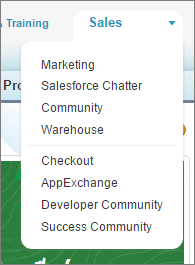
In Lightning Experience and the Salesforce mobile app, you can find your available custom
apps in the App Launcher ( ). In Lightning Experience, to see all your available Salesforce
apps and items, click View All.
). In Lightning Experience, to see all your available Salesforce
apps and items, click View All.
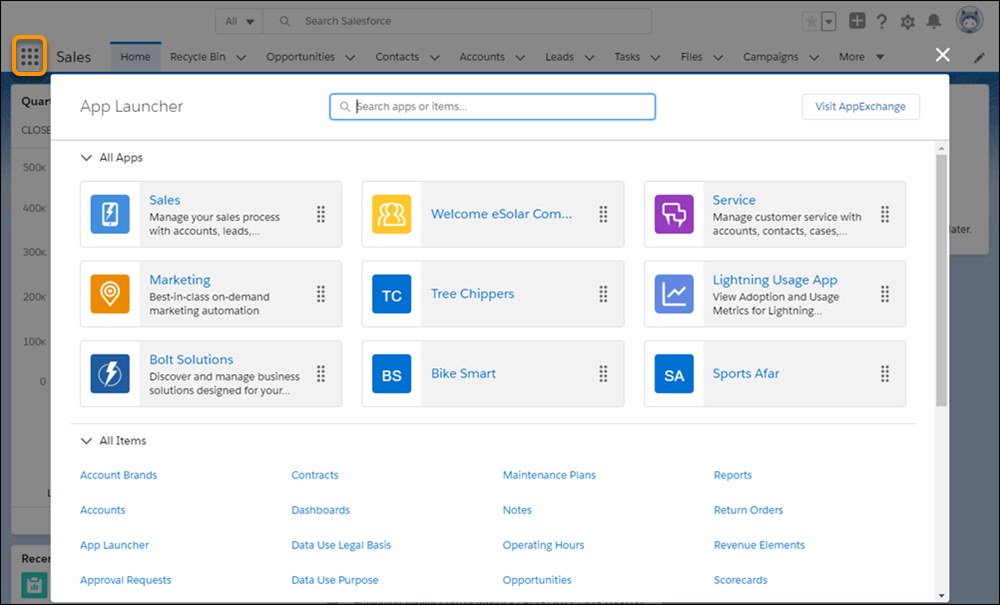
When you choose an app, your screen changes to reflect the contents of that app. For example, if you switch from an app that contains Opportunities to another app that doesn’t, the Opportunities item disappears. In addition, the app might display a different default landing tab when selected.
Apps are associated with profiles. Profiles control which tabs you can see or hide, as well as which apps are available to you.
- Lightning Apps
With apps in Lightning Experience, members of your org can work more efficiently by easily switching between apps. Users can open apps you’ve created from the App Launcher. What’s most important to sales reps? Accounts, events, and organizations. How about sales managers? Reports and dashboards make the top of the list. Lightning apps take things to another level past Classic apps by letting you brand your apps with a custom color, logo, and utility bar. - Tips for Creating Apps in Lightning Experience
It’s time for the fun part: deciding how to set up Lightning apps for your users. Here are some tips for planning Lightning apps for your org. - Create Lightning Apps
As in Salesforce Classic, you can create apps in Lightning Experience, but with even more bells and whistles. You can brand and customize Lightning apps to help your users work more efficiently. For example, you can create a Lightning app for your finance department that includes all important items, including tabs, for users to complete common tasks. You can customize the navigation bar color, brand it with a logo, and make the app available in the App Launcher for the user profiles associated with the finance department. - Customize Lightning Apps with the Lightning App Builder
When you edit a Lightning app from the App Manager in Setup, you’re brought into the Lightning App Builder to manage the app’s settings. Update app branding, navigation, and other options, and manage the Lightning pages assigned to that app all in one place. - Add a Utility Bar to Lightning Apps
The utility bar is a specialized type of Lightning page that gives your users quick access to common productivity tools, like Notes and Recent Items. It appears as a fixed footer that users can access to open utilities in docked panels. Some utilities support pop-out, which lets them open in a new browser window. - Lightning App Navigation Bar Items
Most of the items that appear in the App Launcher can appear in a Lightning app navigation bar. To add items to an app’s navigation bar, you can use the Lightning app creation wizard, which lets you choose from a list of available items. - Upgrade Classic Apps to Lightning Apps
You can upgrade a Classic app to a Lightning app in Lightning Experience, enhancing it for your Lightning Experience users with a customized color, logo, utility bar, and more items like Lightning pages supported in the navigation bar. - Salesforce App Considerations
Keep these considerations in mind when working with apps in either Lightning Experience or Salesforce Classic. - Create Custom Apps for Salesforce Classic
Create custom apps to give your Salesforce Classic users access to everything they need all in one place. - Subtab Apps in Salesforce Classic
An app is a group of tabs that work as a unit to provide application functionality. Similarly, a subtab app is a collection of tabs that appears on the Chatter profile page. A subtab app can include both default and custom tabs.
