Loading
Automate Your Business Processes
Table of Contents
Select Filters

          No results
          No results
          Here are some search tips

          Check the spelling of your keywords.
          Use more general search terms.
          Select fewer filters to broaden your search.

          Search all of Salesforce Help
          Customize Screen Style and Layout in a Screen Flow

          Customize Screen Style and Layout in a Screen Flow

          Get the look that you want by changing the style of your entire screen or individual components. Organize your screen components into columns, and adjust component width and vertical alignment to control spacing and positioning. Style changes override the theme styling for your org or Experience Cloud site. If you enter an invalid value for a style property, the screen flow uses your theme’s style property instead.

          Required Editions

          View supported editions.
          User Permissions Needed
          To edit a screen flow: Manage Flow

          Customize the Screen Style

          Change the border and colors of your screen.

          Note
          Note If your flow runs from a Quick Action on a record page, you can’t override the screen style settings. Instead, your org or Experience Cloud site uses the default theme styling.
          1. Open a screen flow, and click the screen element's header to open the Screen Properties panel.
          2. Click the Style tab.
          3. To change the screen style, go to the Set Container Style section and adjust properties as needed.
          4. To change the label in the screen header, go to the Set Header Style section and adjust properties as needed.
          5. To change the buttons in the screen footer, go to the Set Footer Style section and adjust properties as needed.

          Change a Component's Style

          You can change the colors, border, and other visual properties of some screen components.

          1. Open a screen flow, and click a component on the screen canvas to open the properties panel for that component.
          2. On the Style tab, go to the Set Styles section if present, and adjust the properties as needed.
            The available options depend on the type of component. The Text Color options affect only the text within the component, not the component label.
          3. Save your changes.

          Organize Screen Components and Fields

          Arrange your screen layout by using sections. Each section can have up to 4 columns, and a screen can have up to 12 columns. You can adjust the column width and the vertical alignment of the components and add a header to each column.

          1. Open a screen flow, and in the Components list, click Section. The section component's properties panel opens.
          2. Adjust the column width and add an optional header.
          3. Add screen components to the column.
            You can add up to four columns in a section.
          4. Save your changes.

          Change a Component’s Width and Vertical Alignment

          A screen has a 12-column layout. The width specifies the number of horizontal columns that the component or field spans. The vertical alignment determines the position of the component or field relative to other elements on the screen.

          1. Open a screen flow, and add a screen component.
            1. In the Components list, click a component.
              The component properties panel opens.
          2. On the Style tab, go to the Set Layout section.
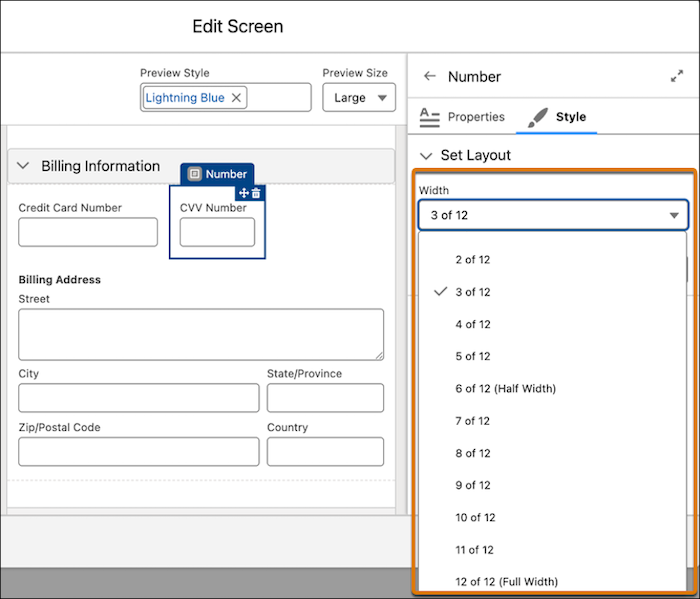
          3. To change a component’s width, from the Width dropdown list, select the number of columns it spans.
            The screen canvas is divided into 12 equal columns. The width of a component equals the number of columns that it spans.
            In the Style tab of the screen properties editor, the width of the number component is set to 3 of 12 columns.
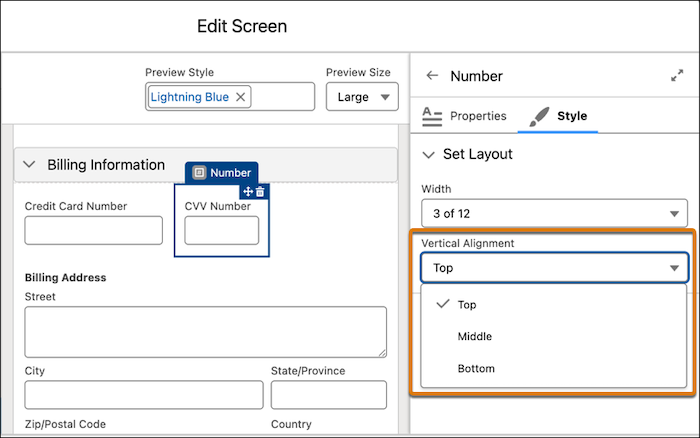
          4. To change a component’s vertical alignment, from the Vertical Alignment dropdown list, select an option.
            In the Style tab of the screen properties editor, the vertical alignment of the number component is set to Top.
          5. Save your changes.
           
          Loading
          Salesforce Help | Article