
You are here:
Create a Before-Save Flow for Better Data Quality
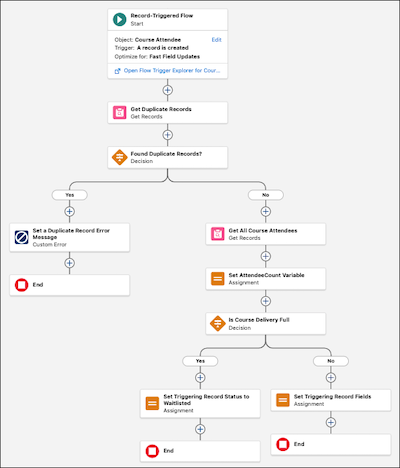
Create a before-save record-triggered flow that validates data quality and enforces business rules before course attendee records are created. No matter how a course attendee is created, this flow prevents duplicate enrollments, validates course capacity, and ensures data integrity by blocking invalid records and setting appropriate statuses based on business logic.
Required Editions
| View supported editions. |
| User Permissions Needed | |
|---|---|
| To open, edit, create, activate or deactivate a flow using all flow types, elements, and features available in Flow Builder, including Einstein and Agentforce for Flow: | Manage Flow |
This sample flow works in conjunction with the other sample flows in Automate a Course Management Process Project.
This before-save flow runs during the record creation process, before the course attendee record is saved to the database. By optimizing for fast field updates, the flow intercepts the save operation and validates the data at the moment of creation. First, it checks if an identical course attendee record already exists by querying for records with the same contact and course delivery. If a duplicate is found, the flow immediately blocks the save with a custom error message, preventing bad data from entering the system. If the record is unique, the flow then checks the course delivery capacity by counting existing attendees and comparing it to the maximum allowed. Based on this count, the flow automatically sets the new attendee's status to either Enrolled or Waitlisted and generates a confirmation code for enrolled attendees. This approach ensures that data validation happens consistently regardless of how the record is created—whether through the UI, API, data import, or a screen flow—and guarantees that business rules are enforced before any invalid data reaches the database.
-
Open the Flows list view.
- From Setup, in the Quick Find box, enter Flows, and then select Flows.
- From the Automation app, select the Flows tab.
- From the Flows tab in any Lightning app, click the actions menu and select Open Flow.
-
Create a record-triggered flow.
- From the Automation app, click New. Select Triggered Automations, and then select Record-Triggered Flow.
- From Setup, click New Flow, select Triggered Automations, and then select Record-Triggered Flow.
The Configure Start panel opens. -
Configure the Start element.
- On the Configure Start panel, for Object, select Course Attendee.
- For Trigger the Flow When, select A record is created.
- For Optimize the Flow for, select Fast Field Updates.
-
Get all records with the same course attendee and course delivery as the new record with a
Get Records element.
-
Click
 , and select Get Records.
The Get Records panel opens.
, and select Get Records.
The Get Records panel opens. -
For Label, enter Get Duplicate Records.
The API name auto-fills.
- For Description, enter Gets all course attendee records that have the same contact ID and course record ID as the triggering record. Stores the result in the Course Attendees from Get Duplicate Records record collection.
- For Object, select Course Attendee.
- For Field, select Attendee.
- For Operator, select Equals.
- For Value, select Triggering Course_Attendee__c > Attendee > Contact ID.
-
Click + Add Condition.
A second filter condition is added to the Get Records element.
- For Field, select Course Delivery.
- For Operator, select Equals.
- For Value, select Triggering Course_Attendee__c > Course Delivery > Record ID.
- For How Many Records to Store, select All records.
-
Click
-
Determine whether the Get Records element returned any records with a Decision
element.
-
Click , and select Decision.
The Decision panel opens.
-
For Label, enter Found Duplicate Records?.
The API name auto-fills.
- For Description, enter Determines whether any duplicate course attendee records were found in Get Duplicate Records.
- For Select Decision Logic, select Define Manually (Default).
- For Outcome Label, enter Yes.
- For Outcome API Name, enter IsDuplicateRecord.
- For Resource, select Course Attendees from Get Duplicate Records.
- For Operator, select Is Null.
- For Value, select False.
- Under Outcome Order, select Default Outcome.
- For Label, enter No.
-
Click
-
Add a custom error when the new record is a duplicate with a Custom Error element.
-
In the Yes path, click , and select Custom Error.
The Custom Error Message panel opens.
-
For Label, enter Create a Duplicate Record Error Message.
The API name auto-fills.
- For Description, enter Sets off a custom error message and prevents the triggering course attendee record from being created.
- For Error Message, enter We couldn't create this record because it already exists.
-
In the Yes path, click
-
Make the custom error the last element in the Yes path.
-
In the Yes path, after the Custom Error Message element, click , and then select End.
The last element in the Yes path is an End element.
-
In the Yes path, after the Custom Error Message element, click
-
Get all course attendee records with the same course as the new record with a Get Records
element.
-
In the No path, click , and select Get Records.
The Get Records panel opens.
-
For Label, enter Get All Course Attendees.
The API name auto-fills.
- For Description, enter Gets all course attendee records with a course delivery record ID that matches the course delivery record ID of the triggering record. Stores the result in the Course Attendees from Get All Course Attendees record collection.
- For Object, select Course Attendee.
- For Field, select Course Delivery.
- For Operator, select Equals.
- For Value, select Triggering Course_Attendee__c > Course Delivery > Record ID.
- For How Many Records to Store, select All records.
-
In the No path, click
-
Add a variable to store a count of how many records the Get Records element returned.
-
To open the Toolbox, click
 .
.
- Click New Resource, and then select Variable.
- For API Name, enter AttendeeCount.
- For Description, enter Stores the number of attendees for the course delivery of the triggering record.
- For Data Type, select Number.
- For Decimal Places, enter 0.
- Click Done.
-
To open the Toolbox, click
-
Store the number of course attendee records for the course in the AttendeeCount variable
with an Assignment element.
-
After the Get All Course Attendees element, click , and select Assignment.
The Assignment panel opens.
-
For Label, enter Set AttendeeCount Variable.
The API name auto-fills.
- For Description, enter Sets the value of the AttendeeCount variable to the number of records returned by Get All Course Attendees.
- For Variable, select AttendeeCount.
- For Operator, select Equals Count.
- For Value, select Course Attendees from Get All Course Attendees.
-
After the Get All Course Attendees element, click
-
Determine whether the course delivery is fully enrolled with a Decision element.
-
After the Set AttendeeCount Variable element ,click , and select Decision.
The Decision panel opens.
-
For Label, enter Is Course Delivery Full?.
The API name auto-fills.
- For Description, enter Determines whether the count of course attendees for the course delivery of the triggering record is greater than or equal to the maximum attendees allowed for the course delivery.
- For Select Decision Logic, select Define Manually (Default).
- For Outcome Label, enter Yes.
- For Outcome API Name, enter IsFull.
- For Resource, select AttendeeCount.
- For Operator, select Greater Than or Equal.
- For Value, select Triggering Course_Attendee__c > Course Delivery > Maximum Attendees.
- Under Outcome Order, select Default Outcome.
- For Label enter No.
-
After the Set AttendeeCount Variable element ,click
-
If the class is full, set the course attendee status to Waitlisted with an Assignment
element.
-
In the Yes path, click , and select Assignment.
The Assignment panel opens.
-
For Label, enter Set Triggering Record Status to Waitlisted.
The API name auto-fills.
- For Description, enter Sets the status of the triggering record to Waitlisted.
- For Field, select Triggering Course_Attendee__c > Status.
- For Operator, select Equals.
- For Value, select Waitlisted.
-
In the Yes path, click
-
Make the Assignment element the last element in the Yes path.
-
In the Yes path after the Assignment element, click , and select End.
The last element in the Yes path is an End element.
-
In the Yes path after the Assignment element, click
-
Create a formula to generate a course confirmation code.
-
To open the Toolbox, click .
- Click New Resource, and then select Formula.
- For API Name, enter CourseConfirmationCode.
- For Description, enter Generates a course confirmation code that contains the last name of the course attendee, the month, day, and year of the course delivery and the first 10 characters of the course name.
- For Data Type, select Text.
-
For Formula, enter this text:
"CRC–" & {!$Record.AttendeeId__r.LastName} & "–" & TEXT(MONTH(TODAY())) & "–" & TEXT(DAY(TODAY())) & "–" & TEXT(YEAR(TODAY())) & "–" & LEFT({!$Record.CourseDeliveryId__r.CourseId__r.Name}, 10) -
Click Check Syntax.
If you followed the steps from Create Your Data Model, the formula is valid.
- Click Done.
-
To open the Toolbox, click
-
If the class isn't full, set the course attendee status and the confirmation code with an
Assignment element.
-
In the No path, click , and select Assignment.
The Assignment panel opens.
-
For Label, enter Set Triggering Record Fields.
The API name auto-fills.
- For Description, enter Sets the status and confirmation code fields of the triggering record.
- For Field, select Triggering Course_Attendee > Status.
- For Operator, select Equals.
- For Value, select Enrolled.
- Click + Add Assignment
- For Field, select Triggering Course_Attendee > Confirmation Code.
- For Operator, select Equals.
- For Value, select CourseConfirmationCode.
-
In the No path, click
-
Save the record-triggered flow.
- Click Save.
-
For Flow Label, enter Manage New Course Attendee Records.
The Flow API Name auto-fills.
- For Description, enter Manages new course attendee records before they’re saved, preventing duplicate and invalid records and setting relevant course attendee field values.
- Click Save.
Previous Step: Create a Custom Object to Store Course Attendee Information
Next Step: Create After-Save Record-Triggered Flows
See Also
- Automate a Course Management Process Project
- Create Your Data Model
- Create a Custom Object to Store Course Information
- Create a Custom Object to Store Course Delivery Information
- Create a Custom Object to Store Course Attendee Information
- Create After-Save Record-Triggered Flows
- Create an After-Save Record-Triggered Flow for Course Attendee
- Create an After-Save Record-Triggered Flow for Changed Course Attendees
- Create a Screen Flow to Register Course Attendees
- Test and Activate All Course Management Flows
- Create a Button to Launch the Screen Flow
