You are here:
Salesforce Bypass Best Practice Examples
Salesforce Automation Bypass temporarily disables automations, such as validation rules and workflows. Use custom checkboxes on the User object, and then add conditions to the automations to verify the checkbox state. Setting the checkbox to true bypasses the automation, giving you more control when you manage Salesforce processes without permanent changes.
Creating the Checkbox Fields
In this example, we will create three checkbox fields: one for Bypass Validation Rules, one for Workflow, and one for Process Builder.
We recommend making the fields Read Only for all profiles except the system administrator.
The three new fields should appear in User Custom Fields in your User Object metadata.
Creating the Validation Rules
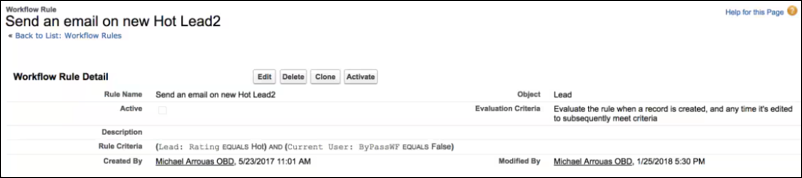
The next step is to add a relevant condition to the checkbox. Note that the rule must be FALSE.

For example, for a validation rule that states a Lead Status cannot be "Qualified" if the Phone number is empty.
You must add a condition to the rule that the checkbox of the user that will populate this rule, must be false.
Before a restore (or for any reason), if you want a specific user to bypass the validation rules (and all other processes), just navigate to the user and select the checkbox.
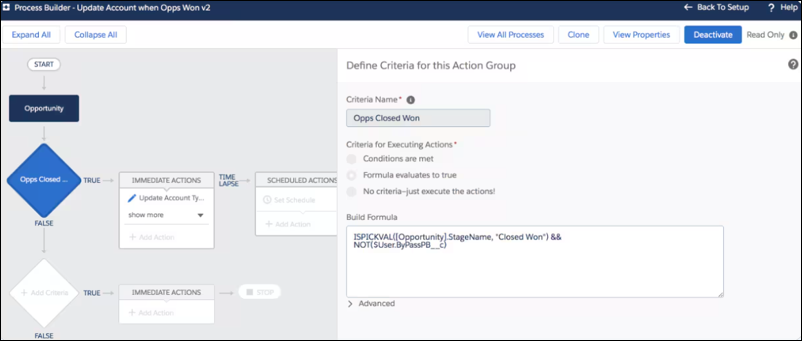
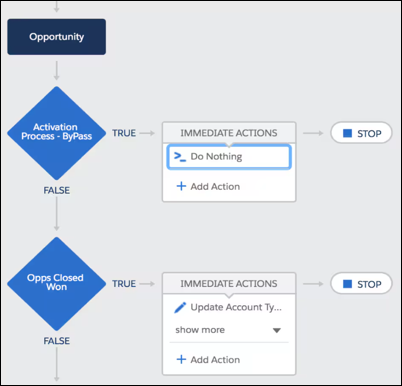
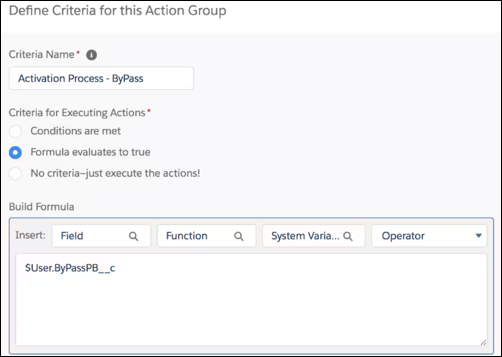
In this example, it is assumed you already have existing processes with dozens of criteria nodes. Reviewing each node and inserting the “ByPass code” (reviewed in the last example) could be challenging and time-consuming. In this case, we recommend creating a new criteria node that we will place in the first position, if it meets the criteria, “bypass = true”, then it will stop the process.
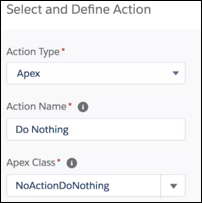
Currently, there is a Salesforce limitation where we have to add an action to a criteria node. To overwrite this, we create an action that will do “nothing”.
First, create an Apex Class:
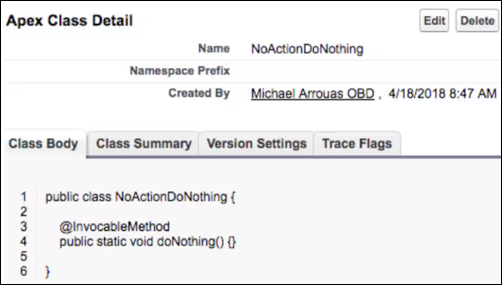
Then a Test method for that class:
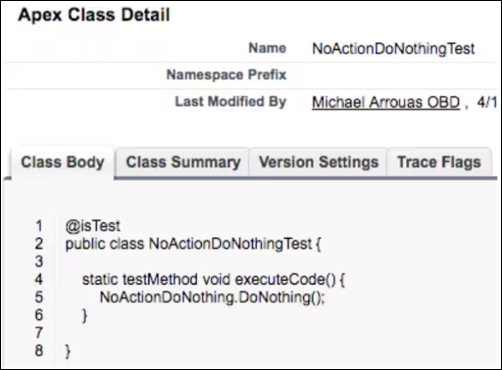
Navigate to your Process Builder, which is now editable and create a new Criteria Node as follows: (we still have a bypass based on the checkbox on the User Object).
Finally, add the DoNothing Action to that Node:
The result should be as follows: