
You are here:
Best Practices for Disabling Automations When Using Restore for Salesforce
Temporarily disabling rules, workflows, scripts, and emails provides a controlled environment for accurate data restoration without external interference.
When running a Restore job, the warning message above is shown after the Compare and pre-process is completed.
The Own application does not have the ability to disable Business Rules, Workflows, Scripts, and Emails via APIs. It is best practice to disable these actions manually to ensure the data is restored correctly.
Performing the following tasks manually is considered best practice for several reasons:
- Data Integrity: Disabling business rules, workflows, and scripts ensures that the data restoration process is not influenced by any automated processes that may alter or manipulate the data. By temporarily disabling these rules, users can maintain the integrity of the restored data and avoid any unintended consequences or conflicts.
- System Performance: Instances and organizations often contain complex business rules, workflows, and scripts that can consume system resources and impact performance. By disabling these elements during the data restoration process, users can prevent unnecessary processing and optimize system performance, allowing the restoration to proceed efficiently.
- Data Consistency: Disabling email deliverability prevents any email notifications or alerts from being triggered during the data restoration. This ensures that users do not receive misleading or inaccurate emails. It helps avoid confusion or disruptions caused by automated emails sent during the restoration process.
- Controlled Testing Environment: Temporarily disabling these rules also provides a controlled environment for restored data. By eliminating the interference of automated rules and email notifications, users can ensure an accurate and complete restoration of data without any external interference.
Disable Automations in Restore for Salesforce Using Own
Maintain data integrity by preventing active automations from running during restore, seeding, and anonymization.
Manual Steps
During the Restore process, to select Automations to disable, first carry out the highlighted manual steps below.
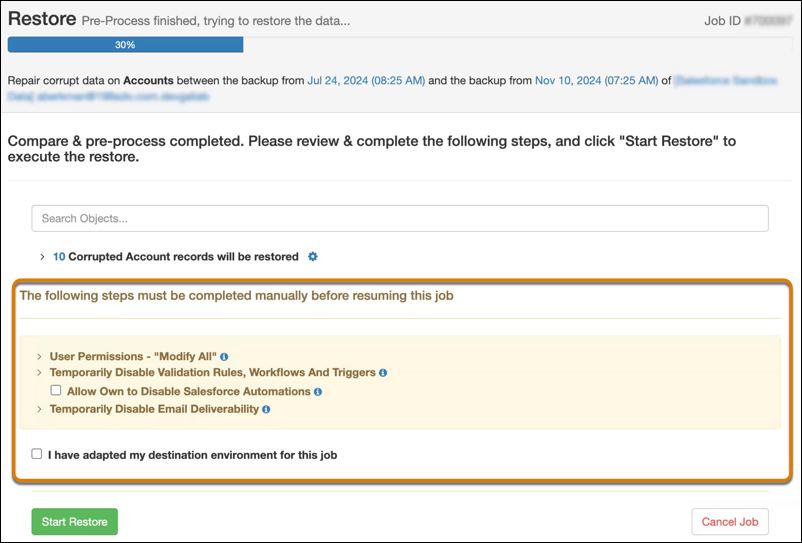
Best practice for disabling Automations is to use Salesforce Automations Bypass. Alternatively, you can let Own do it by selecting the Allow Own to Disable Salesforce Automations option.

Click Start Restore to begin the restore process. The Disable Salesforce Automations popup displays.
Select Automations to Disable
The Disable Salesforce Automations popup enables you to choose Automations from those available for Own to disable before starting the Restore.
The automations are grouped and collapsed by default, showing a summary of the number of selected Automations from the total available. Click the arrow to expand the list.
The list may be empty, either because of a permissions issue or if there are no Automations to show. Check your Salesforce user permissions.
The list shows:
- Apex Triggers
- Flow Definitions
- Validation Rules
- Workflow Rules
By default, the Restore job will fail if any Automations are unable to be disabled. To prevent this, select Start restore even if some automations cannot be disabled.
In the case where the Restore job fails, it is recommended to manually disable the Automations before trying to restore again.
Automation Report
At the end of the Restore, automations are automatically re-enabled.
Own best practice is to review the Automation Report and confirm all Automations have been re-enabled. Where automations have not been re-enabled manual intervention is required.
The Automation Report has the following functionality:
- Search for an automation name.
- Filter using the status icons:
- Automations disabled and re-enabled successfully.
- Automation was not disabled.
- Automation was disabled but not re-enabled.
- Disable not requested; the user chose not to disable these Automations in the Disable Salesforce Automations popup.
- Download a CSV file of the full Automation Report.
The automations are grouped and collapsed by default. Click the arrow to expand the list and review the Automations and Status.
Each Automation group header displays the total number for the Status.
Aborting Restore
When you Abort the Restore process, the Automations Report may be empty. In this case, best practice is to manually confirm Automations are re-enabled.
Failed Restore
If Start restore even if some automations cannot be disabled is not selected the restore job will, by default, not start if any automations cannot be disabled.
Re-enable Triggers and Automations
When some disabled automations cannot be re-enabled, the Re-enable Triggers and Automations button appears, allowing the user to attempt to activate the disabled automations.
