
You are here:
Restore Assist for Workday
The Restore Assist offers a visual, interactive, experience that helps you identify and precisely correct only the unwanted changes to your SaaS data.
Restore Assist Compare View
On the Compare View summary line the record name and the two selected backups compared are displayed.
If you see a difference in the number of changed records written in your Backup History
list, and after running a compare job, this is because Own doesn’t omit the data for the records
with a null byte character.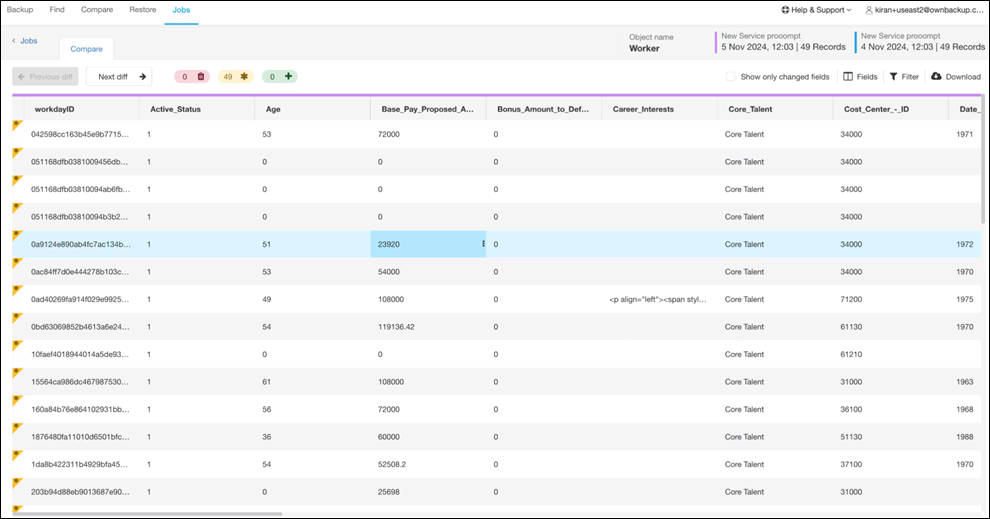
Click Download to download a CSV zip file of the records you selected. Depending on your selection, one CSV file of added, one CSV file of deleted, and two CSV files of changed records (old and new) download to your local device.
To display the Compare view run a Data Compare job.
- Select a service.
- Select the two backups that you wish to compare and run the compare job.
- Once the job completes, navigate to the compare job in the Jobs tab.
- Select the compare job.
- Review the Smart Record Compare Report table.
- Select the record to restore assist. The Compare view is displayed.
Not all reports are supported for restore assist.
Filter Records
You can filter the Compare view based on field values.
- In the Compare view, click Filter.
- Click + Add filter.
- Select the relevant record from the drop-down list.
- Select one of the arguments from the drop-down list.
-
Enter the relevant data in the data field.
Alternatively, click the three dots on the relevant field and select copy and paste the data in the field.
- If required, Click Add OR and repeat to add more records.
-
Click the Filter icon.
The filter is applied and the icon turns blue.Hover over any changed fields to view the New value and the Previous value.
After applying a filter on the records, when you click Download, the downloaded CSV zip file contains only the records you selected to filter.
Undo Changes or Restore Data with Restore Assist for Workday
Restore Assist for Workday helps you revert changes or restore data. It's a safe and reliable way to do this, using tools that are part of your Workday environment. You can easily undo changes and go back to a previous version of your Workday setup.
- Download old and new files both before and after the changes.
- Use Workday's own built-in tools, specifically something like EIB, to carefully put the "old" data back into the system.
