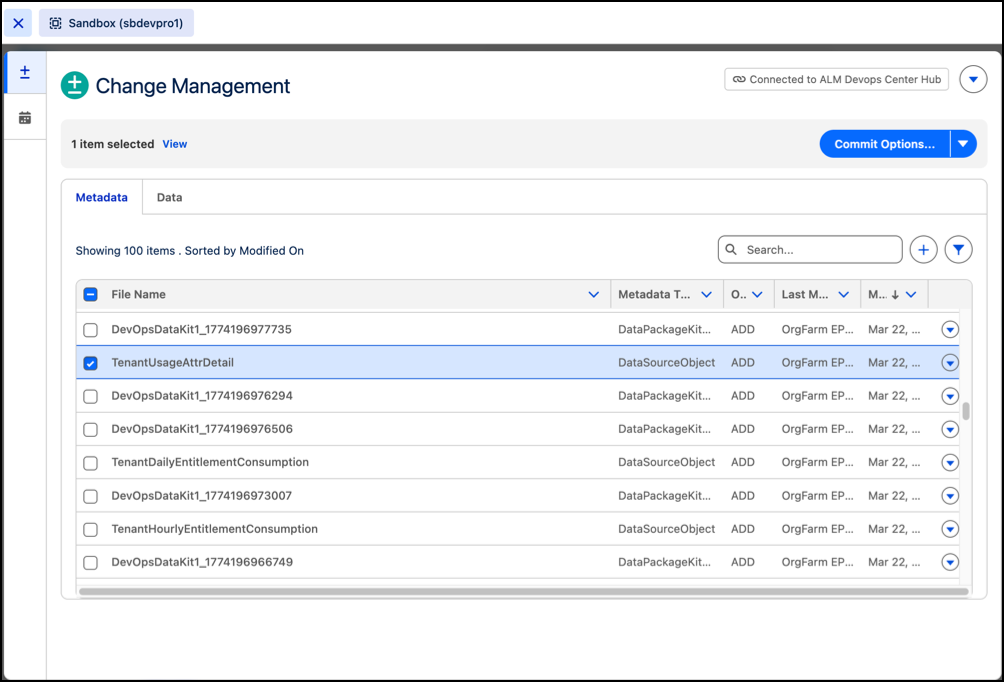
The Change Management tab offers a unified view of all the modifications across your
current org. From this tab, you can view, manage, and commit metadata and data changes to your
source control repository. You can also move metadata and data together for direct deployment to
a target org.
Required Editions
Available in: Lightning Experience
Available in: Professional, Enterprise, Performance,
Unlimited, and Developer Editions
Access the Change Management tab by clicking the icon in the DX Inspector panel.
Source tracking automatically tracks metadata changes in sandboxes and scratch orgs, and
shows them in the Metadata tab. Data changes, such as adding records or updating picklist
values, appear in the Data tab. If source tracking isn’t enabled, add metadata manually from
the Metadata tab.
Note The table shows up to 4,000 changes. If source-tracked changes exceed this limit, the
table appears empty. To show the changes, restart source tracking, refresh the sandbox, or
delete changes from the source tracking table.
To filter and view uncommitted changes, authenticate and connect to DevOps Center. This
filtered view shows the changes since your last commit to DevOps Center. You can sort, search,
and filter the list by date, org, type of metadata, manual metadata, and uncommitted changes.
After you review the changes, commit them directly to the source control repository.
If you're not connected to DevOps Center, you can deploy metadata and data together in a
single orchestration to a target org. This type of deployment is suitable for solo Salesforce
admins or smaller teams.
Add Metadata Manually The Change Management tab uses source tracking to automatically track metadata files in your org. However, when you require the flexibility to include additional metadata files that source tracking hasn’t pulled automatically, you can add metadata manually.
Commit Changes to Source Repository Commit changes to your source repository from the Change Management tab. After reviewing the changes, select the ones you want to include in the work item, then commit them to your DevOps Center project repository. When you commit changes, DX Inspector stores them in the repository branch created when the work item moved to the In Progress status.
Create a Change Request After you commit changes to an In Progress work item and are ready to share them with team members, start a review from the development environment using DX Inspector. Creating a review moves the work item to In Review status and opens a change request (also called a pull request).
We use three kinds of cookies on our websites: required, functional, and advertising. You can choose whether functional and advertising cookies apply. Click on the different cookie categories to find out more about each category and to change the default settings.
Privacy Statement
Required Cookies
Always Active
Required cookies are necessary for basic website functionality. Some examples include: session cookies needed to transmit the website, authentication cookies, and security cookies.
Functional Cookies
Functional cookies enhance functions, performance, and services on the website. Some examples include: cookies used to analyze site traffic, cookies used for market research, and cookies used to display advertising that is not directed to a particular individual.
Advertising Cookies
Advertising cookies track activity across websites in order to understand a viewer’s interests, and direct them specific marketing. Some examples include: cookies used for remarketing, or interest-based advertising.