
You are here:
Developer Console Query Editor
You can use the Query Editor in the Developer Console to execute a SOQL query or SOSL search on the data in your organization. A SOQL query retrieves data from a single object or multiple related objects in the database. You can execute a SOQL query immediately after data is added to the database. A SOSL query is a free-form text search that retrieves multiple related or unrelated objects and fields. Using SOSL, you can retrieve data for a specific term that exists within a field. And, SOSL can tokenize multiple terms to find relevant records. It can take several minutes for data to be indexed before you can execute a query and get results.
In the Developer Console Query Editor, the History pane displays your last 10 queries for quick reuse. Results are displayed in a Query Results grid, in which you can open, create, update, and delete records. For SOSL search results with multiple objects, each object is displayed on a separate tab.
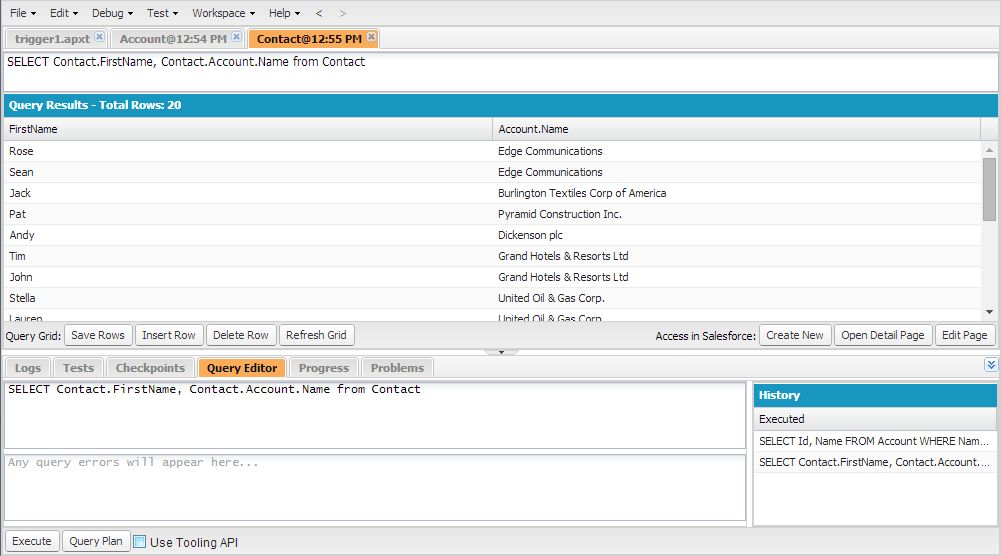
- Execute a SOQL Query or SOSL Search
Execute SOQL queries or SOSL searches in the Query Editor panel of the Developer Console. - Retrieve Query Plans
Use the Query Plan tool to optimize and speed up queries done over large numbers of records. View query plans for SOQL queries, reports, and list views. If custom indexes are available for your organization, use query plans to help you decide when to request a custom index from Salesforce Support. - Query Results Grid
The Query Results grid displays each record as a row. You can create, update, and delete records without leaving the Developer Console. For SOSL search results with multiple objects, each object is displayed on a separate tab.
