
You are here:
Tests Tab
Use the Developer Console to set up test runs, run tests, and check Apex code coverage.
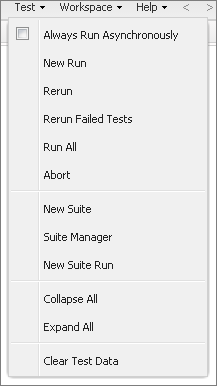
You can manage your tests from the Developer Console Test menu.
- Always Run Asynchronously: If this option isn’t enabled, test runs that include tests from only one class run synchronously. Test runs that include more than one class run asynchronously regardless of whether this option is enabled.
- New Run: Create a test run.
- Rerun: Run the test selected in the Tests tab.
- Rerun Failed Tests: To rerun only the failed tests from the test run that’s highlighted in the Tests tab, choose this option.
- Run All: Run all saved test methods.
- Abort: Abort the test selected in the Tests tab.
- New Suite: Create a suite of test classes that you regularly run together.
- Suite Manager: Create or delete test suites, or edit which classes your test suites contain.
- New Suite Run: Create a test run of the classes in one or more test suites.
- Collapse All: Collapse all open tests in the Tests tab.
- Expand All: Expand all tests in the Tests tab.
- Clear Test Data: Clear the current test data and code coverage results.
Completed tests are listed on the Tests tab in the bottom panel of the Developer Console.

The Overall Code Coverage pane displays the percentage of code coverage for each class in your org. The pane always displays the current percentage for every class. After you perform a test run of all classes, it displays the overall org-wide percentage in bold.
For more information on testing, see Apex Developer Guide: Testing Apex.
Did this article solve your issue?
Let us know so we can improve!
