You are here:
Checking Code Coverage
The Developer Console retrieves and displays code coverage information from your organization. Code coverage results come from any tests you’ve run from an API or from a user interface (for example, the Developer Console, the Salesforce Extensions for Visual Studio Code, or the Application Test Execution page).
To clear the current results, click . When you edit a class, the code coverage for that class is cleared until you run the tests again.
You can view code coverage in several places in the Developer Console.
- The Tests tab includes an Overall Code Coverage panel that displays the code coverage percentage for every Apex class in your organization that has been included in a test run. It also displays the overall percentage.
- Double-click a completed test run to open a Tests Results view that displays the tested class, the tested method, the duration, result (skip, pass, or fail), and an optional error message. If the test failed, a Stack Trace column shows the method and line number at which the test failed.
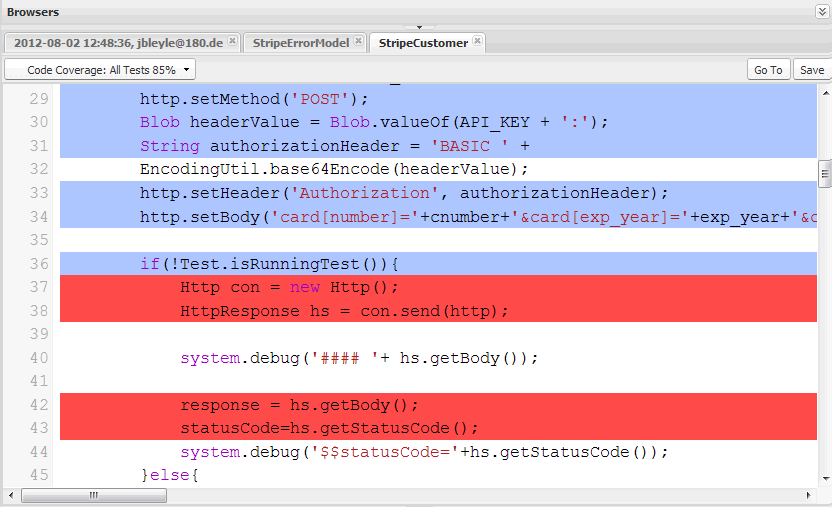
- To view line-by-line code coverage for an Apex class, open the class. The Code
Coverage menu will include one or more of the following options depending on the
tests you have implemented:
- None
- All Tests: The percentage of code coverage from all test runs.
- className.methodName: The percentage of code coverage from a method executed during a test run.
Lines of code that are covered by tests are blue. Lines of code that aren’t covered are red. Lines of code that don’t require coverage (for example, curly brackets, comments, and
System.debugcalls) are left white.