
You are here:
Source Code Editor
The Developer Console includes a Source Code Editor with a collection of features for editing Apex and Visualforce code.
All code files, including Apex classes and triggers, and Visualforce pages and components, open in the Source Code Editor in the Developer Console workspace.
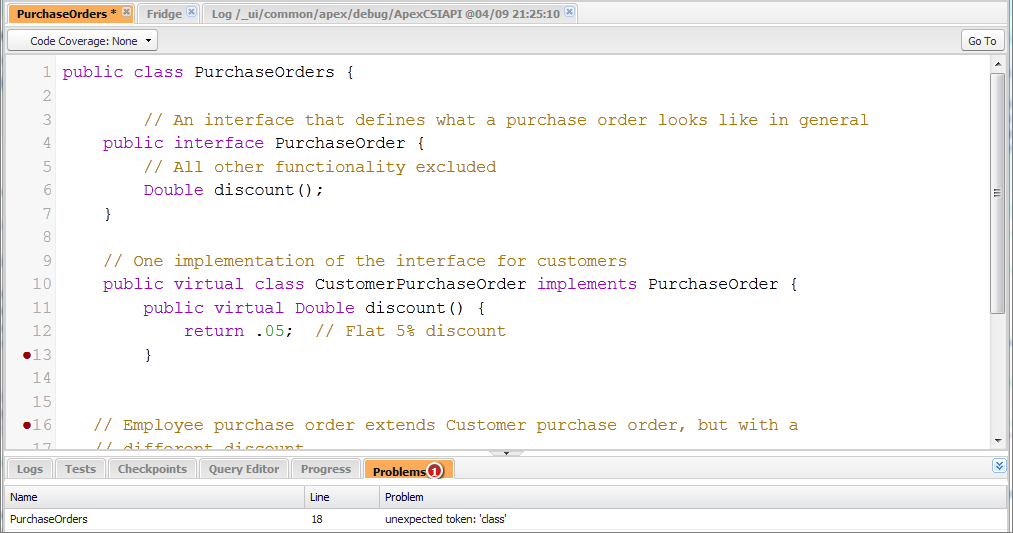
The syntax highlighting in the Source Code Editor calls out comments, numbers, strings, reserved keywords, primitive data types, variable declarations, and references. To access code search, press CTRL+F.
After you implement testing, you can view line-by-line code coverage in the Source Code Editor. The Source Code Editor also lets you set checkpoints to troubleshoot without updating your code.
To toggle between the Source Code Editor and a full screen editor (if available), press F11.
Setting Source Code Editor Preferences
You can choose the font size and display theme for the Source Code Editor. Click to access the Preferences dialog.
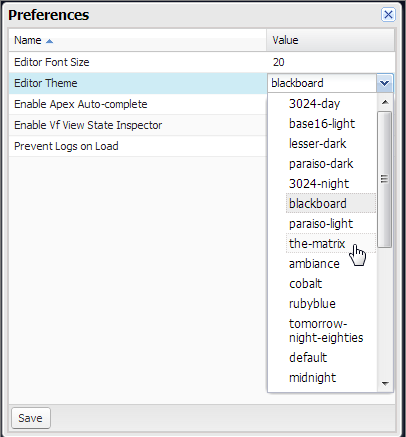
Select an Editor Theme to preview it.
The Preferences window includes additional configuration options based on your permissions and implementation. These include enabling code completion and Logs Tab.
Click Save to update your settings and close the window.
Using Search and Replace
Use the following keyboard shortcuts to search and replace text within the current view. To search files that are not open in the current view, click or press CTRL+SHIFT+H.
Function Shortcut Notes Search CTRL+F Opens an active search form. Replace CTRL+SHIFT+F Opens a dialog that prompts you for the search term and then the replacement term, then lets you confirm or reject each change. Replace all CTRL+SHIFT+R Opens a dialog that prompts you for the search term and then the replacement term, then lets you confirm or reject the universal change.
Using Code Completion
The Source Code Editor provides auto-complete suggestions while you are writing code.
In Visualforce pages and components, auto-complete appears automatically as you type.
Validating Changes in Source Code: Problems Tab
Changes you make in the Source Code Editor are compiled and validated in the background.
While you’re editing code, an error indicator appears on lines with errors, and the
Problems tab in the lower panel shows the details of compilation
errors. To collapse the Problems tab, use the  button in the corner of the panel.
When source views are validated, all modified sources are validated together instead of individually. Changes that might be inconsistent with code on the server, but are consistent when validated as a group—such as adding a method in one file and calling that method in another—will not be reported as errors.
Changing the API Version
Use the API Version list at the top of the Source Code Editor to change the version of the current entity. The list includes the five most recent API versions plus the current version of the entity.
Saving Changes
When you make changes in the Source Code Editor, the name of the tab includes a “*” to indicate unsaved changes. Apex classes and triggers are saved with the current API version of the class or trigger.
To save a collection of changes with dependencies, click or CTRL+S+SHIFT. All open tabs with modifications are saved together in one request.
When you save modified source views, they are validated against all saved source files. If source files have related changes, it is not possible to save the files individually. If there are any compilation errors, you will not be able to save. Review the Problems panel, correct any errors, and click Save again.

Staying in Sync with Code in the Cloud
The Developer Console tracks changes made to the source by other users while you have a file open. If you haven’t made any changes, your view will be updated automatically. If you’ve made modifications, you won’t be able to save them to the server. You’ll see an alert that another user has made changes, with the option to update the source view to the latest version.
