
Compact Layouts
A compact layout displays a record’s key fields at a glance in the Salesforce mobile app, Lightning Experience, and in the Outlook and Gmail integrations.
Required Editions
| Available in: Salesforce Classic and Lightning Experience |
| Available in: all editions except Database.com |
Creating and customizing compact layouts for objects isn't required, because system defaults are provided out of the box. However, we recommend using compact layouts to put important fields into object record headers—and elsewhere—to help your users get the information they need quickly.
In the Salesforce mobile app, the fields that you assign to a compact layout appear in:
- An object record’s highlights area (shows up to ten fields)
- Expanded lookup cards on a record’s related information page (shows the first four fields)
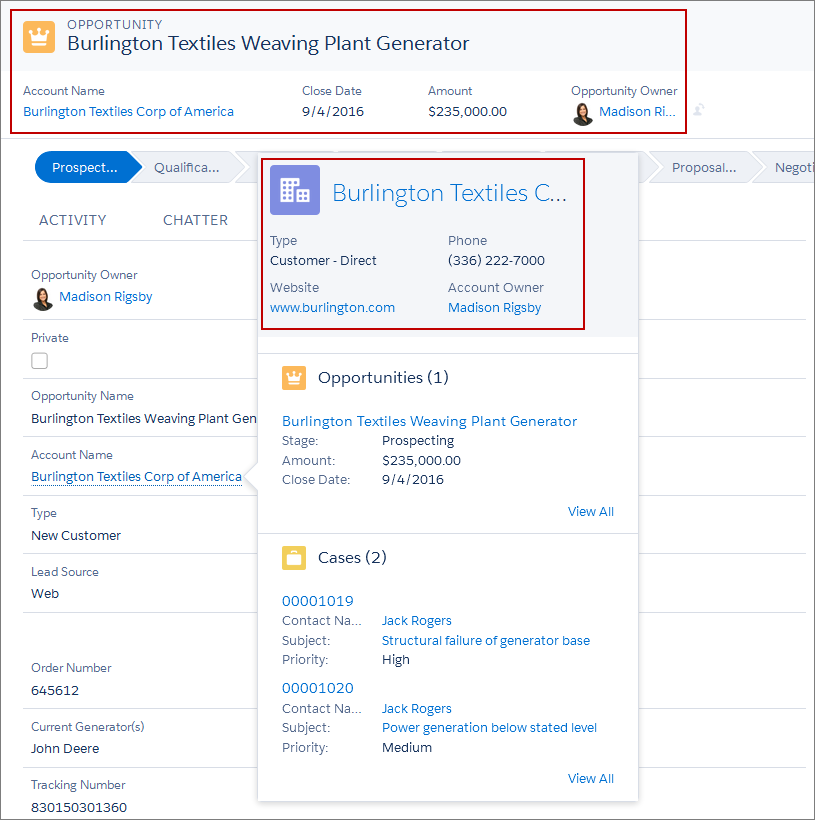
In Lightning Experience, up to the first seven fields in a compact layout appear in the highlights panel of an object record. (On smaller screens, the highlights panel displays fewer fields.) When a user hovers over a lookup relationship field on the object record page, a highlights panel for that field also displays the first seven fields from the compact layout. Highlights panels display the first field from the compact layout at the top in an accented font.
In the Outlook and Gmail integrations, up to the first three fields in a compact layout appear for records related to an email or event.
As with page layouts, there are separate compact layouts for each object. By default, each object derives its record highlight fields, preview cards, and action-related feed items from the predefined set of fields in the object’s read-only, system default compact layout. You can create custom compact layouts on an object-by-object basis. After you create one or more custom compact layouts, you set one as the primary compact layout for the object. The primary compact layout is then used as the new default for that object.
If you have record types associated with an object, you can override the object’s primary compact layout and assign different compact layouts to some or all the record types. Each record type can have only one compact layout assigned to it.
Event and task compact layouts determine the fields that appear in the details section when you expand an activity in the activity timeline in Lightning Experience. When you change the compact layout for tasks in the activity timeline, you also impact the fields that show up in the highlights area on tasks, in tasks lists, and everywhere else the compact layout is used.
- Create Compact Layouts
Use compact layouts to customize the fields that display for object records when viewed in the Salesforce mobile app and Lightning Experience. - Assign Compact Layouts to Record Types
As with page layouts, there are separate compact layouts for each object. By default, each object derives its record highlight fields, preview cards, and action-related feed items from the predefined set of fields in the object’s read-only, system default compact layout. You can create custom compact layouts on an object-by-object basis. After you create one or more custom compact layouts, you set one as the primary compact layout for the object. The primary compact layout is then used as the new default for that object. - Compact Layout Limitations and Considerations
Keep these limitations and considerations in mind when using compact layouts.
