
Add Conditional Formatting to Record Fields in Lightning App Builder
Give fields on Dynamic Forms-enabled pages custom icons and colors that can appear, disappear, and change color based on the rules you create.
Required Editions
| Lightning App Builder available in: Salesforce Classic (not available in all orgs) and Lightning Experience |
| Lightning pages and Dynamic Forms available in: Lightning Experience and the Salesforce mobile app |
Available in: Group Essentials, Professional, Enterprise, Performance, Unlimited, and Developer Editions |
| User Permissions Needed | |
|---|---|
| To create and save Lightning pages in the Lightning App Builder: | Customize Application |
Conditional formatting is made up of rulesets, which are collections of rules. Each rule is made up of sets of conditions. For example, if you have a picklist field on a record with five available values, you could create a ruleset that applies a star icon to the field. Then you can configure rules and conditions to apply a different color of the star icon for each of the five field values.
-
Open a Dynamic Forms-enabled object record page in one of these ways.
- From the Setup menu on a record page, select Edit Page.
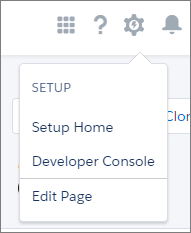
When you select Edit Page for the first time, Salesforce makes a copy of the standard page. You edit this copy in the Lightning App Builder. If a customized page exists and is active, selecting Edit Page opens that page to edit.
- From the Object Manager in Setup, open an object, then select Lightning Record Pages.
- Open a record page from the Lightning App Builder list page in Setup. To find it, in the Quick Find box, enter App Builder, and then select Lightning App Builder.
- From the Setup menu on a record page, select Edit Page.
- Click a record field on the Lightning App Builder canvas.
-
In the field's property pane, click in the Conditional Formatting field and either select
an existing ruleset or, to create a new one, select Create
Ruleset.
If you apply an existing ruleset, you can stop here. If you're creating a ruleset, continue with the steps.
- Give your ruleset a name, then click Next.
-
To create a rule, select the icon to show on the field, set its color, and configure the
conditions for the icon to appear.
You can add up to 10 conditions to a rule. If you don't specify any conditions, the rule always applies.
Conditional formatting is designed to amplify the information on the field that is already there. For best results and to ensure that the configuration is accessible, make sure the icon, icon color, and field value convey the same information, such as a green happy face on a field with a value of
Positive. - Click Next.
- Review the ruleset and the rules it contains.
- Optionally, edit existing rules or add new ones to the ruleset.
- When the ruleset contains the rules you want, click Save Ruleset.
- Save the page.
To remove formatting from a field, click the X in the Conditional Formatting property to remove the ruleset assignment.
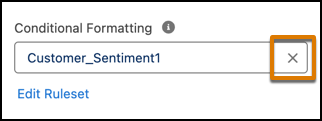
To see, edit, or delete rulesets that have been created for an object, use the Conditional Field Formatting node when viewing the object in Object Manager.
