Conditional Field Formatting in Lightning App Builder
Make a field stand out by adding special formatting based on rules and criteria you
provide, so that end users can quickly identify the most relevant information on a record page.
You can apply conditional formatting to almost any field on a Dynamic Forms-enabled page,
including the fields in the Dynamic Highlights Panel component.
Required Editions
Lightning App Builder available in: Salesforce Classic (not available in all orgs) and
Lightning Experience
Lightning pages and Dynamic Forms available in: Lightning Experience and the Salesforce
mobile app
Available in: GroupEssentials, Professional, Enterprise, Performance,
Unlimited, and Developer Editions
Conditional formatting uses rulesets, which are collections of rules. Each rule is made up of
conditions that determine how and when formatting appears on a field. The conditions can be based
on the field's value or on the values of other fields on the page.
In the Lightning App Builder, items that have conditional formatting applied are indicated with
an icon ().
To see, edit, or delete any rulesets that have been created for an object, use the Conditional
Field Formatting node when viewing the object in Object Manager.
Conditional formatting is designed to amplify the information on the field that is already
there. For best results and to ensure that the configuration is accessible, make sure the icon,
icon color, and field value convey the same information, such as a green happy face on a field
with a value of Positive.
To make conditional formatting accessible for all of your users, fields that use conditional
formatting should always have a field value visible.
Because it relies on Dynamic Forms, conditional field formatting can appear on mobile only when
Dynamic Forms is enabled for mobile. To make sure that your mobile users can see the conditional
formatting you've applied to record fields, turn on Dynamic Forms and Dynamic
Highlights Panel on Mobile from Setup | Salesforce Mobile App.
Supported Fields, Field Types, and Operators
On record pages, conditional formatting rules rely on the data captured in fields associated
with the page’s object. Not all fields, field types, and operators are supported.
These field types are supported:
String type fields: Autonumber, Currency, Email, Number, Percent, Phone, Text, Text Area,
URL
ID
Checkbox (boolean)
Geolocation
Picklist
Formula fields that resolve to one of these preceding types
Roll-up summary fields that resolve to one of these preceding types
These operators are supported.
CONTAINS
= and == (Equal)
<> or != (Not Equal)
> (Greater Than)
>= (Greater Than or Equal)
< (Less Than)
<= (Less Than or Equal)
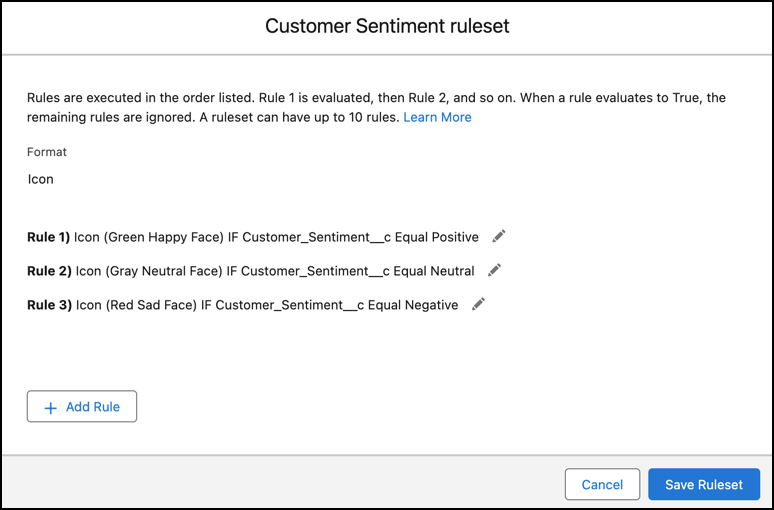
Example For example, you have a Customer Sentiment field on a page with available values of
Positive, Neutral, and Negative. You can add conditional formatting to the field with rules
configured to show a green happy-face icon when the field value is Positive, a grey neutral face when the value is Neutral, and a red sad-face icon when the value is Negative. That way, viewers can instantly see the sentiment based on the style and
color of the icon.
We use three kinds of cookies on our websites: required, functional, and advertising. You can choose whether functional and advertising cookies apply. Click on the different cookie categories to find out more about each category and to change the default settings.
Privacy Statement
Required Cookies
Always Active
Required cookies are necessary for basic website functionality. Some examples include: session cookies needed to transmit the website, authentication cookies, and security cookies.
Functional Cookies
Functional cookies enhance functions, performance, and services on the website. Some examples include: cookies used to analyze site traffic, cookies used for market research, and cookies used to display advertising that is not directed to a particular individual.
Advertising Cookies
Advertising cookies track activity across websites in order to understand a viewer’s interests, and direct them specific marketing. Some examples include: cookies used for remarketing, or interest-based advertising.